
If your computer is a Windows device, knowing your OS activation status is essential. Windows activation helps certify that the installed version of Windows is legal and secure. Most people ignore the status of Windows activation. Not knowing could cause your computer to develop limitations and errors, and have the risk of critical and severe security problems.
In this complete guide, we explain how to check if Windows system is activated, and why it is important. Should your Windows system not be activated, we include how to remedy the activation status.
Importance of the Windows Activation Check
Before we dive into how to check if Windows is activated, let’s explain how and why Windows activation status is important.
Windows Activation Comparison
| Feature | Activated Windows | Not Activated Windows |
| Security Updates | Enabled | Limited |
| Personalization | Enabled | Disabled |
| Watermark | No | Yes |
| Performance | Stable | Unstable |
| Legitimacy | Verified | Not Verified |
Windows Activation Means:
- Access to all features.
- Security updates.
- Personalization.
- No annoying activation alert.
Windows Deactivation Means:
- Watermark on display.
- Shortened features.
- Limited access to updates.
- High security risk.
Therefore, it is vital to understand how to verify Windows Activation.
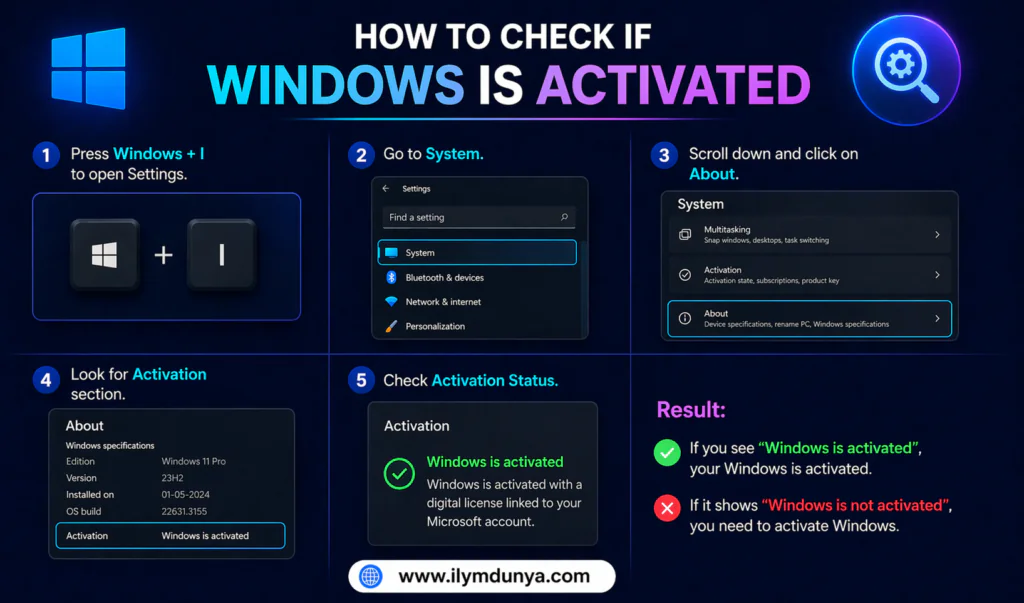
Method One: Verify Windows Activation Using Settings
This is the most frequent method of verification.
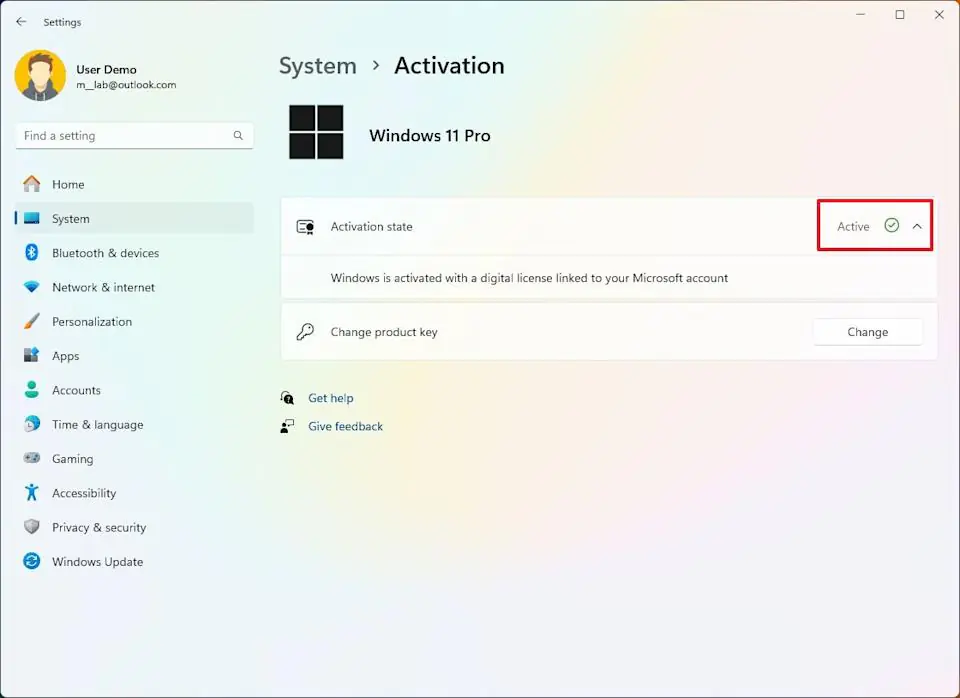
How To:
- Windows + I to access Settings.
- Select System.
- Choose Activation.
Expected Outcome:
- If activated: “Windows is activated”
- If not: “Windows is not activated”
Additionally, the following may also be visible:
- Activation method (digital license or product key)
- Status of linked Microsoft account
This method applies to Windows 10 and Windows 11 and is basically the fastest way to answer how to verify Windows Activation.
Method 2: Command Prompt (CMD)
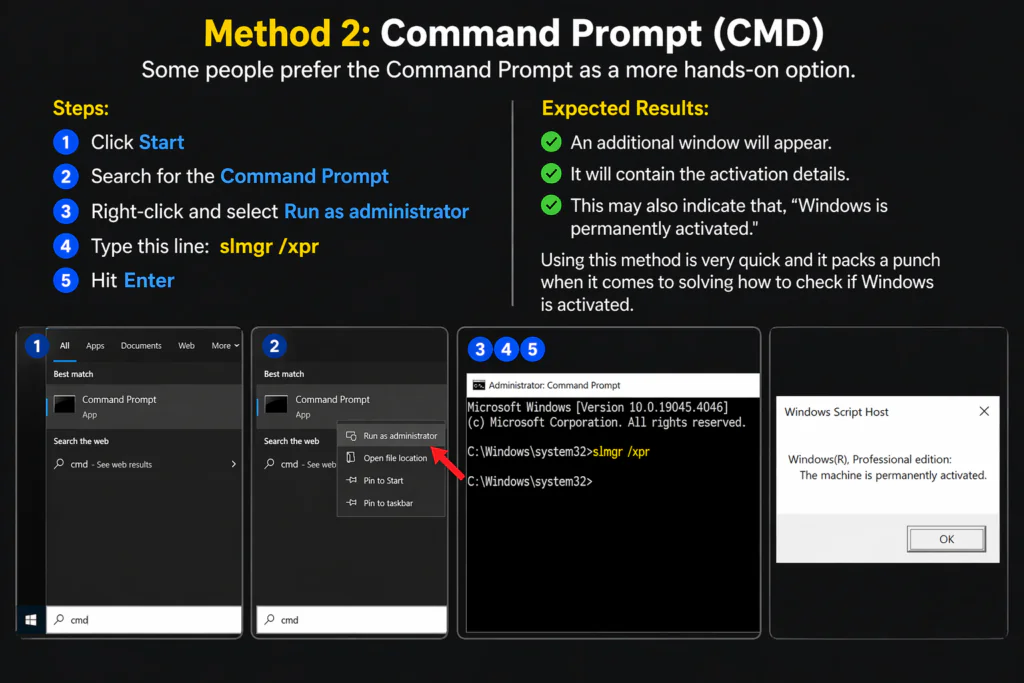
Some people prefer the Command Prompt as a more hands-on option.
Steps:
- Click Start
- Search for the Command Prompt
- Right-click and select Run as administrator
- Type this line:
slmgr /xpr- Hit Enter
Expected Results:
- An additional window will appear.
- It will contain the activation details.
- This may also indicate that, “Windows is permanently activated.”
Using this method is very quick and it packs a punch when it comes to solving how to check if Windows is activated.
Method 3: The Easy Way Out: The Run Command
Here’s yet another very simple one:
Steps:
- Hit Windows + R
- Input the following command:
slmgr.vbs /dlv- Hit Enter
Expected Results:
- An additional window will appear.
- It contains activation, license, and product key details.
Method 4: Check Activation Using System Properties
Steps:
- Right-click This PC
- Click Properties
- Scroll to the bottom
Expected Results:
- Here you will find the activation status of Windows
- It will also provide the status of whether it is activated or not
Method 5: Using PowerShell
Using PowerShell is yet another advanced method.
Steps:
- Search for PowerShell
- Run PowerShell as administrator
- Run the command below:
Get-WmiObject -query ‘select * from SoftwareLicensingService’
Result:
- Reveals details regarding system activation
- Technical details available
Exploring Activation Status Messages
When checking system activation status, you will see status messages. Here is their meaning:
Activation Status Meaning
| Status Message | Meaning | Action Needed |
| Windows is activated | The system is genuine | No action needed |
| Activated with digital license | Linked to Microsoft Account | Safe |
| Windows is not activated | The system lacks license | Activate immediately |
| Activation expired | License is expired | Renew required |
Knowing these messages, you can understand how to verify Windows activation.
Windows Not Activated? Here’s What You Should Do
Don’t stress if you put this into a search engine. You have a few different options.
1. Use a New Product Key
- Go to Settings → Activation
- Click “Change Product Key”
- Use a Real Key
2. Get a Real License
- Change the Keys this way
- Use the Microsoft Shop
- Don’t Trust the Honesty of the Keys
3. Use Activation Troubleshooter
- Built-in Troubleshooter
- Common Error Encoder
4. Reactivate Using Microsoft Account
- It might be automatic
Most Common Activation Errors
If you’re one of the unlucky Windows users to encounter an Activation Error, this is a list of the everyday ones you may experience.
- Error 0xC004F050 → Use a key you didn’t buy
- Error 0xC004C003 → No key server is acting silly
- Error 0x803F7001 → Use a key you didn’t buy
Fix Tips:
- Have faith in your network
- You might want to think of turning it off and on again
- Have faith in your troubleshooter
Conclusion
how to check the activation state of your Windows operating system because that is the simplest results of the Windows Activation Process that are the most important outcomes of Licensing Laws. And if you don’t, you better activate your Operating System license, because it’s a waste of a lot of money and a lot of trust from Microsoft.