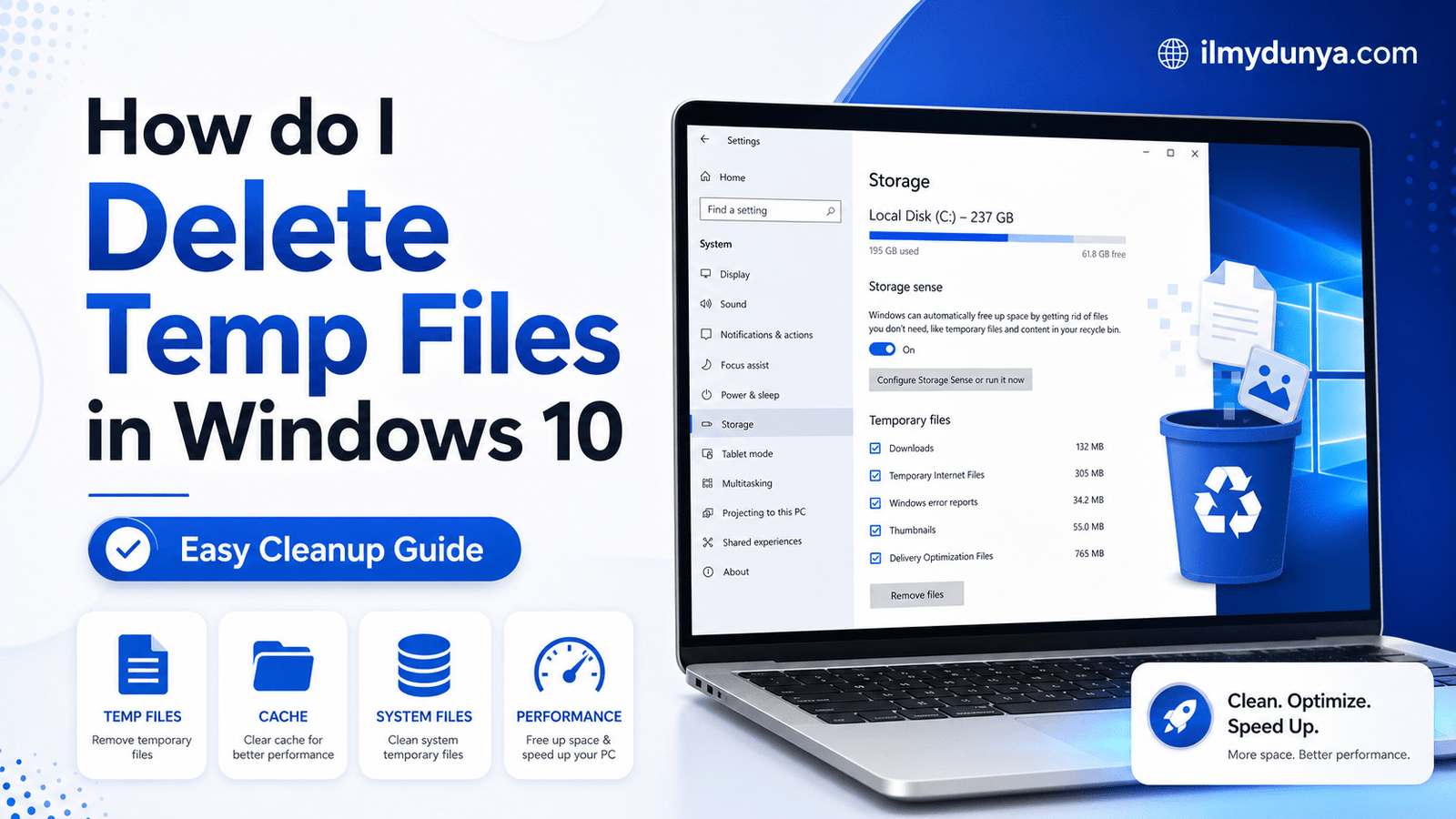

Has your computer been moving slower than normal or not running apps? Here is an answer to the question, how do I delete temp files in Windows 10? as this question is commonly searched by many Windows users. Temporary files can occupy a significant portion of your computer’s space.
Temporary files can also be known as temp files and are files stored by Windows and some of the installed programs. Special files are created by your computer’s installed programs, or they may be created aid speed up the running of applications on your computer, however, may be of no value to your computer after a period of time. All these may make your computer’s memory perception of the running slowly.
This is an easy problem to fix. Windows 10 is equipped with default programs, and with some other programs, this can aid the user in deleting temp files for Windows 10.
Here, we will seek to answer the question, how do I delete temp files in Windows 10?. We will seek the answer in Windows Tool, Disk Cleanup, in Windows, System and set the Storage settings, and by using the Windows Run command. We will also see what temp files are deleted and which steps will you check? Which option will you delete? Which option will you check long and hard before you hit the delete button?
What are Temp Files in Windows 10?
Temp files are temporary files that are created by your operating system or programs for temporary use. Windows 10 creates these files when it installs updates, runs apps, opens documents, and does some background tasks, and when you browse the internet.
When you install a program, Windows creates temporary setup files. If you browse the internet, your browser inevitably saves some temporary files called cache in order to optimize loading times for websites. Windows itself creates temporary files when it self-updates and to optimize the update process, it stores the old update files for cache.
While these temporary files are useful for the time being, they’re not useful forever. The problem begins when old temp files start accumulating on your system. This may take weeks, months, and sometimes years, to consume hundreds of megabytes or several gigabytes of your system storage.
Due to the issues old temp files may cause, users are often compelled to search for how do I delete temp files in windows 10, especially when systems start to slow down or storage becomes critically low.
Why Should You Delete Temp Files in Windows 10?
There are many reasons for why you may want to consider deleting your temp files in Windows 10. The most obvious is that it may free up extra storage on your device. For instance, if your C drive is nearing full, clearing your temp files can free up some storage on it.
Besides storage, deleting temp files improves the performance of your Device. Temp files themselves may not directly slow a device down, but if your drive is starting to near full, it can cause your device itself to struggle to operate. This may lead to your applications taking considerably longer to operate and system updates to be unable to complete.
Cleaning out your temp files can alleviate some of the system errors. When you’ve accumulated a number of temp files as the computer updates or even as you update your programs you may start experiencing error messages. When you delete temp files from your computer, it’s as if you allow Windows to create a clean workspace.
Cleaning your temp files can also help you create a level of protection for your privacy. When you cache your browsers, some of your temporary internet files, thumbnails, or other temporary documents, you may actually be storing some activity data. For the sake of system protection, you should clear temp files regularly.
Facesoft Best Temp File Remover: Safe to Delete Temp Files from Windows 10?
In most instances, when you ask the question above, the answer is a qualified yes. You have to remember that temp files are short-lived because even Windows still has the capability of creating them if need be.
You should be mindful when you are selecting which sections to delete, as the personally selected files contain documents, your images and videos, and even your programs files. Recycle Bin and Downloads usually contain personal files. Thumbnails, temp internet files, delivery optimization files may be deleted in the Safe Thumbs list. Prior for Windows installs, Recycle Bin and Downloads files also should be be observed.
In most instances, when you ask the question, how do i delete temp files in windows 10, the answer is more than just deleting them. Deleting temp files may only be effectively done to a reasonable level using safe tools.
Method 1: Delete Temp Files from Windows 10 using Settings.
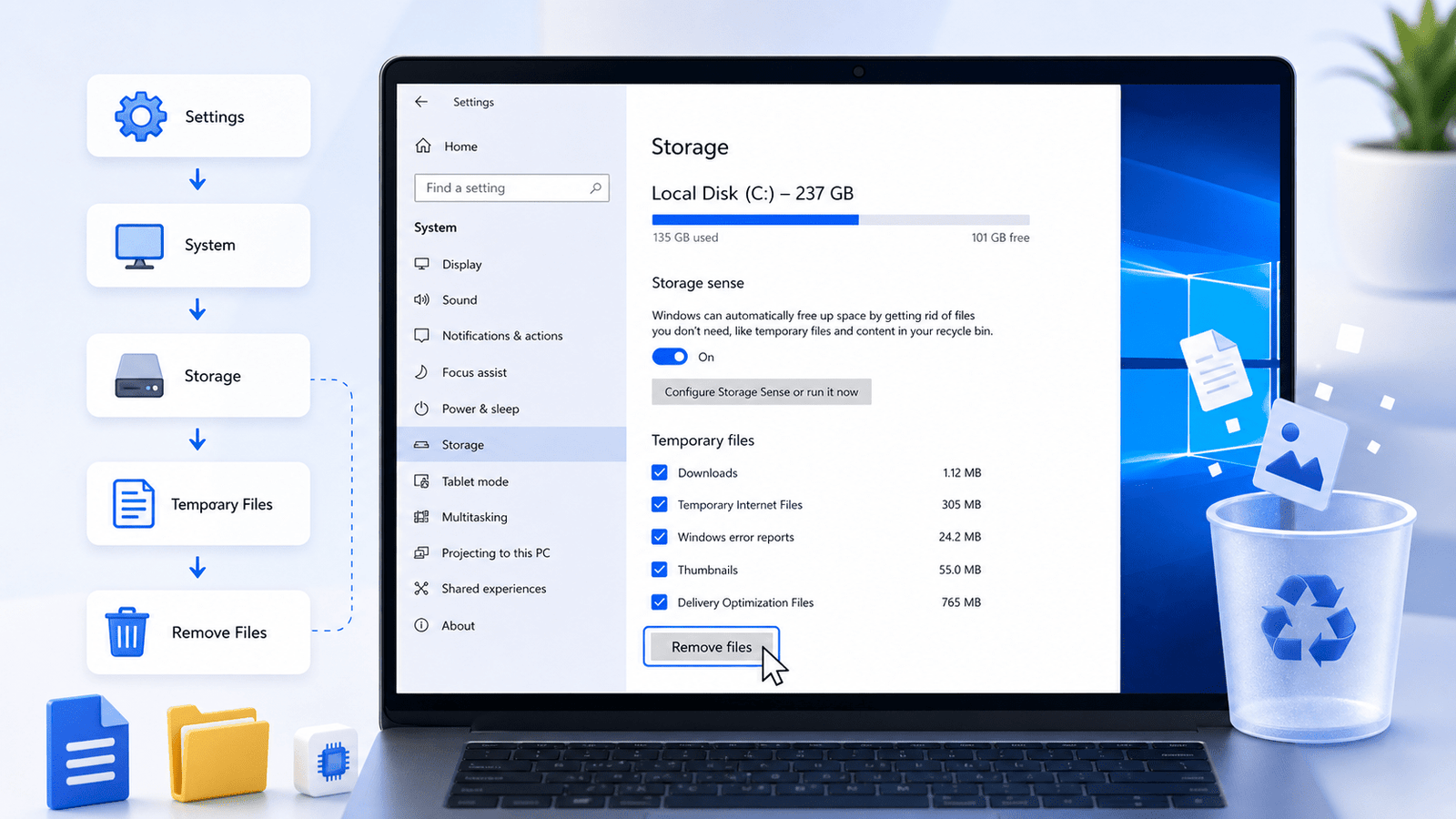
If you want to delete temp files from Windows 10, the fastest method is to use the app in Settings. The method is the least complex.
Follow these steps:
- Click the Start button.
- Open Settings.
- Click System.
- Select Storage from the list on the left.
- Click on Temporary Files.
- Wait while Windows scans your system for temporary files.
- Choose the type of temporary files you want to get rid of.
- Click on Remove Files.
Windows will delete the temporary files selected from your computer. Depending on the number of files on your system, it may take a few seconds to several minutes.
When you delete temporary files using this method, you want to make sure you check everything. If you see Downloads, don’t check this unless you want to delete everything you have in your Downloads folder. Most users will end up deleting important files this way if they check it without understanding.
This answer to the question how do i delete temp files in windows 10 is one of the most straightforward and lacks potential for errors for the overwhelming majority of users.
Method 2: Use Disk Cleanup to Remove Temp Files
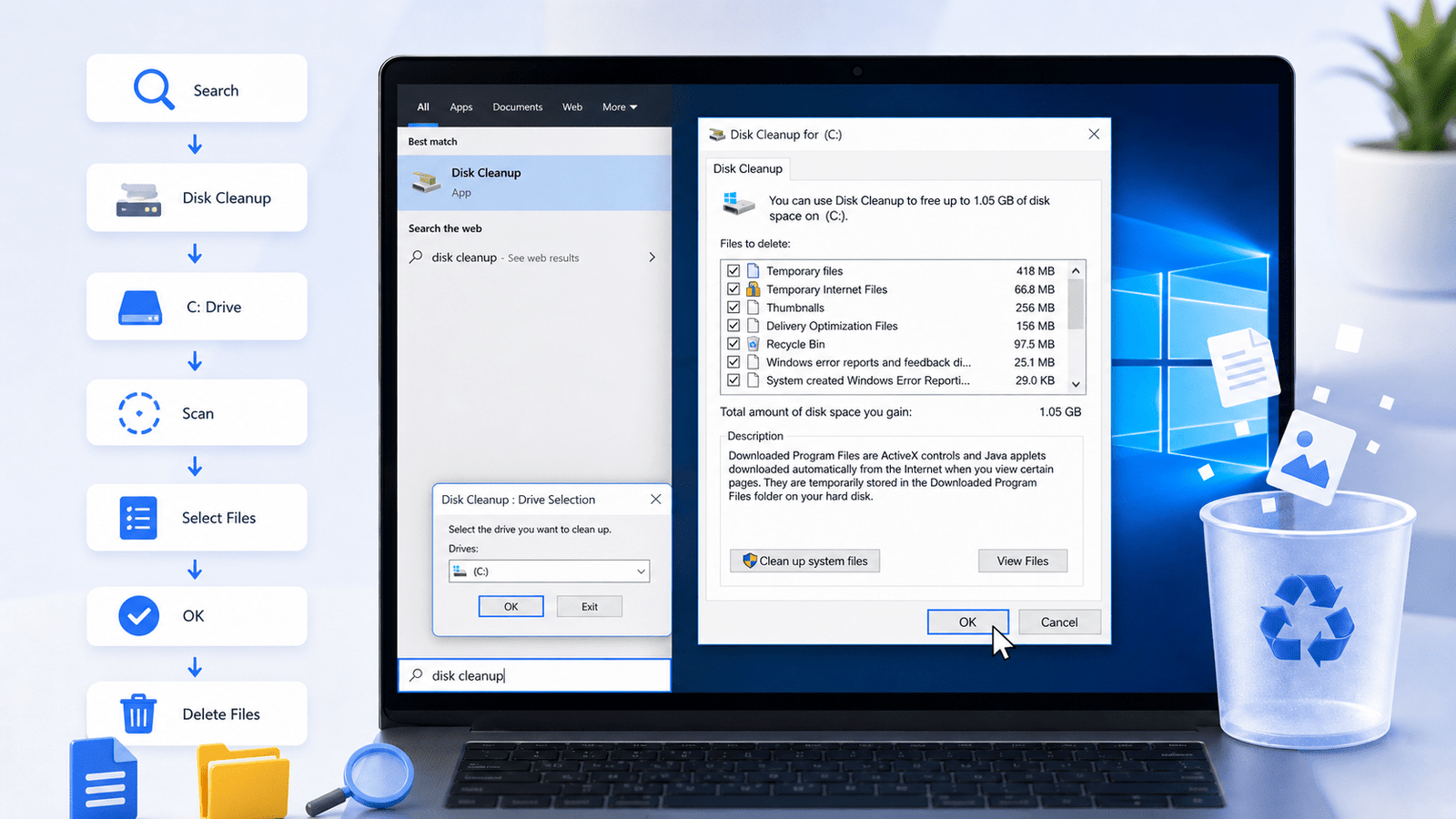
Disk Cleanup is a tool that Windows includes built-in and can remove unwanted files for you. Windows comes with Disk Cleanup for many, many releases, and is useful for Windows 10 too.
Follow these steps:
- Click the search box on the taskbar.
- Type Disk Cleanup.
- Open the Disk Cleanup App.
- Choose the drive you want to cleanup. It is most likely the C: drive.
- Click OK.
- Wait while Windows calculates how much space can be freed up.
- Select the file types you would like to remove.
- Click OK.
- Click Delete Files, to confirm.
You may also select Clean up system files in Disk Cleanup. It looks for extra system files, and may even remove the system files created during a Windows update. This may even free up more space than the normal scan.
If you want the simplest and more traditional way to remove temp files on Windows 10, Disk Cleanup is a great choice. It is also helpful whenever your PC has old update files, system error files, or other unnecessary files from Windows.
If you’re wondering how do I remove temp files in Windows 10 without doing a software download, then Disk Cleanup is a great choice.
Method 3: Use the Run Command to Delete Temp Files
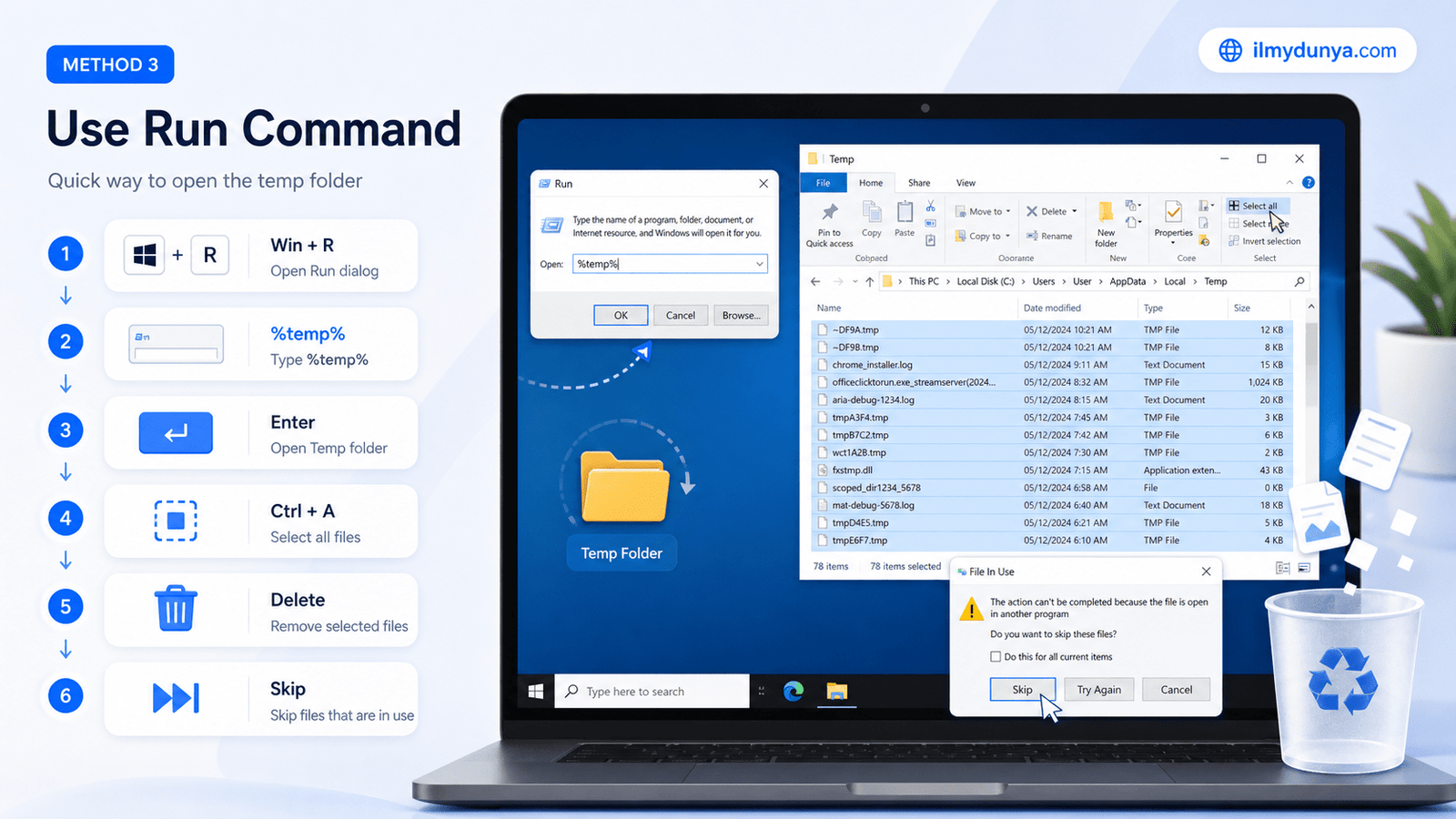
Another way to easily delete temp files is through the Run command. This method takes you directly to the location of temp files.
Here’s how to do it:
- Simultaneously press Windows + R.
- Type in %temp%.
- Hit Enter.
- This will bring you to a directory that contains your temp files.
- Press Ctrl + A to select all of the files.
- Hit Delete.
- If Windows tells you that some temp files are in use, then select Skip.
By doing this you will delete all of the user temp files. Some files may remain as they are currently being used, and it is normal. If some of these files are being used by Windows or by an app, then you don’t need to delete them either.
Opening another temp directory by using the Run Command and using the command temp, and hitting Enter will also work. Windows may ask for administrator permission, then again, only delete what Windows allows. Skip all of the in-use files that remain.
The Run command method is quick, but I advise new users against it. Most users will find the settings method easier and safer.
Method 4: Use Storage Sense to Delete Temp Files Automatically
Storage Sense is a built-in feature of Windows 10 that frees up space by deleting temporary files, emptying the recycle bin after a designated time, and removing unnecessary files.
Enable Storage Sense by:
- Opening the Start menu.
- Selecting the settings icon.
- Navigating to the System menu.
- Selecting the Storage menu.
- Enabling Storage Sense.
- Selecting the “Configure Storage Sense or run it now”
- Setting up Storage Sense cleanup.
Setting up Storage Sense cleanup means users can have Windows 10 delete files daily, weekly, or monthly. Adjusting these settings means users will no longer be burdened with manually deleting temporary files from their computer.
Automated file management is a great contribution to Windows 10 from the developers.
When the main issue is “how do I delete temp files in Windows 10 automatically”, without a doubt, the best solution is to use Storage Sense.
Method 5: Clear Your Browsers Cache and Temp Internet Files
The Windows 10 operating system isn’t the only culprit in the temporary file creation problem. The actual web browser you use to access the internet also creates temporary files in the form of a cache, cookies, and various temp internet files. While these files help to expedite the loading of the various sites you visit, they can be a burden and create a storage problem on your system in the long run.
- If you use Chrome, Edge, Firefox, etc., then you should clear browser cache occasionally.
- Steps may differ, but here are the general steps to clear browser cache.
- First of all, open your browser.
- Then open Settings.
- There you will find Privacy and Security.
- From there there should be a button to Clear Browsing Data.
- You will find Cached Images and Files.
- Then press Clear Data.
There are certain things you don’t have to check, like passwords, and browsing history, unless you want to. Most of the time, clearing cached images and files is enough to free up space if that is your intent.
If you are a frequent internet user, then your browser cache is definitely going to be large, and that is why it is advised to delete browser temporary files, along with windows temporary files.
Which Temp Files Should You Delete?
When you try to clean up your Windows 10, you will be presented with a lot of files and file categories. They are not all harmful, but some do require your attention.
You can delete these files without worry:
- Temporary Files
- Temporary Internet Files
- Thumbnails
- Delivery Optimization Files
- DirectX Shader Cache
- Windows Error Reports
- System Temporary files
You should not delete the following:
- Downloads: You may have some personal files here. Browse these files to ensure.
- Recycle Bin: Files here may still be recoverable, but once you empty it, you are not going to be able to recover those files in the future.
- Previous Windows Installation: Files from an earlier Windows version may still be here, and once you delete this, you are not going to be able to go back to your prior Windows version.
- Windows Update Cleanup: This will be safe to delete, but you will not be able to remove some more older Windows updates following this.
The best practice is to read each option before making selections – don’t just select everything. Only check the boxes you understand.
Can Deleted Temp Files Make Your PC Faster?
Temp files filling up space on your PC can hinder your PC experience. Windows 10 PCs can get sluggish if the system drive is nearing capacity. Some drive capacity is needed for system updates, virtual memory, data for apps, and data generated and/or processed by apps running background processes.
Not all sluggishness is a RAM issue. If your PC is slow due to an ancient hard disk, too many apps running on startup, malware, or obsolete drivers, deleting these files is unlikely to resolve your issue.
That being said, deleting temp files is a safe and simple first step to reclaiming your drive space and making Windows 10 behave in a more responsive and less cluttered manner.
How Often is Temp File Deletion Needed in Windows 10?
Temp files don’t need to be deleted every day. Once or twice a month is more than enough for your average PC user.
If you are on your PC as we are on ours, or if you’re more of a casual user, once a week may be more appropriate for you.
Storage sense is a safe option to allow Windows 10 to automate the cleanup.
A good routine is:
- Temporary file checks once a month
- Storage sense always on
- Browser cache clear including temp files on a slightly slower than normal browser.
- Review files in Downloads folder before deleting.
- Periodically use Disk Cleanup.
This will help you keep your Windows 10 computer clean.
Is It Necessary To Use 3rd Party Cleaning Software?
There is an abundance of Information about cleaning tools that are highly recommended. However, they are not a necessity. If you are mainly wanting to clean your computer of files that Windows considers temporary, you will not need highly recommend tools.
The Settings, Disk Cleanup, Storage Sense, and Run command, may remove all temporary files without causing damage to your computer. 3rd Party Cleaners will probably include extra features, but they may remove files that you wish to keep or alter your computer in a way that is not necessary.
For individuals who are inexperienced, please use the default Windows tools. They are the safest and most effective.
What Happens After Temporary Files Are Deleted?
Once the process of removing temp files is completed, restart your computer. Restarting Windows causes the operating system to reset and allows the computer to clear and refresh processes. Some files will no longer be locked and will be removed during the restart.
Then check your storage space once again. Here’s how:
- Settings; open.
- System; select.
- Storage; select.
- See how much open storage space you have.
If your drive is still full, look for large files, uninstall apps you no longer use, move videos or photos to another drive, and empty the Recycle Bin without checking it.
Deleting temp files is only a small aspect of managing your storage. Doing that in concurrence with a regular file organization will yield the most improved results.
Common Mistakes When Deleting Temp Files
When cleaning your computer, users often make the mistake of deleting their Downloads folder without realizing the problem. Doing this can erase files that you’ve saved personally.
Another bad practice includes the impulse to delete some files that are stored on the system folders. In this case, you shouldn’t proactively delete files stored in Windows folders. Doing that can trigger issues on the system.
Some users tackle the challenge of deleteprotect that Windows seems to have on certain files they’ve deemed as currently in use. Let it be. Windows requires that file.
Lastly, deleting temp folders is not the only thing you should be doing to speed your PC. Startup apps, malware, updates, and the performance of your hardware should also be considered.
Complete Guide To Deleting Temp Folder Files In Windows 10
Using Settings is a safe option. Go to Settings by following the path Settings > System > Storage > Temporary files. From there, choose the files you wish to delete, and finally confirm by tapping the Remove files button.
It’s generally acceptable to delete temp files as there isn’t much of a use for them post the original task.
In most cases a personal file should not be deleted. The exceptions are, when you delete your temp files you also check the exit option for your Recycle Bin, and Downloads. Make sure to check them.
Yes, that’s allowed. In circumstances where Windows deems certain temp files are in use you should not delete them.
Temp files can help speed up Windows 10 if there is a lack of storage. But, performance issues can be more complex and may not be solved by deleting temp files.
Beginners usually find Windows Settings the simplest. Disk Cleanup can be more effective. You can use Storage Sense for periodic cleanups.
Conclusion
The complete answer to How do I delete temp files in Windows 10 should be more clear now. Temp files should be deleted as they can consume storage space and slow down performance.
Windows 10 makes deleting temp files safe and simple. You can do Settings, Disk Cleanup, and Storage Sense cleanups, use the Run Command, and clear cached files from your browser. If you’re looking for the simplest, then Settings is the best. But for more automated cleanups, try Storage Sense.
Avoid cleaning Downloads, Previous Windows Installations and the Recycle Bin. There could be files you wish to keep in those locations. If you keep Storage Sense on and clean temp files frequently, your Windows 10 computer should be simple, clean, and organized.