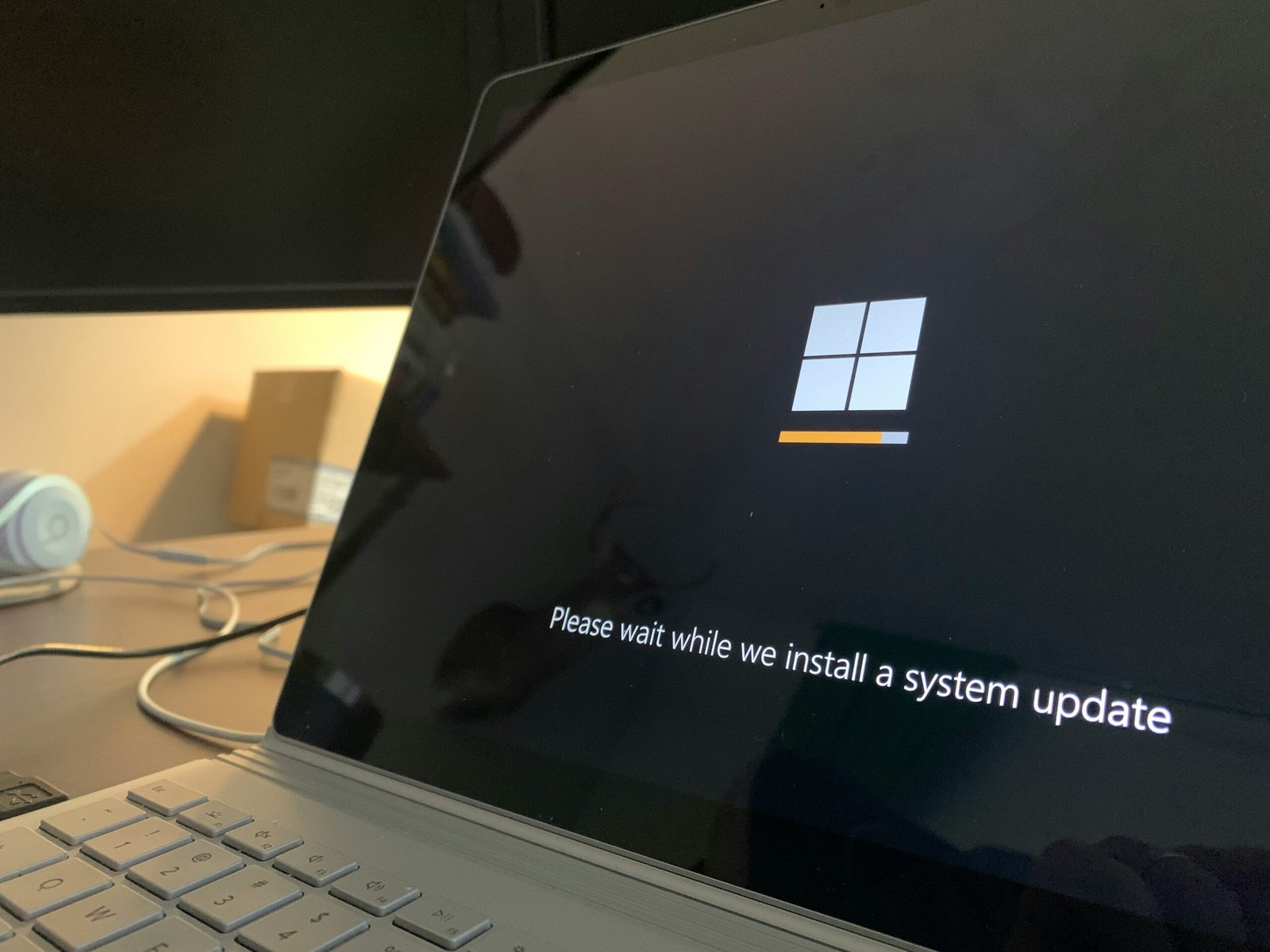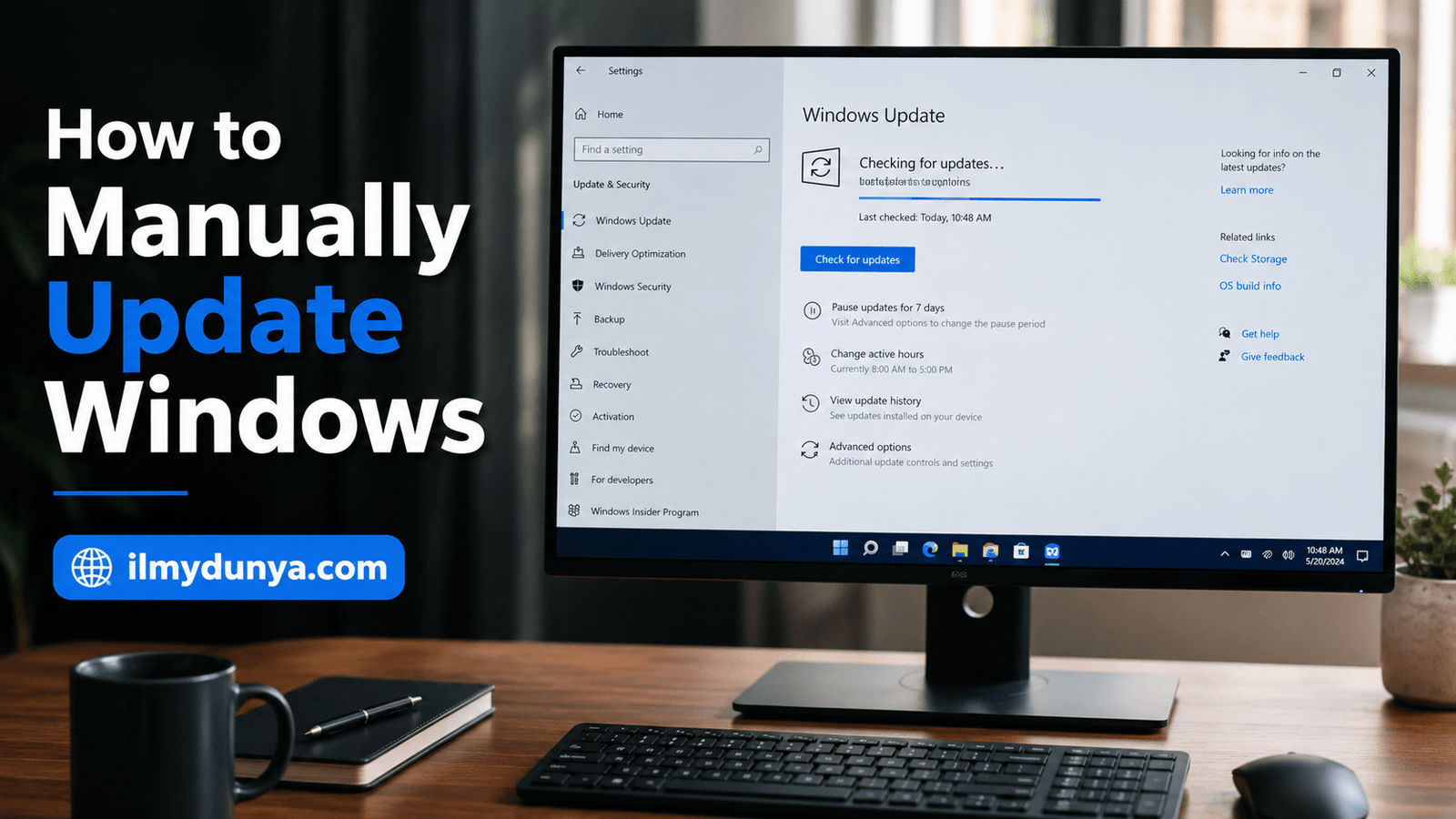

Windows is a widely used operating system across the globe. Microsoft Windows is integral to modern computer use, be it in the office or at home. If gaming, freelancing, doing online classes, designing, browsing, or doing any other daily task that requires a personal computer, is still fun with Windows, you should keep Windows updated. Computer updates improve security and stability, and increase efficiency. Windows updates also fix bugs, update driver software and even add new features.
Typically, Windows updates happen in the background. Sometimes, the functionality for automated updates is glitchy. Your computer may fail to show any updates, the updates may get stuck on in a loop, or error messages may keep popping up. In situations like this, knowing how to update Windows manually is helpful.
Updating Windows manually is checking and installing the updates on your own. The process is simple and can be completed by following the right steps. In this guide, we will tell you how to manually update Windows in a straightforward manner.
What Is a Manual Windows Update?
Choosing to manual update Windows means you bypass the automated functionality. You have to go to Windows Update settings and check for updates, and install them if they are available. You have more control over your system. You are not bound to the schedule of automatic updates.
If your computer is running slow, your Wi-Fi is not working properly, there are issues with sound, some software is prompting you to get the latest version of Windows, etc., you can manually check for updates. Most of the time, the issues can be resolved with a simple Windows update.
A manual update doesn’t mean you’re doing anything unsafe or against the rules. The process is safe and recommended if you use Windows Settings, Microsoft Update Catalog, or Microsoft’s official tools.
Why Is It Important to Update Windows?
There are many reasons why updates for Windows are important. A lot of people have the mindset that skipping an update is fine because updates are typically associated with new features. This mindset is incorrect.
The first major reason is security. Old systems are very susceptible to being hacked and virus attacks. Security updates are released by Microsoft to patch weak points of Windows. If your Windows is never updated, your system is much more susceptible to viruses, ransom attacks, and more.
The next reason is performance. Many updates improve system speed and stability. An update may help improve your PC when it is freezing and crashing to not function normally.
The third reason is bug fixing. For every operating system, there will always be bugs, and bugs are a common occurrence. Windows is always being improved by Microsoft, and they do a good job by identifying issues of the current Operating System and providing updates.
The fourth reason is hardware support. Updates can improve compatibility with all kinds of hardware, such as printers, graphics cards, Bluetooth devices, Wi-Fi adapters, etc.
The fifth reason is new features. Major Windows updates sometimes bring new tools and features to improve the design and overall experiences and functionalities.
It’s good to remember that updating Windows is a part of your computer’s health maintenance.
Here’s what you need to know before you update Windows manually.
You need to do a little prep work before installing the update. You’ll want to try to avoid the risk of losing data and avoid the error that makes you want to pull your hair out!
First, make sure the update won’t fail due to a poor internet connection. Windows updates can be big, and if your connection drops, so will your system’s ability to process the updates.
Also, make sure your system has a full battery. Unplug the charger and the update process could force your computer to shutdown and restart on you several times.
If your system is going to restart, make sure all the work you’ve done is saved or closed. Make sure to fully close all tools and add-ons.
The biggest thing to worry about is disk space. The update needs a bit of disk space to install so you’ll want to delete anything you no longer need and make sure the recycle bin is cleared.
And finally, make sure you backup anything you don’t want to lose. During the process, typically nothing you want will be deleted, but if you’re updating Windows, it’s just a good idea.
Those steps should prevent you from a ton of issues while updating.
Here’s how to manually update from the Windows settings.
This is a simple way to do a Windows update manually, and it should be the method of choice for most people.
A Simple Guide to Installing Windows Manually
- Open the Start Menu.
- Next, select settings.
- Select Windows Update.
- Finally, select Check for updates.
- Your system is finally ready to search for available updates.
- If you see an update, click Download & Install.
- Be patient as the update installs.
- If prompted, restart your computer.
After restarting, click Windows Update and then the Check for updates button. Some updates install in stages so you may be required to do this to see all the updates.
This is the method recommended for beginners as Windows makes sure the updates selected are compatible with your computer.
Method 2: Installing Optional Updates
Optional updates can be installed but are not required. They can be updates to your drivers, improvements to the operating system, etc.
You are not required to install these updates. If you are experiencing issues with your sound, Wi-Fi, Bluetooth, your printer, or your graphics card, then updating the drivers may help resolve the issues.
Steps for Installing Optional Updates
- Open Settings.
- Go to Windows Update.
- Click on Advanced Options.
- Click on Optional Updates.
- Check available updates.
- Select the update you want to install.
- Click Download & Install.
Optional updates are offered for a reason but are not always necessary. If your computer is functioning correctly, you are not required to install optional updates.
Method 3: Updating Windows Drivers Manually
A common reason for Windows to malfunction is a lack of communication caused by hardware. Drivers help Windows communicate with all of the hardware on your computer, including but not limited to: your sound card, your graphics card, your Wi-Fi adapter, your printer, your mouse, your keyboard, and your Bluetooth.
If you are experiencing issues with one of your peripherals, it is likely that the issue is a lack of a required driver for your hardware, in this case, updating the driver would help.
How to Use the Device Manager to Update Your Drivers
- Right-click on the Start Menu.
- Click on Device Manager.
- Click on the category of the device whose driver you want to update. Categories can include Display adapters, Network adapters, or Sound.
- Right-click on the device you want to update.
- Click on Update driver.
- Click Search automatically for drivers.
- Follow the onscreen prompts.
The driver update process will begin, and the driver will be installed. If a new driver is not found, you will have to go the official page of your laptop or that specific hardware manufacturer.
For instance, if you have Dell, HP, or Lenovo laptops, or if you have Intel, NVidia, or AMD hardware, then the only drivers you should download will be from the vendors’ official pages. You should avoid driver updater software because those can install malware.
How to Update Windows Manually Using the Microsoft Update Catalog
The Microsoft Update Catalog is an official Microsoft page where you can download specific Windows update files manually. This is the only method you can use if the Windows Update is not functioning, and you want specific Windows updates.
All Windows updates are identified by a specific KB number (KB followed by the number). If you have the KB number, you can search for this specific KB number in the Microsoft Update Catalog and download the update KB.
When Should Microsoft Update Catalog Be Used?
- When Windows Update is not functioning, and you want a specific Windows Update installed.
- When you want the same update file to be used on multiple computers.
- When you want a specific update that allows your systems to function without an internet connection.
- When you want a specific Windows Update installed, and you have the KB number.
Steps to Use Microsoft Update Catalog
- Get the update’s KB number.
- Go to Microsoft Update Catalog and enter the KB number into the search.
- Find the right update for your Windows version.
- Download the update.
- Open the update and run the installer.
- Restart the PC.
Choose the right update version based on your Windows edition and system. Most computers these days are 64-bit, but it’s always good to verify.
How to Check System Type
- Open Settings.
- Go to System.
- Click About.
- System type will say either 32-bit or 64-bit.
For 64-bit, get the 64-bit update. This method, while more complicated than normal, is useful when the Windows Update you are relying on fails.
Method 5: Manual Update Windows Using Installation Assistant
When a significant update is announced and your device has yet to receive the update, you may be able to get the update using the Windows Installation Assistant.
For instance, if your computer has the capability of running Windows 11, but you have not received the update, you may be able to get it using the Installation Assistant.
Steps to Use Windows Installation Assistant
- Go to Microsoft’s Windows Download Page.
- Download the Windows Installation Assistant.
- Open the tool and run as Admin.
- Allow the application to verify your system.
- Accept the agreement.
- Click the Install button.
- Let Windows update.
- Restart when prompted.
This process installs a big update to Windows and may take a while to complete. You must not turn off your computer. The multiple restarts are the new normal.
Method 6: Updating Windows with an ISO File
It’s possible to get the complete setup image for Windows and update your computer or manually fix your Windows installation with the Windows ISO file. You can also use this method if there are problems with Windows Update or you are looking to reinstall Windows without the hassle of deleting your files.
This does require some technical know-how, but it will help you fix a lot of problems with your system.
Updating Windows with ISO the Easy Way
- Download the Windows ISO from the official Microsoft page.
- Find the ISO file.
- Click it with the right mouse button.
- Pick Mount.
- Open the newly created drive.
- Click on the file named setup.exe.
- This time choose the option for keeping your personal files and apps.
Be sure to take a break when the computer restarts.
How to Check Your Current Version of Windows
Knowing your current version of Windows can tell you if it is up to date or if you need to update to the latest version.
The Easy Way
- Press Windows key + R.
- Type in the box winver.
- Click Enter.
A small pop-up will tell you the version and the build number of your Windows installation.
Another Easy Way
- Open Settings.
- Click on System.
- Then click on About.
- Then find the Windows specs section.
- Here’s how to find your Windows’ edition, version, and build number.
Problems with Windows Update
The most common issue with Windows Update is getting stuck — it can get stuck at 0%, 30%, 60%, or 100%. This can happen for a number of reasons. Below are ideas on how to solve the problem.
Be Patient
The first thing you should try is giving the computer some time to finish the update. Larger updates and older computers can contribute to updates that take substantial time to finish. This can be a pain, but generally, time is the best resolution.
Restart Your Computer
Continually checking to see if your computer has finished updating is a huge waste of time. Restart the computer and try checking for updates again.
Check Your Internet
Weak or spotty connections can cause updates to hang or fail. If you can, check your connection and switch to a strong wired or WiFi network.
Make Space on Your Hard Drive
Windows might not update because space is low on your hard drive. Cleanup files or use Disk Cleanup to restore space.
Run the Update Troubleshooter
To run the Windows Update Troubleshooting tool, go to:
Settings > System > Troubleshoot > Other troubleshooters
then select Windows Update troubleshooter.
Remove all USB Devices
To minimize potential issues with updates and peripherals, remove all USB drives, external hard drives, printers, and all other devices.
Common Windows Update Problems
Most Windows update errors are simple to fix.
Not Enough Storage
If Windows tells you it The error message can also say that Windows has determined a certain update cannot be done because of not enough space, you should free up your primary (C:) drive. Temporary files can be removed, unused apps should be uninstalled, and large files should uploaded to a storage device.
Update Failed to Download
Most of the time this means there is an issue with your internet connection. Restart your router and try again.
Update Failed to Install
If your computer tries to install an update but fails, try restarting the computer and trying again. You should also check to make sure you have enough storage and that nothing external is interfering.
Update Not Applicable
This means the downloaded update is not meant for your version of Windows. You should find and download the proper update file.
Computer Is Slow After Update
Your computer may run slow after installing an update because Windows is still working to change and update files on your computer. If you restart and wait for some time your computer should begin to run better. You may also want to check if there are any new updates Microsoft has released.
Should You Install Every Windows Update?
Security updates should always be installed and ensure that your computer is protected from outside threats. Quality updates also should be installed consistently to fix bugs and increase stability.
Preview updates do not need to be installed if your computer is running with no issues. If everything is running fine, it is not necessary to have your computer installed with preview updates.
Overall, the best advice for standard computer usage is to get important updates, security updates, and driver updates every so often.
How Often Should You Manually Check for Windows Updates?
Updates do not need to be checked everyday. Once a week or twice a month is plenty. Windows checks automatically for updates but manually checking is a good way to ensure your computer is running with the most up to date system.
You should manually check for updates after:
- Installing Windows
- Buying a new laptop
- Reinstalling Windows
- Experiencing issues with drivers
- Experiencing problems with your system
It is also wise to check for updates after your PC has been powered off for multiple days, before starting anything important.
Manual Windows Update Precautions
- Use only authentic Microsoft apps to update your Windows.
- Do not download updates from an unknown website.
- Charge your laptop.
- Use a good internet connection.
- Do not turn off your computer while updates are installing.
- Maintain sufficient space on your C drive.
- Important files should be backed up prior to updates.
- Your system needs to be restarted after updates are installed.
- You should check updates post restart.
- If your system is operating without issues, do not perform optional updates.
Implementing these safety measures will ensure your updates are installed as quickly as possible.
Beginner’s Best Way
For beginners, the best and easiest way is to update Windows via the Settings app.
Go to:
Settings > Windows Update > Check for updates
This method will suffice for the average user, as Windows does the work for you, and finds all necessary updates. Manually searching for updates should only be the last resort for Windows users if the Windows update app is not functioning.
If the update app is not functioning, then there are various methods such as: the troubleshooter, Microsoft Update Catalog, Installation Assistant, or the ISO method.
Conclusion
All computer users need to know how to manually update Windows. Windows updates are good for your computer for many reasons. They fix any security issues, help the computer run smoother, and even help the computer do better at new tasks. If automatic updates are not working, you can always do it yourself from Windows Settings.
For people new to Windows, the simplest way is to head to Windows Update settings and hit Check for updates. Device driver updates can be found in Optional Updates and Device Manager. As for the updates themselves, you can go to the Microsoft Update Catalog page. Sometimes users find a major update to be a bigger pain than it should be, in which case the Windows Installation Assistant or the ISO file can go a long way.
Manual Updates on Windows sound difficult, but it is simply a few steps. Be sure to put any important files on a different device and restart your computer to apply the changes. After all the updates you do, you should find that your computer is more secure, faster, and error free.