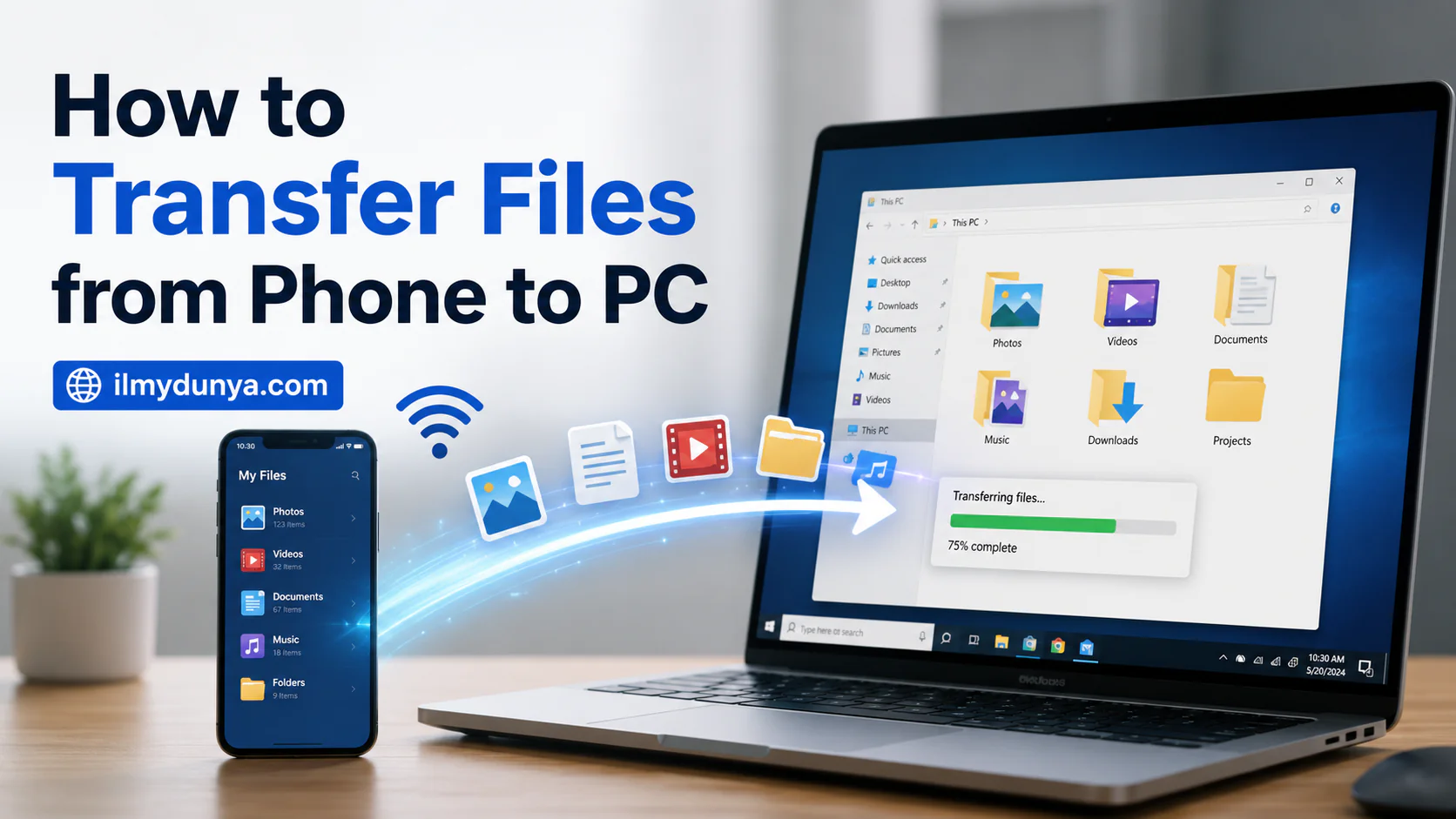

Smartphones are great for storing documents, photos, videos, and other data. Still, sometimes we need access to those files on a larger screen. Students need to send assignments to their laptops. Employees need to move work documents. Video editors need to pull videos from their phones to computers for editing.
Fortunately, there are several options for transferring files from your smartphone to a PC. This can all be done using a USB cord, Bluetooth, Wi-Fi, a cloud app, email, Quick Share, Phone Link, or a memory card.
This guide by ilmydunya.com introduces a number of simple methods for transferring files from your smartphone to a PC. Discover which methods work best for you based on the models of your smartphone and PC.
Reasons for Wanting to Transfer Files from Your Smartphone to Your PC
Smartphones can do the majority of things a PC can do. They can take pictures, record lectures, download videos and other study materials, scan documents, take notes, and save items from social media. The list is endless.
Smartphones do have their limitations. Small screens, limited storage, and editing large files are a challenge.
Moving files from your phone to your computer has many benefits:
- Create a back up for precious memories
- Free up space on your device
- Edit documents or videos with more control
- Turn in assignments for school
- Print and physically organize documents
- Put files in their designated storage locations
- Save files from your device before a factory reset
- Save files from your device before a factory reset
- Upload files to web based applications
- Decrease the risk of losing important files
No one method for transferring files has proven to satisfy all users. The ideal method depends on your specific hardware, the size of your files, your internet connection, etc.
Let’s look at the more straightforward methods, one at a time.
The Easiest Way to Transfer Files to a Computer – USB
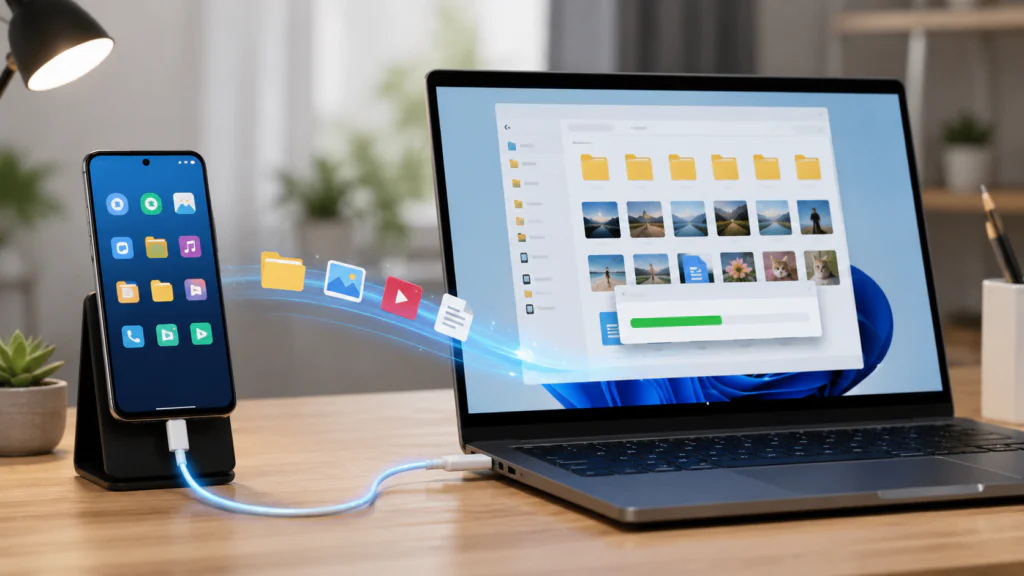
Fast, secure, and requiring no internet connection, using a USB cable is one of the most common methods to transfer files from phone to computer.
If transferring a large video, hundreds of photos, or an entire folder is your aim, this method is perfect.
The following method describes how to transfer files from your Android device to a Windows PC.
- First, connect your Android device to your Windows PC with a USB data transfer cable.
- Once physically connected, unlock your Android device. You will see a notification pop up with multiple options. Among these options will be Charging, File Transfer, Photo Transfer, and MIDI. Choose the notification and select, File Transfer, Transfer Files, or MTP.
- Once this is complete, open File Explorer to your Windows PC. From the menu, choose This PC. Your Android device will appear in the list of connected devices.
- Open your phone’s settings to access either the internal storage or the SD card. You will then have access to different folders where files can be copied.
The camera’s pictures and videos will be stored in the following path:
Internal Storage > DCIM > Camera
Files downloaded from the internet can be found in:
Internal Storage > Download
Highlight any selected files, then right-click and select copy. Files can then be pasted into any folder on the computer.
How to Transfer Photos from iPhone to Windows PC Using USB
- Use a compatible cable to connect your iPhone to the computer.
- To unlock your iPhone, select the trust button, or enter your passcode if required, to trust the computer.
- To transfer photos, open the Photos App on Windows and select your connected iPhone under the import settings.
- Windows will display your available photos and videos. Select the items you want and the destination will be set your chosen folder.
- Using File Explorer, you can also access your iPhone‘s DCIM folder. However, this method normally provides access only to camera photos and videos.
Why Is USB a Good Option?
Unlike Wi-Fi and mobile data, a USB cable is a great option for file transfers, due to its fast transfer speeds.
Compared to a Bluetooth transfer and email, USB transfers are more efficient for large files.
The USB must be a data transfer cable. Many cheap cables are for charging only.
2. Transfer Files from Phone to PC Using Bluetooth
If you don’t have a USB cable on hand, Bluetooth can be a good alternative.
Most Android devices and modern laptops come with Bluetooth. Some desktop computers may need a separate adapter to use Bluetooth.
Bluetooth is best for sending smaller files, such as documents, audio recordings, and a few pictures. Transferring larger videos and larger collections of pictures may take too long with Bluetooth.
How to Transfer Files Using Bluetooth
- Make sure to turn on Bluetooth on your mobile and your PC.
In Windows, make your way through the menus to
Settings > Bluetooth & Devices
- Then, select the option to Add a Device, choose Bluetooth, and when your mobile appears, select it.
- If a code has appeared, make sure they are the same to complete the pairing.
- Now, search for the option to Send or Receive Files via Bluetooth on your PC, and select Receive Files.
- On your mobile, find the file you wish to send, select the option to share, choose Bluetooth, and select your PC.
- On the PC, accept the file transfer and select the destination folder.
Though Bluetooth does not use the internet, make sure the two devices do not move too far as they will be transferring the file.
3. Transfer Files Wirelessly Using Quick Share
For Android users, a cable does not have to be used to send files to a Windows PC with Quick Share, which is a convenient option.
Bluetooth is used to search for devices, and Wi-Fi is used to transfer files.
Quick Share supports the transfer of photos, videos, documents, and other supported files.
Using Quick Share
- Quick Share needs to be installed on your Windows PC.
- Bluetooth and Wi-Fi will need to be enabled on your phone and PC. Open Quick Share on the PC and set the visibility so your Phone can discover Quick Share.
- Select the file you want to send on your Android phone, then select Share and Quick Share.
- Your PC should show in the nearby devices list. Select it and accept the transfer request on your PC.
- The file will typically be transferred to the PC’s Downloads folder.
Quick Share is faster than Bluetooth file sharing, and works well when you want to wirelessly transfer files without having to upload the files to the internet.
Using Windows Phone Link
Windows Phone Link is useful for employees who need to do work on a PC, and want to pair their Android phone with Windows.
Depending on your phone model, Phone Link may allow you to view your latest photos, notifications, send text messages, and make calls, as well as access your Apps.
Setting up Phone Link
- Open the Phone Link app on your Windows PC.
- Select Android and enter your Microsoft account if prompted.
- On your phone, open or install the Link to Windows app. Follow the on-screen steps on both devices.
- You may need to scan a QR code and allow access to photos, notifications, calls, and messages.
- Once you’ve configured the app, go to the Photos section in Phone Link. You can see the latest photos and download certain images on your PC.
While not ideal for transferring large data folders, Phone Link is great for photos and the most seamless option for daily mobile-to-PC synchronization.
Transferring Files via Google Drive
Google Drive is possibly the simplest app to use for transferring files between a mobile device and PC without a direct connection.
Google Drive caters to both Android and iPhone users.
From your device, you can send all types of files from images to spreadsheets and access them via PC.
Transferring Files via Google Drive
- Open the Google Drive app on your mobile device and log in.
- Tap the Plus Icon > Upload. Tap to select files and wait for the files to upload.
- Open Google Drive on your PC via your preferred web browser and log in with the same credentials.
- Locate the file, right-click, and select Download.
- The file will now be on your PC.
This is a great option to for students to send school assignments from different devices, and provides a backup for files.
You will experience a wait time for large files to upload, especially if your connection is slow.
Using Microsoft OneDrive
OneDrive has a similar interface to Google Drive and is especially user friendly for those who utilize the Windows operating system.
Signing in to your Microsoft Account allows you to upload files from your mobile device to OneDrive, where they will be directly accessible from your PC.
You can also configure OneDrive to automatically upload the photos stored on your mobile device. With this, you will also have access to all the photos on your device from your PC.
OneDrive is a great option for those who use Microsoft Word, PowerPoint, or Excel, as well as those who use Windows on a regular basis.
7. Uploading Files from iPhone to PC Using iCloud
If you use an iPhone, iCloud is one of the easiest methods to upload files, photos, and other data to a PC.
You can enable iCloud Photos on your iPhone to have your pictures uploaded automatically.
- Go to your iPhone settings, tap your Apple Account, select iCloud, and enable your desired syncing options.
- On your Windows PC, either download iCloud for Windows or access it via a browser that supports it.
- Sign in to your Apple Account, and access either iCloud Photos or iCloud Drive to download files.
Ensure that you have a stable internet connection, and sufficient iCloud storage.
8. Sending Files to Yourself Through Email
Email is another very easy option to transfer files that is familiar to most people.
It is also a very effective method for transferring small files, including:
- Word Documents
- PDFs
- Scanned files
- Photos
- Audio files
- Open the email application on your mobile device, and create a new email.
- Enter your email in the address field, and then select the file you want to transfer by tapping the attachment icon.
- Send the email, then log into the account on your PC to retrieve and save the attachment to the appropriate folder.
Email services are good options for sending small files, though many services do implement attachment size limits. For larger files (such as large videos), larger capacity options (Google Drive, OneDrive, USB, or Wi-Fi transfer) would be better options.
9. Transfer Files Using WhatsApp Web
WhatsApp Web is another option for the transfer of small files from phone to PC.
Files can be sent to yourself or a private chat, which permits file access.
- Launch WhatsApp Web and link your account by scanning the QR code with your phone.
- To transfer the file, download it from your desktop conversation post transfer.
WhatsApp does not guarantee quality of transfer for large files, especially image files, when sent in the traditional manner. For better quality, image files should be sent as documents.
Use caution when sending highly private or sensitive files over WhatsApp.
10. Use a Wi-Fi File Transfer Application
Wi-Fi file transfer applications allow data transfer to mobile devices via PC file access over a shared Wi-Fi network.
Many applications display a web address on the mobile device screen. You enter that web address into your PC and gain access to the phone’s files.
The general process is simple.
- Install a file-transfer application from the official app store on your mobile device and ensure both devices are connected to the same Wi-Fi network.
- Enable Wi-Fi sharing on the application.
- Open the given URL on the computer from the phone.
- Choose files and download.
Wi-Fi transfer is faster than Bluetooth; however, private files should not be transferred on public Wi-Fi using untrusted apps.
- End the sharing session once the transfer is done.
11. Transfer Files with a Memory Card
Some Android devices support the use of microSD memory cards.
Files can be retrieved from the Memory card, which can then be inserted carefully into a card reader and then into the computer.
On the computer, the File Explorer can be used navigate to retrieve files from the external card.
This method is especially useful when the port of the phone is damaged, as this method can then be the primary method of phone to PC file transfer.
Not all modern smartphones are equipped with a memory card slot.
12. Use a USB Flash Drive and OTG Adapter
OTG stands for “On-The-Go”. This feature allows the supported mobile phones to connect with USB Flash drives.
- Use an OTG adapter to connect the USB flash drive to the phone.
- Mobile file managers can be used to navigate and retrieve files on the phone, which can be copied to the USB drive.
- Once the USB drive is safely removed, it can then be connected to the PC. Files can be retrieved from the USB Drive on to the PC.
This is a great solution for scenarios with no internet connection or when you’re unable to connect the phone to the PC directly.
File-Transfer Method Ranking
The best method for transferring files really depends on the type of file being sent.
Large Videos and Folders
In general, a USB cable tends to be the quickest and most reliable method.
Quick Share, Wi-Fi Transfer, and OTG flash drives can be quick options and transfer data reliably.
Small Documents
Consider using Email, WhatsApp Web, Bluetooth, Google Drive, or OneDrive.
Photo Backups
For photo backups, use a USB cable and Google Photos or OneDrive and iCloud Photos.
Cloud backup services will automatically upload new photos and are a great option.
No Internet Access
USB, Bluetooth, Quick Share, a memory card, or OTG flash drives are great options.
No USB Cable
When you don’t have a USB cable, your best options are cloud storage, Email, Wi-Fi Transfer, Quick Share, Bluetooth, Phone Link, or WhatsApp Web.
Why Is My Phone Not Showing on My PC?
If the phone only starts charging when connected, but isn’t visible in File Explorer, this is a common issue.
Let’s troubleshoot this.
File Transfer Mode
Confirm that your phone is not set to charging-only mode.
You will need to unlock the phone and navigate the USB notification to select File Transfer or MTP.
Check the USB Cable
The cable used may only support charging.
Make sure to use the phone’s original cable or a high-quality data transfer cable.
Change the USB Port
Try connecting the phone to a different USB port on the computer.
If using a USB hub, connect your phone straight to the PC instead.
Restart your devices
The connection may fail due to a temporary error that may be fixed by a simple restart of the phone and PC.
Update Windows and drivers
Older versions of Windows or of USB and device drivers may cause connection issues.
Launch Windows Update to check for updates. You may also open the Device Manager to check for any driver issues.
Unlock the phone
It is a common security feature for devices to block PC access to device storage when the screen is locked.
Keep the device unlocked while connecting.
Allow access permission
Your device may prompt you to make a decision as to whether to grant the PC access to files, photos, and videos.
Tap ‘Allow’ when the permission prompt appears.
How to transfer files faster
If the transfer is too slow, the following may help:
- For large files, use a trusted USB data cable.
- For the best transfer speeds, avoid transferring thousands of files at once.
- For device to device transfers, keep both devices as close as possible.
- Prioritize a strong Wi-Fi connection if transfers rely on the cloud.
- Close any unnecessary applications on both devices.
- Ensure the target device has enough storage space.
- For transfers that may be sensitive, avoid using public Wi-Fi.
- For direct transfers, do not move or disconnect the cable until the transfer is complete.
Important safety tips
Though file transfers are generally safe, it is crucial to protect your personal information.
- Ensure your data transfer methods, cables, and applications are trusted.
- Never connect to public devices.
- Don’t transfer private files using public Wi-Fi.
- Use a strong password for your accounts.
- Use two-step verification for your cloud accounts.
- Use an antivirus when scanning downloaded files.
- Sign out after using your email or cloud storage on a public computer.
- Check that transferred files open correctly before deleting files on your phone.
- Safely eject your USB, memory cards, and other connected devices.
Knowing how to transfer files from your phone to a computer can help manage your file storage.
There are many methods to transfer files from your phone to a computer to help store personal files like photos, business documents, videos and even help reduce storage on your phone.
Many methods can help transfer files, but for large files a USB cable is usually the best method, while the quickest methods for wireless file transfers are Quick Share and Wi-Fi tools. Cloud services help transfer files that need to be accessed from multiple devices.
For small files, email, Bluetooth, and WhatsApp Web are good methods and when there is no internet, memory cards and OTG drives can be used.
Regardless of the method, always ensure that files are transferred before deleting from the phone.
For more technology guides and helpful tutorials, visit ilmydunya.com.