
When you add a new SIM card or an eSIM, change your carrier, or even forget your phone number, you may want to know how to find your number on your iPhone. iPhones usually save your phone number and make it easy to find.
To help you find your number on your iPhone, ilmydunya.com designed a quick and simple process that is easy to follow.
You will be able to learn how to find your number on your iPhone through the settings, the phone app, the contacts app, in your SIM, or eSIM, through your Apple ID, through your carrier, and through your phone app. You will also learn how to resolve your phone number not showing on your iPhone.
How to find my number on iPhone through the settings
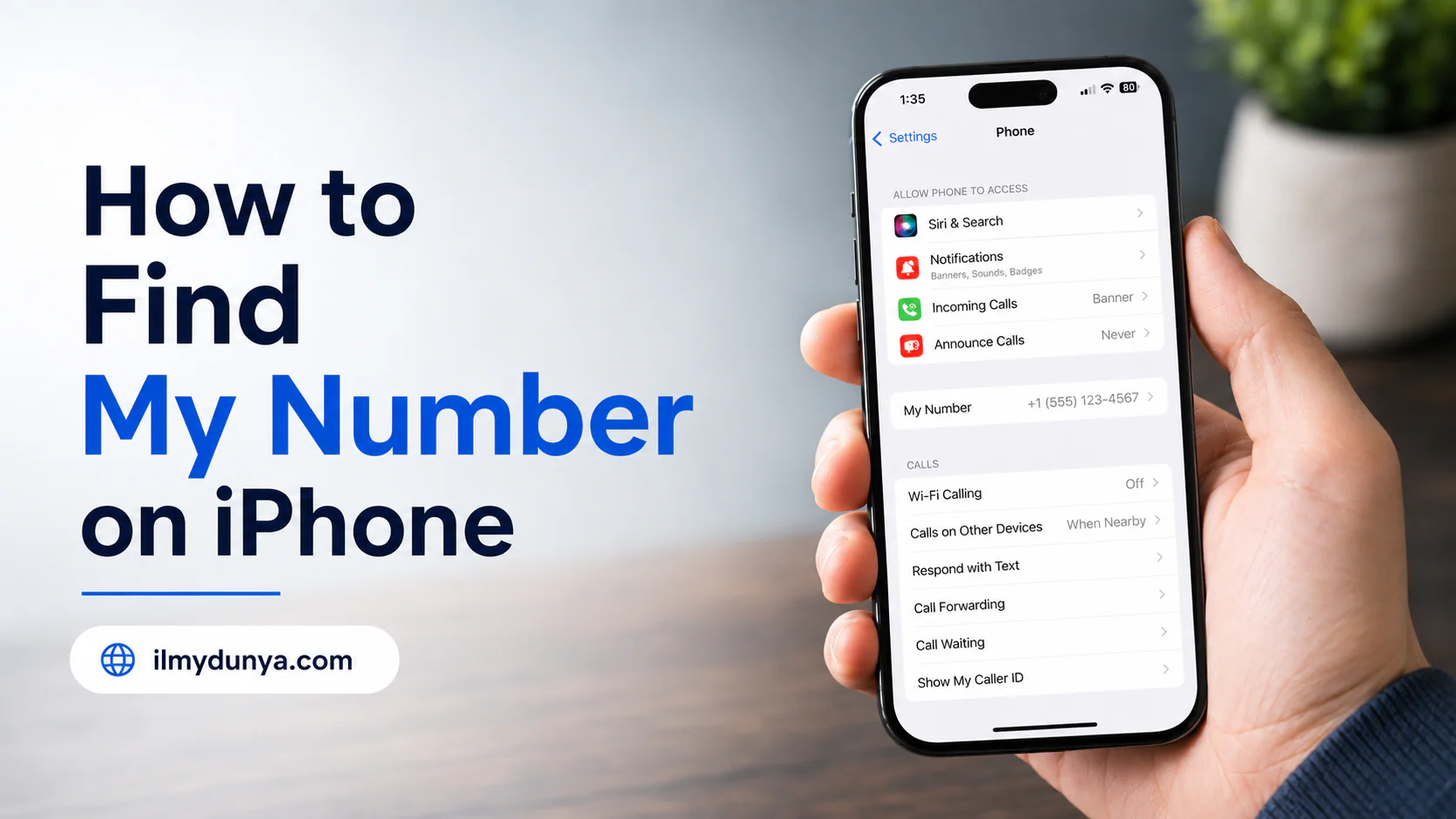
The easiest method to find my number on iPhone through the settings app. Many iPhones will show you the phone number associated with your SIM or eSIM in your phone settings.
To do this, follow the steps below:
- Go to the settings app on your iPhone.
- Scroll down and tap on the Phone app.
- My Number should be displayed.
- Your phone number should also be displayed.
This is the easiest method, as the My Number section on the iPhone is meant to show the number that is connected to the mobile plan.
However, this section may not be displayed in some cases. If you recently inserted a SIM card, changed the network that you use, or even activated an eSIM, your iPhone may need time to update the number.
In most cases, when you ask, “where is my number on iPhone?” you would look under:
Settings > Phone > My Number
How to Check My Phone Number on iPhone Using the Phone App
Another quick way to find your number is by going through the Phone app. Your iPhone may show your personal contact information on top of the Contacts menu.
Just follow these simple instructions:
- Open Phone App
- Press Contacts on the bottom
- Scroll to the top of the list
- Press My Card or your name
There, you may find your mobile number.
This method works great when your iPhone’s contact card has your phone number on it. It is very common to have your own number saved on your contact card, when setting up the iPhone.
Even though the number is saved on the contact card, it may not change on its own. If you change SIM cards or carriers to a different mobile carrier, the old number may still show on the contact card. It is good practice to verify by looking at the number in “Settings”.
How to Check My Phone Number in iPhone Settings Through Your Apple ID
There may be a possibility that your number is linked to your Apple ID. This is possible especially when you used your number to sign up for iMessage, FaceTime, do two-factor authentication, or to verify your number.
To find the details of your Apple ID:
- Open Settings
- Press your name at the very top
- Press Sign-In & Security
Then look for emails and phone numbers that may be linked to your Apple Account.
According to Apple Support, to find the email address and phone numbers registered with your Apple Account, visit Settings > your name > Sign-In & Security.
While that may be convenient, apple id phone numbers, those registered with your account, are not always the numbers associated with your SIM. You, for example, may have one registered for account recovery.
So, consider that a last resort.
Checking Phone Numbers on an iPhone with the Contacts App
You can always check your personal contact card saved in the Contacts App.
Here’s how to do that:
- Open your Contacts App.
- Select My Card at the top.
- Check the phone number section.
- If your number is missing, select Edit and add it.
This is helpful because your iPhone can be programmed to address you in a certain way and your number can be sent very quickly. It can also assist in sharing your contact via AirDrop, in doing so, and in filling out forms.
However, the Contacts App may display whatever data is on your iCloud, and may not display the SIM card’s number.
Knowing Your Phone Number on an iPhone with SIM or eSIM
If you have a physical SIM card, your iPhone may display the SIM number and have it saved. If you have eSIM, your number is associated with the carrier digitally.
To check your SIM card or eSIM number:
- Go to Settings.
- Tap Cellular or Mobile data.
- Check your SIM card or eSIM.
- Tap the active line if needed.
- Check to see if your active number is displayed.
eSIM on your iPhone means you can set up or transfer your number virtually, depending on the support from your carrier. (Apple Support)
That is certainly more applicable when your iPhone has a Dual SIM. For example, you could have a number for personal use, and a number for your job or business. Under your cellular settings, your iPhone could show both of those lines.
How to know my iPhone number if I have the Dual SIM feature.
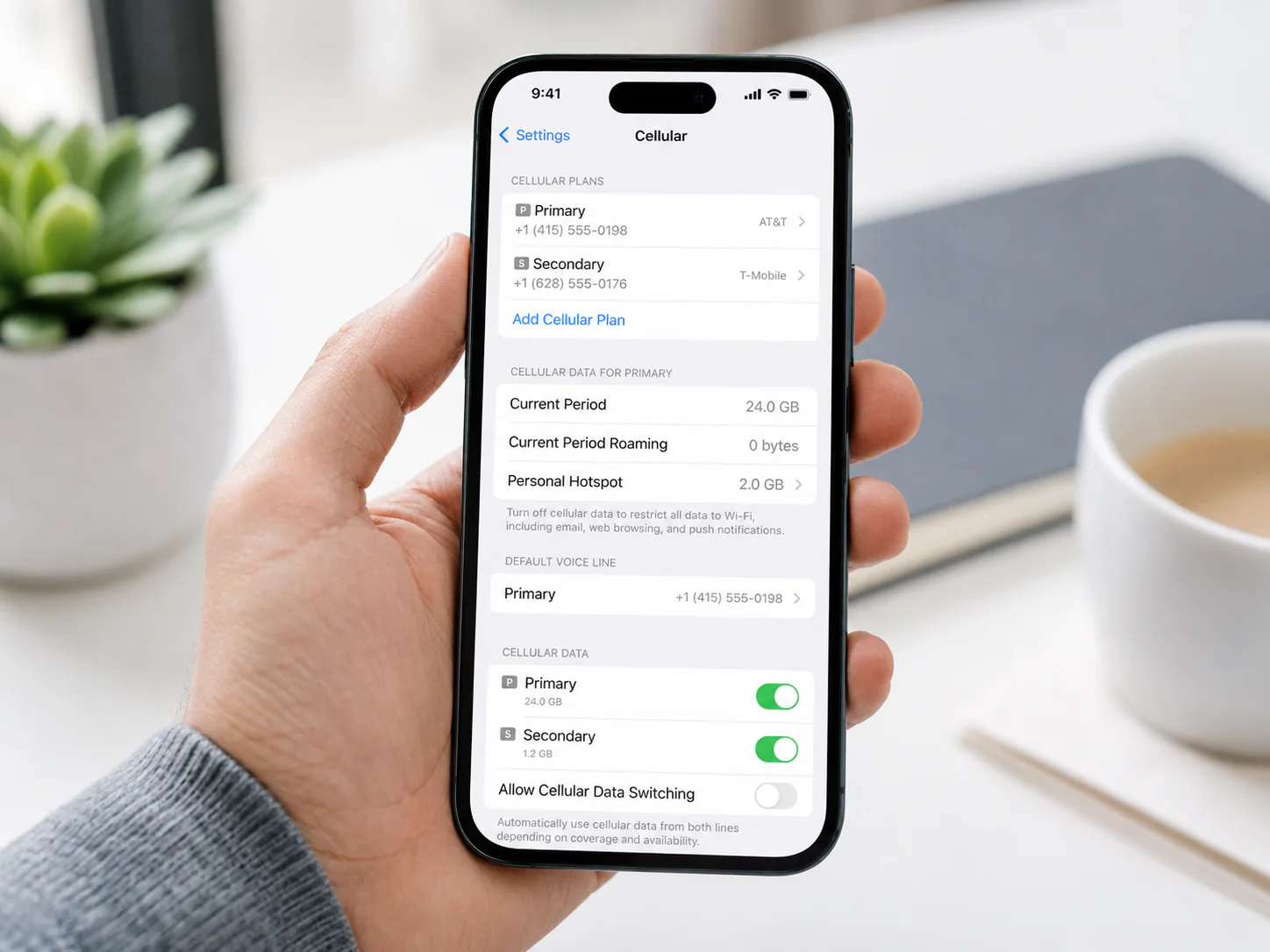
Most of the newer iPhone models support the Dual SIM feature. Most iPhones have one physical SIM, one eSIM, and, depending on the region, two eSIMs. Apple says that with a Dual SIM, you can have two personal business phone numbers or two separate voice and data plans. (Apple Support)
This is how you can find both numbers:
- Go to settings.
- Go to cellular or mobile data.
- Look for the number of lines that you have.
- Select each line.
- Each line will show you the number, the label, and the mobile carrier.
Each line will have a label, and you may see the labels as:
- Primary
- Secondary
- Personal
- Business
- Travel
- Mobile Data
If you have been asking “How do I know my iPhone number?” make sure you have been checking the right line. It is common for people to mistakenly use or copy the secondary number.
Understanding iPhone Number Settings
How iPhone number settings looks like, will differ by iOS version, carrier, network, etc. But in most cases, your number can be found at:
- Settings > Phone > My Number
- Settings > Cellular/Mobile Data
- Phone app > Contacts > My Card
- Settings > Your Name > Sign-In & Security
Don’t get stuck on one; for example, if iPhone My Number is empty, check the Contacts app or the carrier app.
Also, spelling is different in different countries. For some iPhone models it will be Cellular, for another a Mobile Data, both will probably mean the same
Why Is My iPhone Number Not Showing?
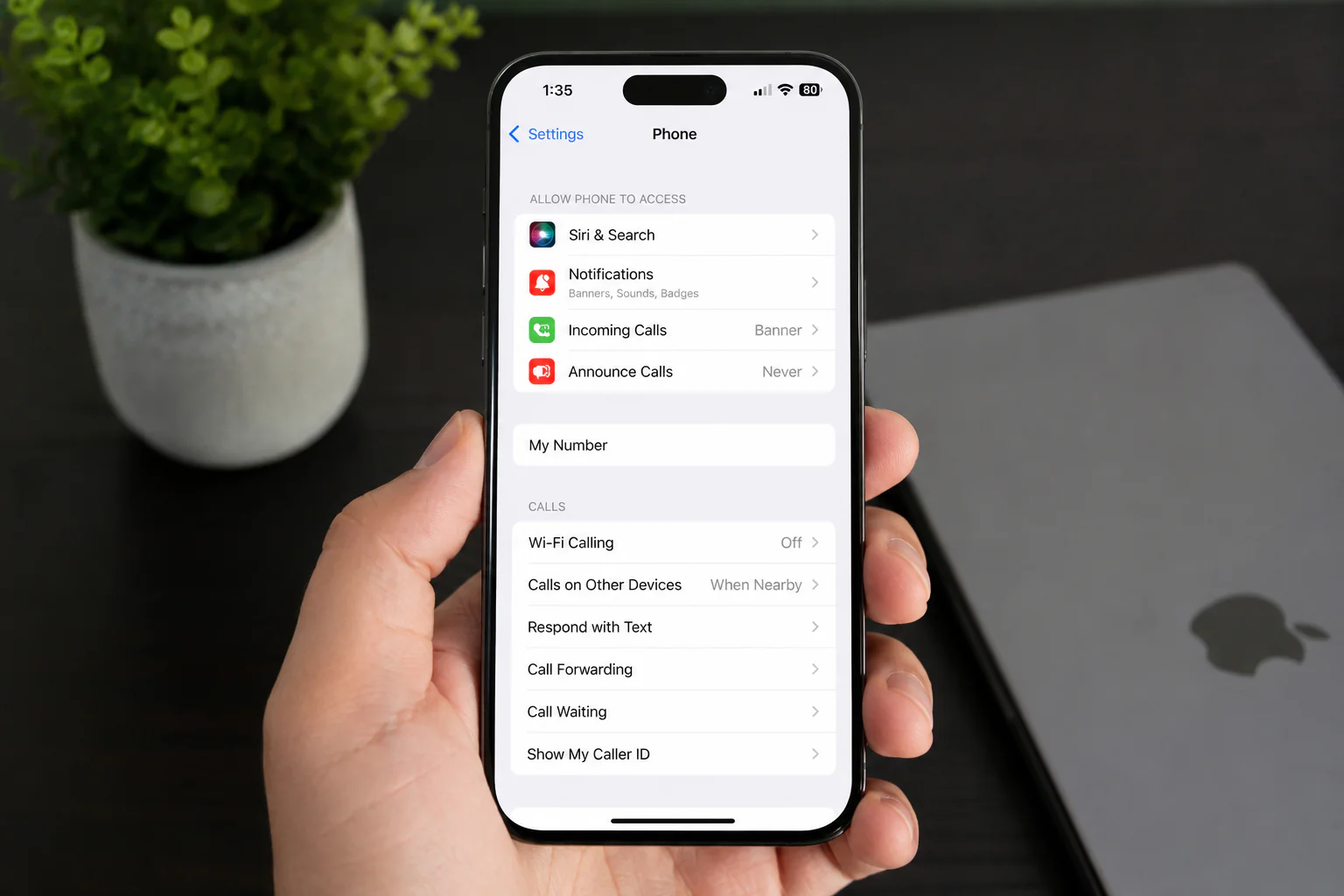
It is not always a bad thing that iPhone number is not showing, it can really mean that your sim is fine.
Some examples are:
- Your SIM is new and not completely activated
- You are still in the progress of getting your eSIM
- Your carrier did not put the number on your device
- Some settings are old
- Your device just needs a restart
- You are on a datar only SIM
- there are no numbers put on the SIM
- You just switched your carrier
Most of the time calls & data still work. But there are some applications that require your number to be verified.
Fix 1: Restart Your iPhone
A simple starting place should be restarting your iPhone as a means of resetting the network settings, SIM, and basic carrier information.
- Hold the side and volume buttons
- Slide to power off
- After a few seconds, turn the iPhone back on
- In settings, check under Phone, My Number.
While minor, this reset should be the first step following the insertion of a new SIM or the activation of your eSIM.
Fix 2: Carrier Settings Update
When your carrier makes small updates to better integrate your phone on to their network, you should expect significant changes cascading into calling, messaging, cellular, and even your SIM and number display.
To check for updates, ensure you are connected to the internet, and then do the following:
- Settings
- General
- About
- Wait a couple seconds
If an update is available, an instructions page will guide you.
Apple Support even recommends the manual checking of carrier settings, highlighting the necessity of an update following new SIM or eSIM activation
Fix 3: Enable and Disable Airplane Mode
Airplane Mode on your iPhone disconnects services; turning it off, then, reconnects your phone to your carrier. To do this:
- Access the Control Center
- Enable Airplane Mode
- Wait about a 10 seconds
- Disable Airplane Mode
This should refresh your number, so check back.
What’s next? Apple recommends toggling on and off Airplane Mode when the carrier service or eSIM activation is misbehaving. (Apple Support)
This method is quick and effective.
Fix 4: Take Out and Set Back In the SIM Card.
If you have a physical SIM card, the solution is simple to understand, but you have to be more careful. Take the card out, and put it back in the right way. In some cases, the card is not put back in the right way.
Here’s how to do it.
- Step 1. Power off your iPhone
- Step 2. Use a SIM card removal tool to pull out the SIM card tray
- Step 3. Check that the card is in the right position and close it back in the tray
- Step 4. Power on your iPhone.
After this, check to see if your phone number is visible in your phone’s settings.
If you put the card back in the wrong way, it can be damaged. In that case, it’s best to give your wireless provider a call.
Fix 5: Look Through the Mobile Carrier’s App
Most, if not all, mobile carrier companies have their own apps through which you can see your active mobile number, package, your balance, and other account info.
Through this carrier’s app, you can see all the info, such as account number, the SIM card number, the mobile number, the active line, the eSIM number, and the plan.
This can be the easiest way to check your mobile number on your iPhone if you can’t do it through the Settings app.
If you do not have the carrier app, be sure to contact them through their official website or reach out to customer support.
Fix 6: Confirm by Making a Call or Sending a Text to a Dummy Phone
This can be seen as the most effective and the most reported method by the users themselves. Just give a quick call or shoot a text to a random phone. After this, check the new phone’s display or to see the contact info on the call being made.
Here’s how to show an active outgoing number:
- Call a family member
- Call a friend
- Call your second phone
- Call customer support
- Call another SIM you own
This might show the active outgoing number, but it may fail to do so when the caller ID is hidden or blocked.
Fix #7: iMessage and FaceTime Settings
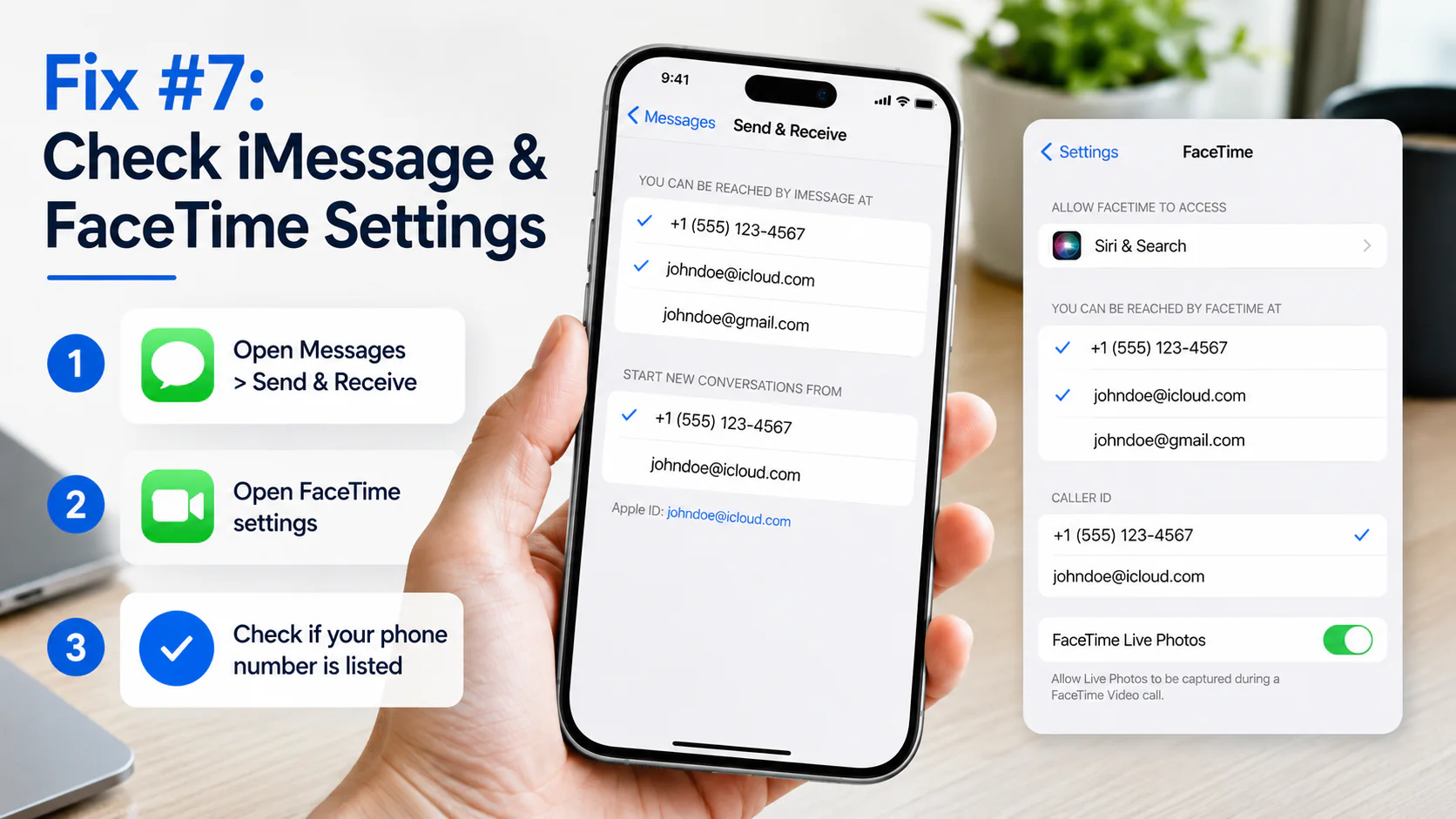
Your number may also show up in the iMessage and FaceTime settings.
For iMessage:
- Go to settings.
- Tap Messages.
- Tap Send & Receive.
- Check the number listed there.
For FaceTime:
- Go to settings.
- Tap FaceTime.
- Check under reachable contact options.
Apple mentions that a phone number can also be listed and assigned to Messages and FaceTime, and that if your number doesn’t show up, there are settings that you may need to configure to make sure that your number is not appearing.
This is helpful if your number is active but is not being displayed in the phone settings.
Can iPhone My Number Be Changed Manually?
For certain iOS versions and carrier settings, you may be allowed to tap My Number and enter a number manually.
Here’s how:
- Go to settings.
- Go to phone.
- Go to My Number.
- Manually enter your number and tap save if the button is visible.
- Restart your iPhone.
Editing the My Number field does not activate a SIM or an eSIM, it only changes what your iPhone displays. Your real active number still comes from your mobile carrier.
What Should I Do if My iPhone is Displaying the Wrong Number?
It is also common for your iPhone to display an old number when number porting or due to SIM changes and eSIM transfers.
Follow these steps to troubleshoot.
- Restart your iPhone.
- Look for updates in the carrier settings.
- Take the SIM card out and put it back in.
- Go to Settings and tap Cellular.
- Update your honorific card.
- Reach out to your phone company.
If your calls and texts work from the correct number, then there is likely a display issue and if the apps are validating the number, it is best to get in touch with your carrier.
Differentiate Between a SIM Card Number and a Mobile Number
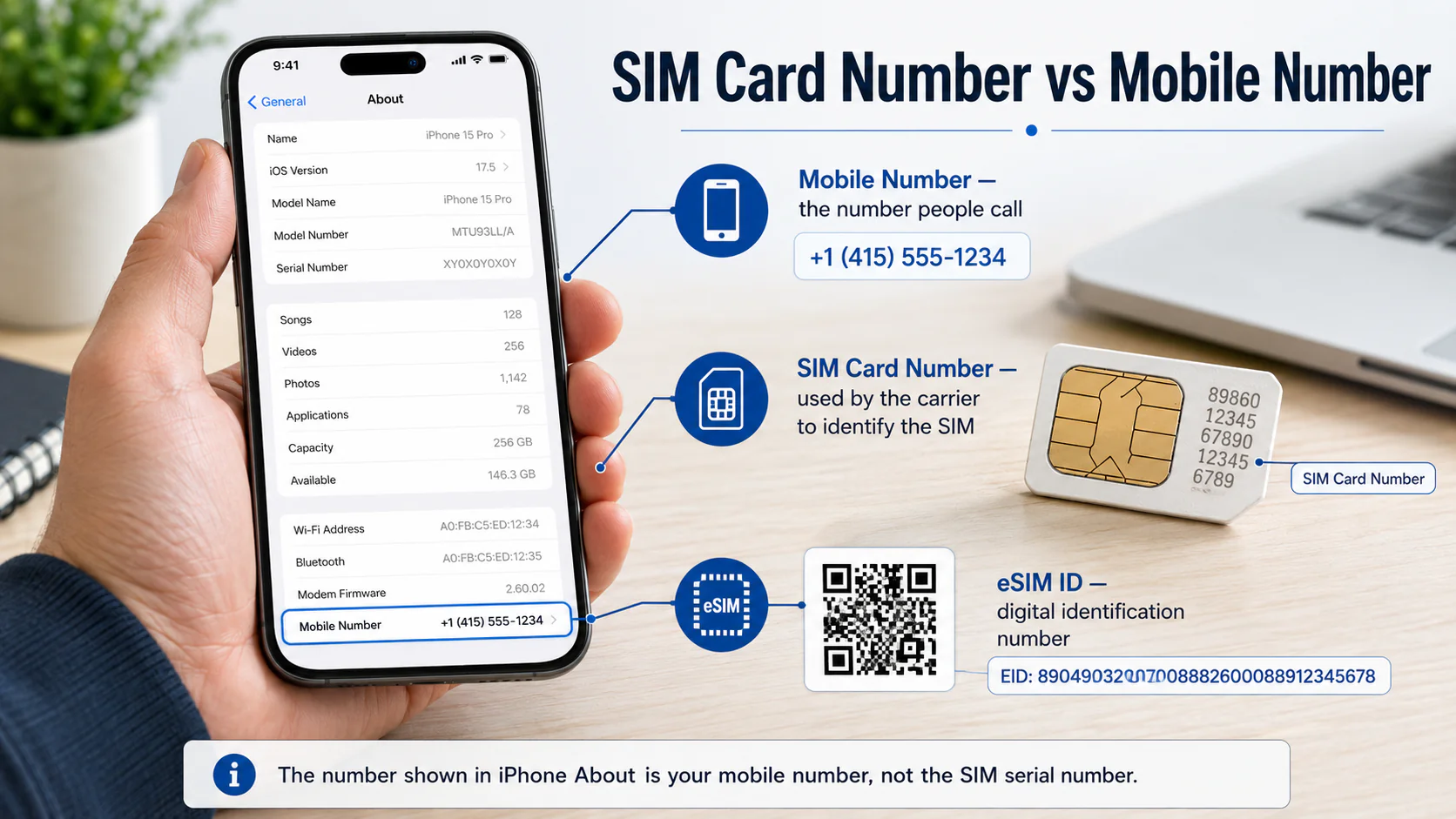
SIM card numbers and mobile numbers are not the same.
Your mobile number for your iPhone is the number people call to reach you.
Small print on the SIM card is the number the carrier uses to identify the SIM card.
The digital SIM on your iPhone is also different. This is called the he digital identification number.
So, the number you see when you tap about is the mobile number, not the SIM serial number.
Quickest Ways to Find My Number on iPhone
The fastest way is App Settings.
- Go to Settings for Phone and tap My Number
- Go to your Phone, then Contacts and tap My Card
- Go to Cellular Settings. This is a good way if you use eSIM.
Check Apple ID
You can find your number by going to:
Settings >Your Name > Sign-In & Security.
Call Another Phone
You can find your number by calling another phone and seeing what number is being displayed.
Tips for New Users
If you’re new to iPhone, there’s no reason to feel nervous, as it is pretty simple to find your number.
Here’s how:
You can find the iPhone My Number field by looking up Settings > Phone > My Number.
You can also check the Contacts app.
If you’ve switched your SIM or eSIM, your phone may take a while to find the number.
Software updates and updates to your carrier settings will also help your phone reset.
The easiest tip may be to save your number on your contact card.
Common Mistakes to Avoid
When checking for your number, most of these issues seem to be small mistakes.
When checking your Apple ID number, don’t confuse that number with your phone number.
Don’t confuse your mobile number with your SIM number.
Your number may not be displayed due to your network provider not giving your phone the number.
If that is the case, don’t panic and reset your phone. Your carrier may be the reason. You can also check the settings on your phone.
Queries Relating to How to Find My Number on iPhone
Go to Settings > Phone > My Number. This is the fastest way to locate your cell number on iPhone.
Open the Phone app > Contacts > My Card. Also try Checking Settings > Cellular or call another number.
Your number is typically found in Settings > Phone > My Number. It can also be in the Contacts app, Cellular app, Apple ID, iMessage, and FaceTime.
Your number may not show due to a new SIM, a problem with eSIM activation, outdated Carrier Setting Updates, delays from your network provider, or your SIM is data-only.
Yes, your number is normally found in the iPhone Settings > Phone > My Number.
Go to Settings > Cellular or Mobile Data and tap your eSIM. Your eSIM number is possibly on the active Mobile Plan.
Not always. It can show an old number or not show any number. Your mobile carrier is in charge of the active number, so it’s also important to contact your carrier.
Try calling or texting another phone. You can check the carrier app, view your contact card, or look at your iMessage and FaceTime settings.
There’s a chance to edit your phone number in Settings > Phone > My Number. You can also add your number in your contact card.
Try restarting your iPhone, adding a carrier settings update, and checking your phone settings. Update your contact card, and reach out to your mobile provider if the steps fail.
Conclusion
There are lots of ways to check your number on an iPhone. You can search on your Settings, look in the Phone section, check your contact card, check your Apple ID and iMessage info, or check your FaceTime and carrier apps.
If you can’t find the number on your iPhone due to it not being visible, don’t panic. Do a device restart, check for carrier settings updates, put your iPhone in Airplane Mode, or reach out to your provider. These steps solve the number not found problem.
ilmydunya.com A packed guide that provides you the best places to find your phone number on your iPhone.