
Did you know your battery does more for your iPhone than just powering it? Your battery impacts how long your iPhone lasts in a day, how your apps perform, how your phone deals with more complex tasks, and whether your device experience any random shutdowns. Since your battery is responsible for all of these tasks, it may be handy to know how to check your iPhone battery health. It’s useful information that is a must-know for every iPhone user.
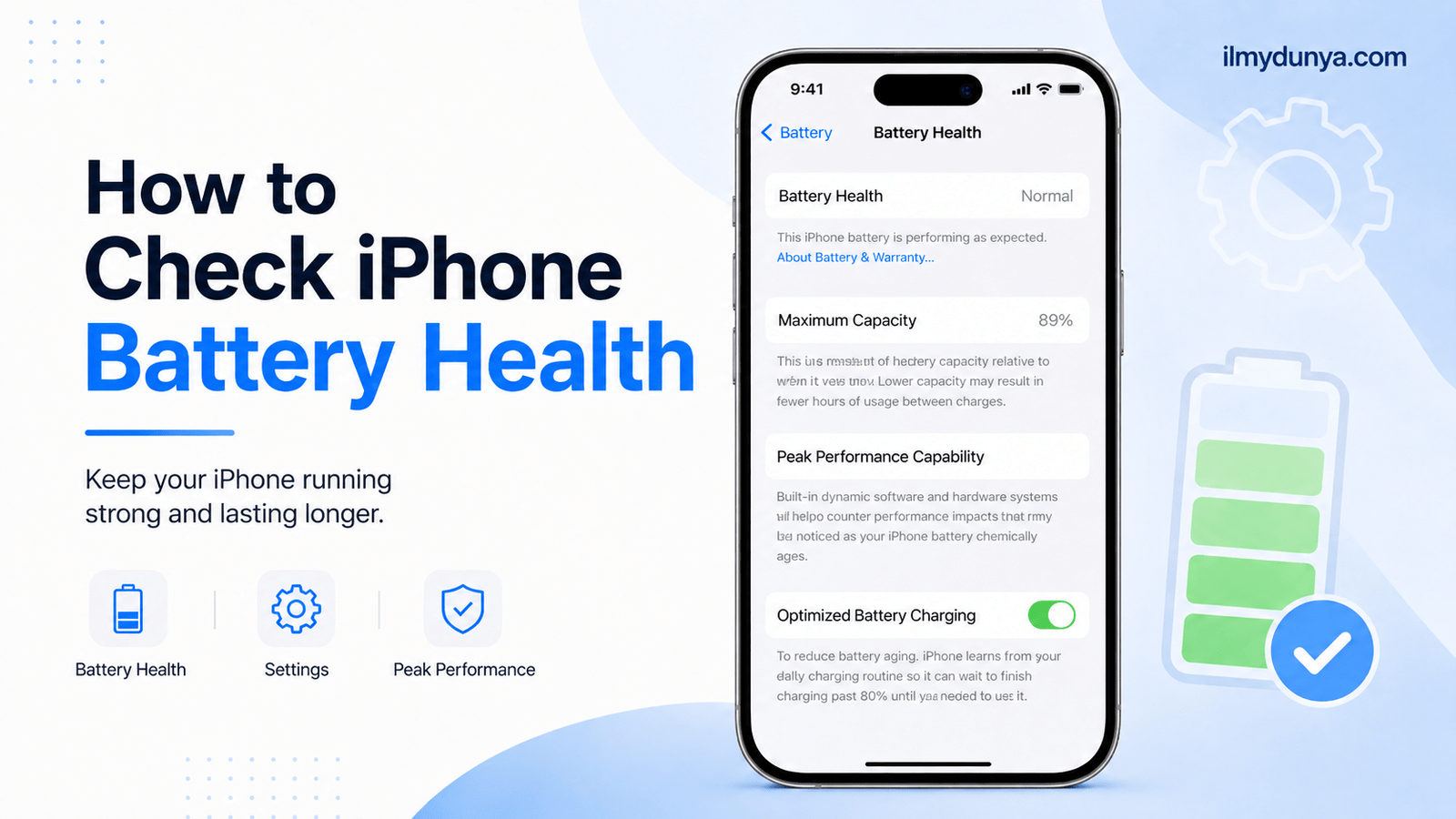
The good thing is Apple makes checking your battery condition via the Settings app. You won’t need to guess whether your battery is still good and you won’t need to download a random app. Your iPhone will display max capacity, peak performance, the battery health status, and on newer phones, the cycle count and other relevant battery information. According to Apple, you can check the battery health by going to Settings > Battery > then Battery Health & Charging/Battery Health.
This guide will explain exactly how to check battery health on your iPhone. You will understand the meaning of each number, when you should be concerned about how your battery performs, and lastly, what you can do to maintain the performance of your battery.
Why is Battery Health on iPhone Important
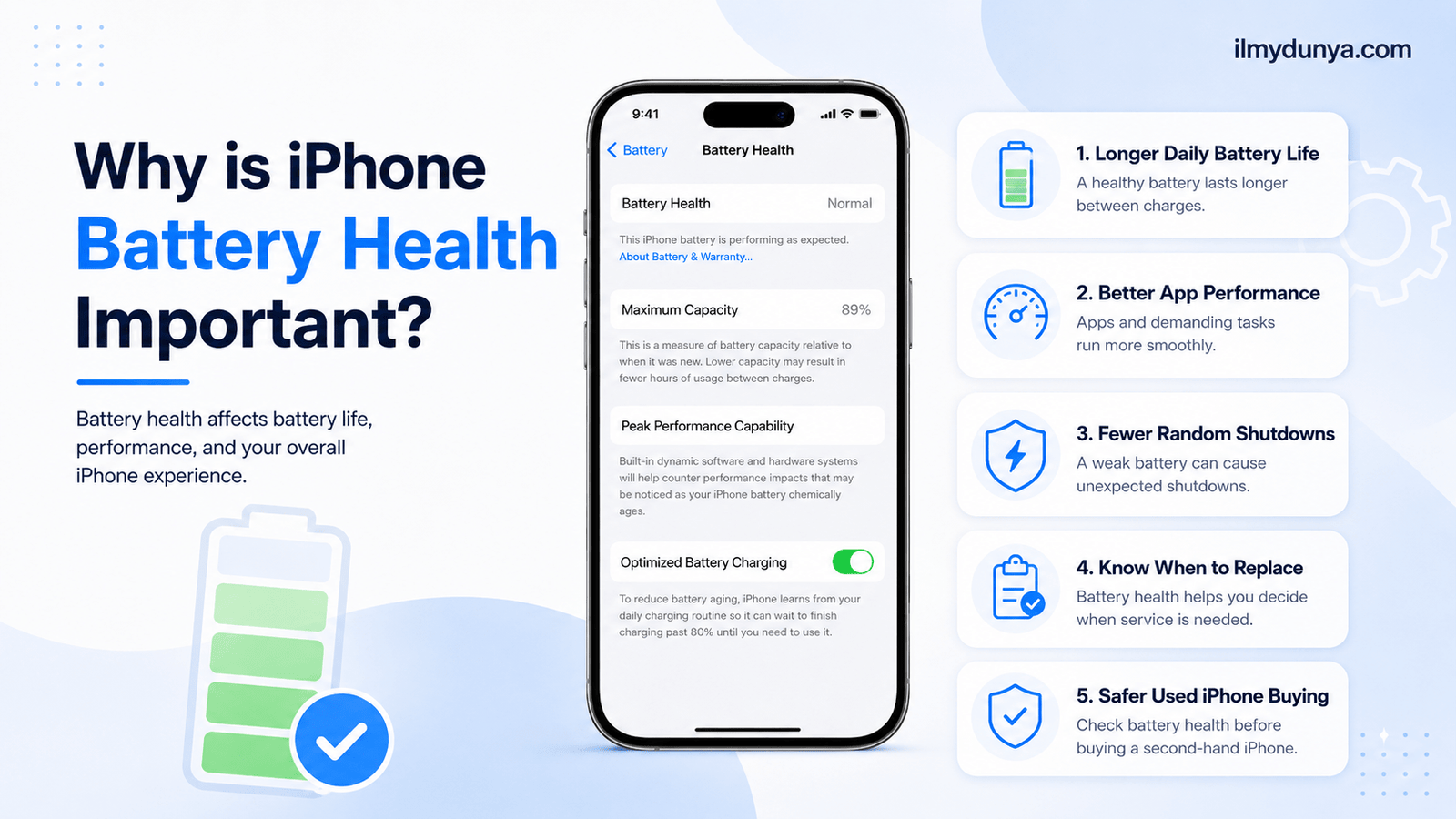
Before you go looking for a percentage, it may be somewhat important to know why iPhone battery health is even important.
iPhones use lithium-ion batteries that deplete over time. Apple doesn’t make their batteries, but they do state that lithium-ion batteries can have a decline in maximum charge which can also make it perform at a lower peak capacity.
An example would be a new iPhone would last all day, but as the battery decays, the phone now needs to be charged in the afternoon. Apps may take longer, the phone may be warm, and the battery may go down faster.
Checking battery health will give you answers to many of the commonly asked questions such as:
- “Is my iPhone battery still good?”
- “Do I need to replace my iPhone battery?”
- “Why is my iPhone battery draining so fast?”
- “Is it safe to buy this used iPhone?”
- “Why does my iPhone slow down sometimes?”
These are all easily answered with battery health.
Checking iPhone Battery Health from Settings
The best method to check your iPhone’s battery health is going to the Settings app.
Step-by-Step
Here is the general idea:
- To begin go to the Settings app.
- Near the bottom, select Battery.
- Then, use Battery Health and Charging if you have the iPhone14 or previous.
- If you have iPhone 15 or newer select Battery Health.
- On the next page, the info you are seeking will be displayed.
For iPhone 14 and previous types, Apple specifies the following path for users: Battery > Battery Health & Charging. In newer versions like the iPhone 15, Apple indicates a different way: Battery > Battery Health, and shows that new versions may also show things like cycle count, manufacture date, and the first usage date. (Apple Support)
This screen allows the user to assess the overall condition of the iPhone battery.
What does Maximum Capacity mean for the iPhone?
When viewing battery health, Maximum Capacity is one of the first fields to appear.
Maximum Capacity shows the capacity of the battery as a percentage of when the battery was Fuji at its capacity when the battery was brand new. However, if the iPhone shows a Maximum Capacity of 89%, the battery can only hold 89% of the capacity of the new battery.
Maximum Capacity is a measure that ranges from Fuji to poor capacity, and is relatively normal for this measure to trend downward, as older batteries generally have a lower capacity.
What Battery Health Percentage should a user strive for?
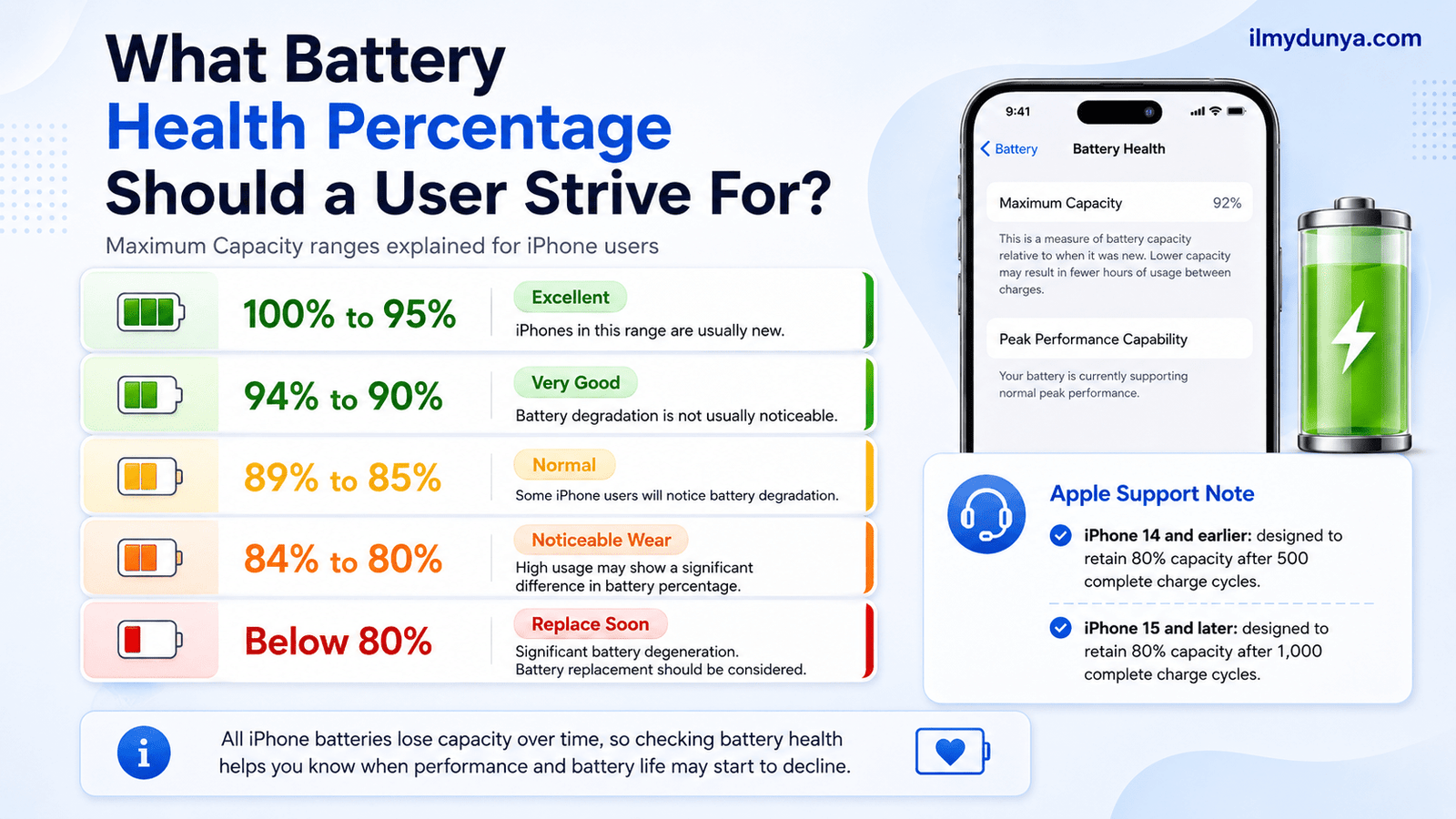
In general, the range for Maximum Capacity can be characterized as:
100% to 95%
Excellent. iPhones in this range are usually new
94% to 90%
Very good. Battery degradation is not usually noticeable.
89% to 85%
Normal. Some iPhone users will notice battery degradation.
84% to 80%
More noticeable battery degradation. High usage may show a significant difference in battery percentage.
Below 80%
Significant battery degeneration, battery replacement should be considered.
Apple says iPhone 14 and earlier models are made to keep 80% of the original battery life after 500 complete charge cycles, while 15 and later models keep 80% after 1,000 complete charge cycles. (Apple Support) iPhones, like any other phone, have batteries that lose charge over time, and losing charge makes the phone lose its purpose.
What Does Peak Performance Capability Mean?
Understanding Peak Performance Capability is essential to understanding iPhone battery health.
This function refers to the ability of your iPhone to perform intensive tasks for short periods of time, such as recording videos, playing games, using the camera, voice assistant, and running multiple apps.
If your battery health is good, you may get a message that your battery is supporting peak performance.
If your battery is older, you may see a message that your battery health is low and iPhone performance will be affected.
Why Peak Performance Capability is Important
Slow battery life also makes your iPhone as a whole feel slower. It can even cause your iPhone to shut down, making the phone functionless. As stated, Apple uses battery health to help users see if peak performance can be supported.
If you see your iPhone saying your battery cannot support peak performance, you may want to think about getting a battery replacement for your iPhone.
What Is a Battery Cycle?
A complete battery cycle is equal to using an iPhone battery from 100% to 0%. However, that usage does not have to occur all at once.
For instance, say your battery dies at 50% and is charged to 100% a second time the next day. That would count as one complete cycle.
iPhone 15 and Newer Models
For newer iPhones, specifically model 15 and later, Apple has decided to allow iPhone users to examine even more battery information. This includes cycle count and battery manufacture and first use dates.
To evaluate cycle count:
- Open Settings
- Open Battery
- Open Battery Health
- Look for Cycle Count
This is particularly beneficial when buying a used iPhone because, in general, the lower the cycle count, the lower the battery wear.
iPhone 14 Models and Older
Many of the older iPhone models do not directly show cycle count. However, your usage and battery usage can be ascertained using the maximum capacity, and the peak performance cycle count.
How to Determine Battery Health on Older iPhones Before Buying
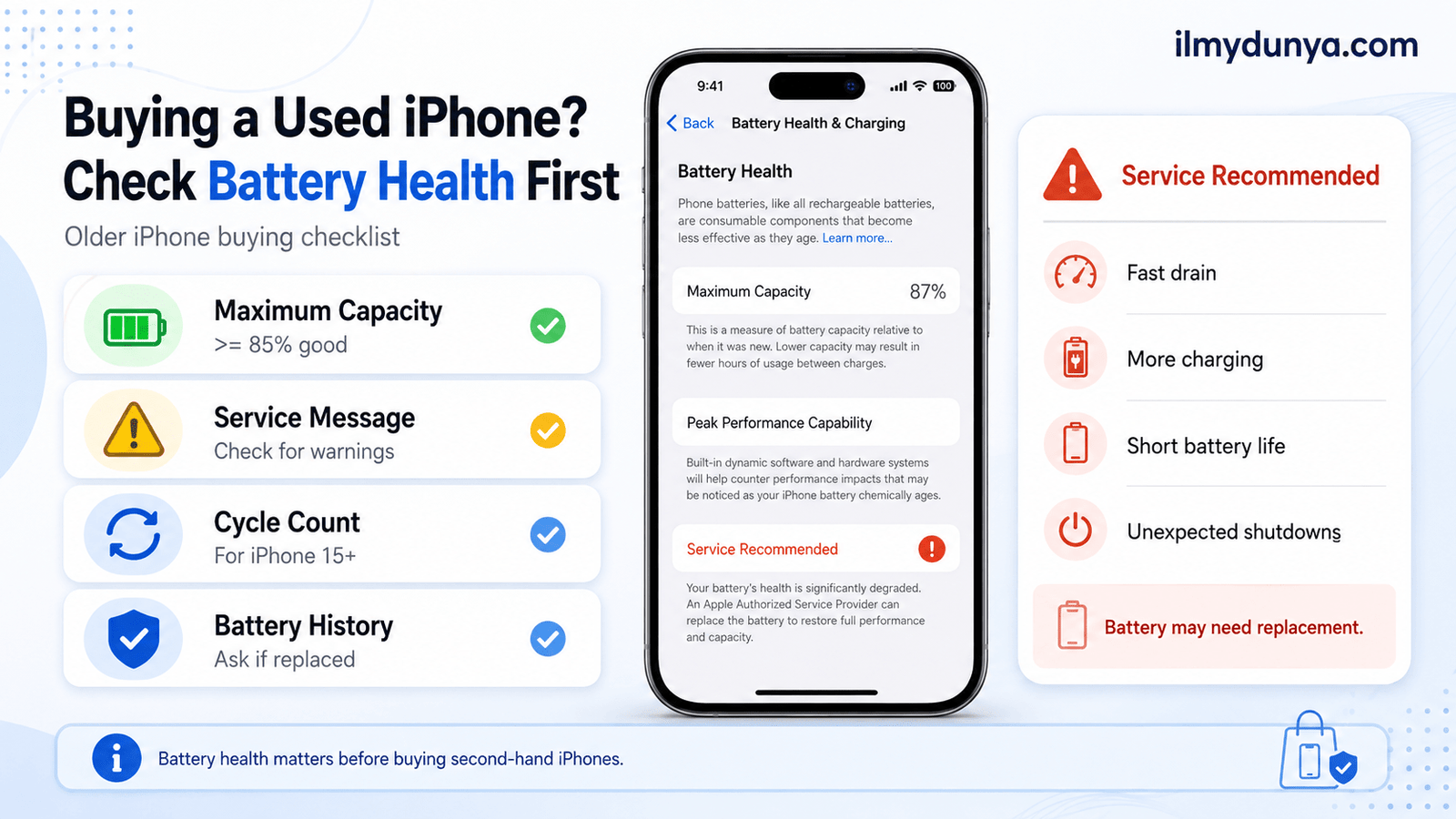
When buying a used iPhone, battery health should be a major concern before any purchase is made.
Enquire from the seller and take a look at the following:
- Settings > Battery > Battery Health & Charging
or
- Settings > Battery > Battery Health & Charging
Then confirm:
1. Maximum Capacity
You should look for iPhones that have a minimum823 battery of 85% health. Moreover, the best value can usually be attained from phones using 90% battery health.
2. Service Message
When a phone displays a service message, it is an indicator that the battery may soon require replacing. While this typically doesn’t only imply the phone should be avoided, the phone’s price should consider the expense that a battery replacement would incur.
3. Cycle Count
If the phone is an iPhone 15 or newer, then some checks for the phone’s cycle count are necessary. Heavy usage of the phone typically results in a higher cycle count.
4. Battery Replacement History
You should consider how the battery for this phone replacement was done. Generic battery replacements and replacements that are done in an improper manner can warrant the phone to display battery replacement messages. Apple states that battery related messages can be found in the Settings app under Battery and Battery Health & Charging. (source Apple Support)
When assessing the negative battery health on a second-hand iPhone, don’t expect positive battery health results, and consider a replacement.
What Does Service Recommended Mean?
If your iPhone displays Service Recommended as a message, then the battery health has reached a point, in the eyes of Apple, a service is warranted.
This does not mean the phone is inoperable and can still be utilized for some time. However, it can be expected to experience:
- Faster battery drain the more the phone is used
- Shorter battery life than expected
- More frequent charging
- Random battery shutdowns
- Faster phone shutdowns
- Faster battery life
If the phone is relied upon for work or business, battery replacement is necessary in order for the phone to be operating as a expected.
What Caused by the Reduction of iPhone Battery Health?
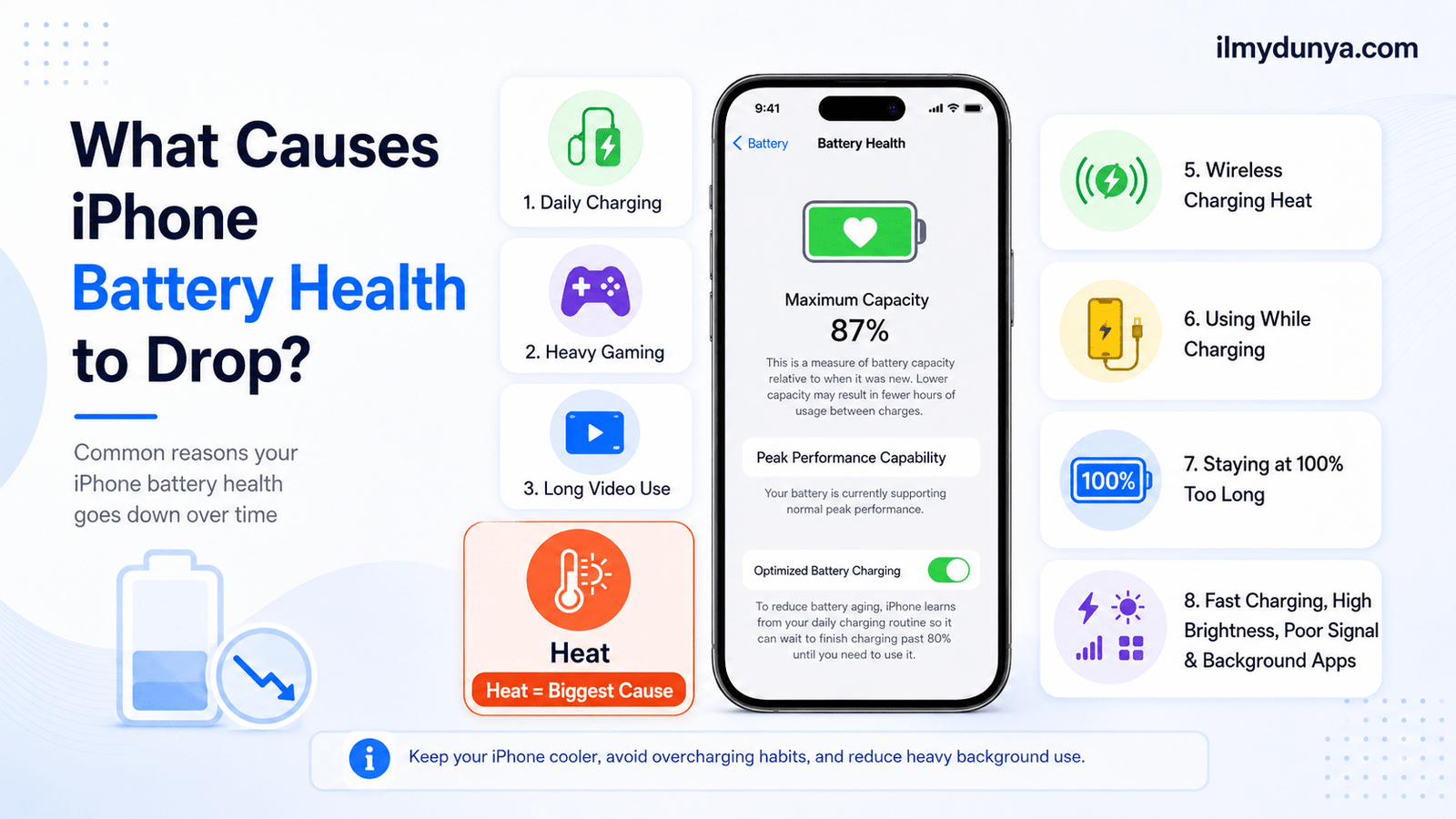
Many different users experience a bit of a panic that results from them noticing the battery health for their phone replacements dropping from a full 100% to 99% and then to 98% and possibly beyond. In the majority of these events, this is a completely natural occurrence.
Battery health is dependent on many factors including:
- Daily charging
- Heavy gaming
- Long videos
- The heat
- The heat from wireless charging
- Using the phone while it’s charging
- Leaving it at 100% for a long time
- Using fast chargers all the time
- Leaving the brightness all the way up
- Poor signal zones
- Apps that run in the background a lot
Heat is the most common cause of battery health issues. iPhones that run hot will age a lot faster from this.
Some things that will help you maintain a higher battery health on your phone for a longer period of time.
Using Features that Help
Using Optimized Battery Charging is the most important thing you can do. It helps keep battery aging at a crawl because it limits the time the phone is kept fully charged. It takes pauses in charging so that it never goes above 80% until the situation requires it. (Apple Support).
In order to turn Optimized Charging on:
- Go to the Settings
- Select Battery
- Select Battery Health
- Select Battery Health & Charging
- From here you can turn on Optimized Battery Charging if it’s off
Especially for the overnight chargers this is a must.
Say No to the Extreme Heat
Always keep it out of the sun, never leave it in the hot car or anywhere that it can heat up even more (like a hot pillow while charging). In all ways, heat is the most dangerous to your phones battery.
In the occasion it is too hot while charging, definitely remove the case and set it down in a cooler place.
You Don’t Always Have to Let it Drain
It’s really not the best thing to do to let it drain to 0% all the time. That is a bad long term habit. It’s better to do a light charge when it gets to about 20% to 30% or somewhere in the middle.
Use Apple or Certified Chargers
Uncertified Chargers may overheat or create other problems for your phone. Using Apple or Licensed Chargers and wires will always improve and regulate your charging.
Software Update
A lot of the time, software updates improve the battery and the charging. In extreme cases, an update changes the charging management significantly. When this happens, there will generally be a decrease in charging overall. Usually, this and other updates will also require the iPhone to re-index the files in the system. After an update, this can make the charging significantly worse at first, but in the long run charging may improve.
Make Battery Last Longer
Select and open Settings. From the Battery setting, you can put them in order based on battery use. The high battery use apps can be modified through updates, alerts, and refresh. From there, if it is still too much battery use, you can also just delete the app.
How Much Do You Need To Check iPhone Battery Health
Checking battery health of an iPhone shouldn’t be done more than once a month.
The number of checks can be greater if your phone:
- Randomly and suddenly dies.
- Starts to turn off randomly.
- You sell or buy an iPhone.
- Overheats regularly.
- The percentage goes down dramatically.
- You feel like you have to slow your phone down.
- You have to replace the battery.
Battery health is just a metric. Having a phone that has low battery health can still have a lot of battery left, and a phone that has good battery health can still die regularly due to poor performance.
How To Tell When To Replace iPhone Battery
While looking at the Battery Health is useful, the daily operation is more important to determine if it is time to change the Battery.
Battery replacements are needed in a few situations:
- The iPhone dies within a few hours
- The battery health is at less than 80%
- The phone turns off on its own
- The battery charges feu hours to 100%
- The percent continuously shifts
- The iPhone slows down despite not being a demanding use
- You are prompted to get a battery service
- The iPhone overheats during lighter iPhone usage
Battery replacements can serve as a cheaper option to buying an entirely new phone when the iPhone is in mostly good condition.
80% Battery Health Good?
An iPhone battery health percentage at 80% is concerning. The iPhone at 80% of its battery health is in need of more frequent charges than a new iPhone or fresh battery, is in need of more frequent charges, has less efficient performance during demanding tasks, and is no longer consistent with fresh battery performance.
There is a case to be had for a battery replacement for heavy, demanding users such as business owners and traveler’s as opposed to light, casual users where the battery lingers at 80% health and is acceptable.
Battery health cannot be increased.
The battery’s original advertised health and performance will not be seen again. Battery replacements would directly impact health and restoration of battery. There are a few battery optimizations that can be made to improve battery lifespan minimally, but it will not reverse or restore battery. There are very strange circumstances in which battery health can decrease and then be calibrated to an extent, but the battery will not age in any way.
Apple insists that iOS 14.5 and newer may optimize the iPhone 11 battery reporting, improving how it shows capacity and performance after reporting. (Apple Support)
Want to protect your phone’s charge?
Battery life has to do with how long the charge lasts. Battery health has to do with the charge itself.
Maximize battery charge daily by practicing these habits:
- Reduce screen brightness
- Close apps when not in use
- Use Wi-Fi
- Activate and utilize Low Power Mode
- Disable apps that utilize your location
- Stop refreshing apps in the background
- Limit emailed notifications
- Use a dark screen
Keeping your phone’s software recent can also improve life in a single charge.
Low Power Mode is your new best friend when traveling and/or away from a charger.
How many apps can burn out your battery?
What is burning out your charge?
Your battery may be fine, but one app may be taking way too much juice.
To see how much life each app leaves:
- Open your settings
- Scroll and select ‘battery’
- Review your battery usage per app
Find a limited use app wasting too much life in the background?
Let’s give it a timeout.
- Open settings
- Apply by selecting ‘general’
- Scroll and select ‘background app refresh’
How often do you need these apps running?
Third party apps are generally not needed.
Most iPhone users can use the built-in Battery Health section. Third-party apps can show more detailed analytics. However, they can show inaccurate data and are usually unnecessary.
If your goal is to determine if your iPhone battery is healthy, use the built-in analytics first. It’s the safest and easiest option and is already usable.
Conclusion
Now there is no confusion on checking your iPhone battery health without compulsively installing a handful of apps.
Open Settings > Battery, then for iPhone 14 or older select Battery Health & Charging, and for iPhone 15 and later, select Battery Health. Check Maximum Capacity, Peak Performance Capability, and if there are any messages about servicing.
If your iPhone battery health is above 85%, there usually aren’t any concerns. However, checking the service messages is important, as battery health below or near 80% can warrant a replacement, especially if the battery drains quickly.
iPhone batteries will decline in health of course, but it’s possible for users to prolong the health by avoiding heat and checking battery usage as well as keeping the software up to date.
It’s a lot of hassle to check the decline of battery health, but positive battery health results in a much less stressful day for the user.
Questions
To check battery health, go into the Setting app. For iPhone 14 and older models, tap on Battery, and then on Battery Health. For iPhone 15 and newer models, you can tap on Battery Health directly. The battery health section shows a percentage of its capacity, how it’s performing, and even hints as to why it is performing as it is.
90% is considered good. 85% to 90%, it’s still good, 80% battery health and below, then it’s definitely time for a battery replacement you’ve certainly begun to see the effects of needing a replacement battery.
85% battery health isn’t considered bad, but it is considered to be an indicator of how typically a battery naturally declines in health. Now battery life on the iPhone is certainly less than when it was new.
If you’ve already reached 80% battery health, and you’re starting to see then the greatest effect of the battery health. Slow processing, frequent spontaneous complete shutdowns of the iPhone and the battery draining very rapidly, then it is high time that you did a battery replacement.
It is not possible for battery health to be restored in full to 100% ever, unless the battery is also replaced. Battery health is a naturally declining phenomenon and a chemical one at that.
Faster drops in health have been linked many times to the device’s excessive heat. Heavy usage, charging it more often than you use it, playing games, video recording, and even things as trivial, and different bad charging habits, iPhone battery health drops faster when you’re doing things as simple as just using the device.
No, it’s actually safe to charge overnight, because your iPhone will stop charging when it is fully charged. It will even go back to charging if it discharges to 95%. (Apple Support)
For iPhone 15 and later, go to Settings > Battery > Battery Health and see the cycle count. Earlier iPhone models do not offer direct cycle count in the same section.
Battery health is always going to be an educated guess, and there is always going to be a margin of error. Battery readings can be affected by usage habits, temperature, charging behavior, and your software.
No, Low Power Mode doesn’t actually improve battery health directly, but it might indirectly improve health by decreasing battery usage. It decreases your battery use a lot by limiting background activities.