
Have you ever asked yourself, “how old is my iPad?” If you have, don’t feel embarrassed. Some people own iPads for years and have no idea what model, what generation, or what year it was released. You could’ve acquired it after buying a used one, after receiving it from someone as a gift, or after just finding a new iPad in a drawer and forgetting about it.
Fortunately, it is not too hard to find how old your iPad is. An iPad is designed to help you find this information, and you do not need to have vast knowledge of computers and technology. Almost all of this information is found in the iPad Settings. You can also find this information with a model number or a serial number, or with the original purchase receipt, the box that the iPad came in, or the Apple support pages.
There are many things you can learn from knowing how old your iPad is, from whether you should keep it, to whether you should update it, should repair it, should let it go, and whether you should buy a new iPad to replace it. You can also determine how much new iPadOS your iPad can still handle and how many updates your iPad can still accommodate and the compatibility of new accessories as well.
In this blog, you will learn how old your iPad is in a very simple and practical way.
Why You Should Know the Age of Your iPad?
Before you find the answer to this question, it is always helpful to know the reason for your query. Based on your iPad’s age, the condition of your iPad, the health of the battery, how much your iPad can go for, how much your iPad is worth, the age of your battery, the cost of repairing your iPad, and the number of updates and upgrades your iPad can accommodate are all affected by the age of your iPad.
An older iPad can still be a great general device for video and reading. But games, multitasking, and newer iPadOS features could be more difficult.
Do any of these sound like you? Here are some of the most common inquiries about the age of an iPad.
- You could be trying to sell it and need the specific model and generation. – You could want a case, keyboard, charger, or a stylus. – You could be wondering if your iPad asks the newest iPadOS. – You could be questioning if a repair is too pricey. – You could be wondering for the sake of your curiosity, since your iPad actually still functions and you have no idea when the release date is.
An Apple statement says some iPad model numbers should be located on the back, and others can be found in Settings. Once you have that, you can search and find the specific model and generation. (Apple Support)
The Settings App is the Simplest Method
Your device model and generation can be quickly found in the Settings app.
Locating Your iPad Model Name
Here’s how you can do it.
- Go to Settings
- Tap General
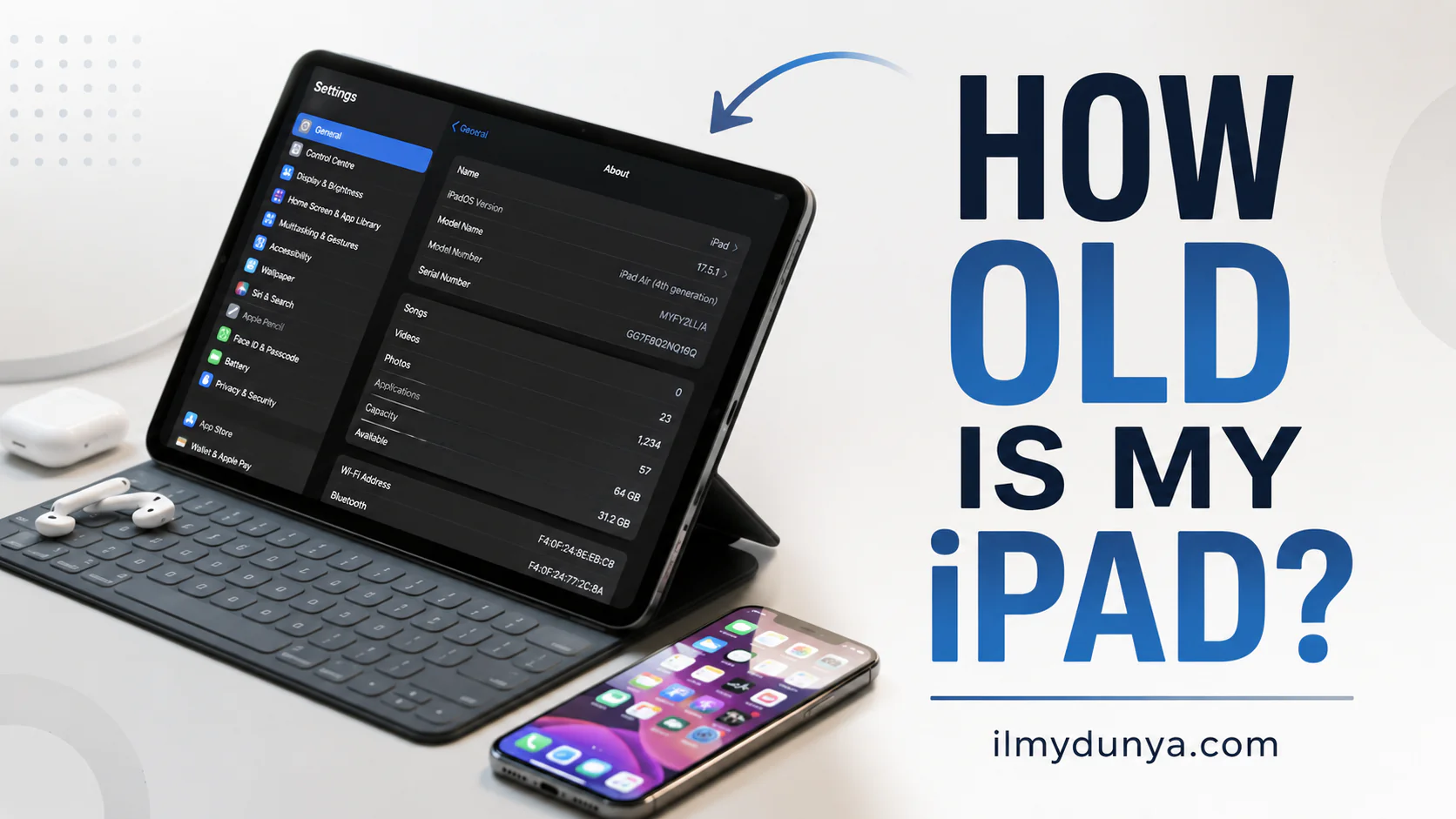
- Tap About
- Find Model Name
- You might as well check Model Number, Serial Number, and iPadOS Version
Apple’s User Guide for iPad proves that you can check the model name and iPadOS version, as well as the part and model number, the serial number, the capacity, and the storage space that’s left on the iPad.
Here’s an example of what you could find
Model Name: iPad Air
Generation: iPad Air 4th generation
Model Number: A2316, A2324, A2588, and so on
The Release Year Estimation
When you search the model or check against the list from Apple, you can usually find an approximate release year. This can even be true when you don’t include the generation, and especially true when you include the model number.
You can also find the release year of the iPad with the own model number.
How to Find Your iPad’s Model Number
You can find your model number in two places.
In Settings:
Go to Settings > General > About. There will be a number next to “Model.” There, you will see a part number. Tap the part number, and it will change to an “A” model number. Some examples include A1822 or A2602. When you tap on the part number, it reveals the model number. ([Apple Support][2])
On the iPad:
Some iPads print the model number on the back. Apple also notes that on some iPad models, the model number may be printed on the back of the device. ([Apple Support][3])
With the mode number, you can go to Apples iPad model identification. There, you will find the categories of iPad models including iPad Pro, iPad Air, iPad mini, and the regular iPad. Apple Support.
How to iPad Model Look-Up (A2197)
As an example, your model number may be A2197. When you look on Apple’s model list, you can see that this model number belongs to a specific iPad generation. Then you can find check the model number and see what year the model was released.
This method is way better than using visually seeing the differences iPads models. The designs and colors of the models tend to be similar.
Finding The Release Year?
This method gives you the specific release year of the generation you iPad belongs to. But how do you find the specific year that your iPad was bought? This could be completely different as it could be months or even years.
For example, a 2021 iPad could be bought brand new in 2022 or second hand in 2024. If you want to determine the true age of your device and not just the model, you need to find the purchase date.
Where the Purchase Date Can Be Located
You can look in a variety of places, like:
- Your Apple receipt
- Emails
- Purchase history
- The iPad box
- A store invoice
- Your Apple ID purchase history
- Warranty or coverage information
- Bank or card statements
You can search various emails and look for key words like the following:
- iPad receipt
- Apple order
- Your Apple invoice
- iPad Air
- iPad Pro
- iPad mini
If you bought the iPad from a different owner, be sure to ask for the original receipt or at least the purchase date. If you can’t find that, you can always guess by using the model year.
Paying Attention to Your Serial Number
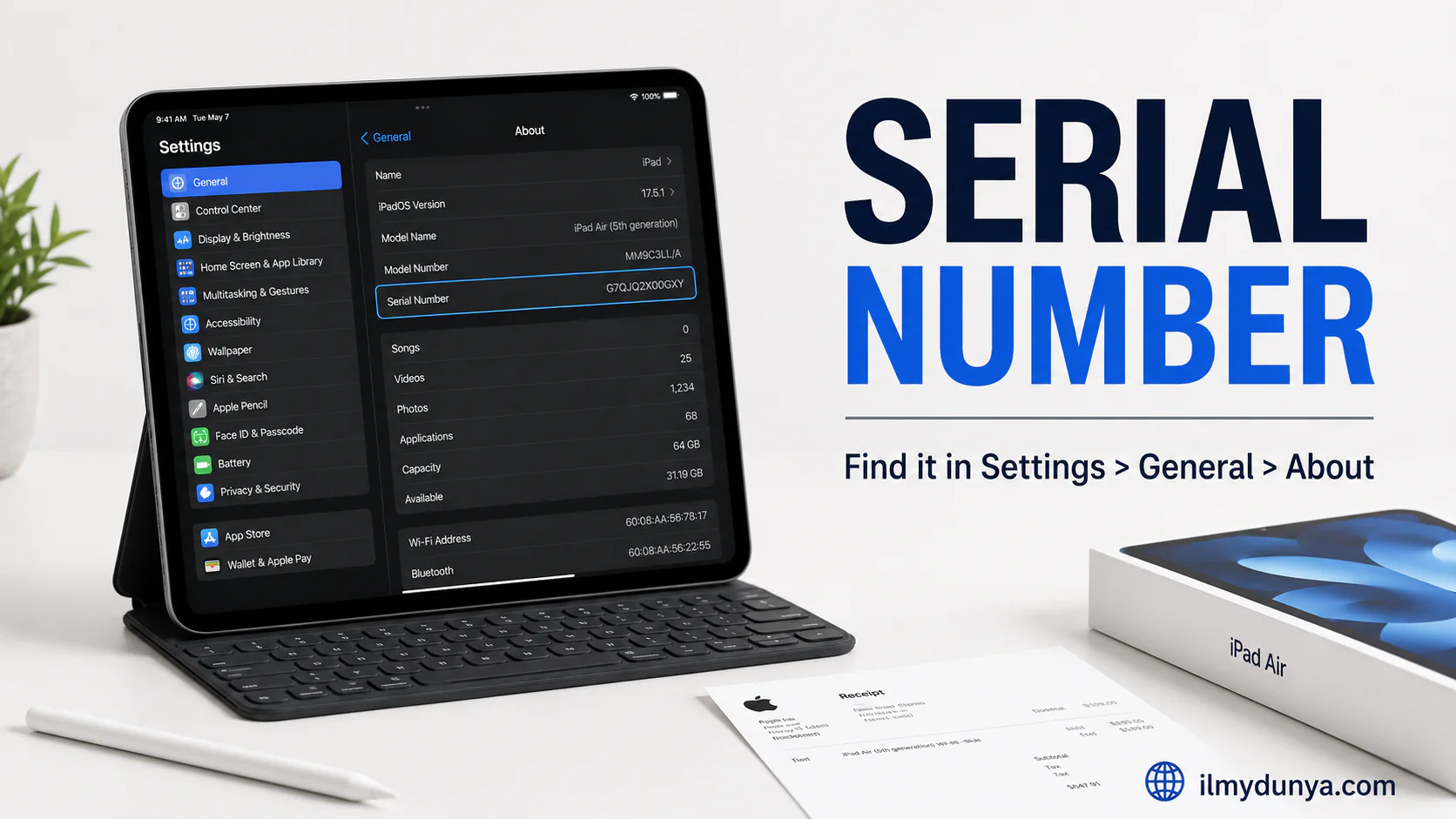
Your iPad’s serial number is useful with support, and warranty and service inquiry checks. To locate your iPad’s serial number, go to Settings > General > About > Serial Number. Apple states the easiest way to copy your serial number is through the settings app, and you copy the number by long pressing it. Apple Support.
Your original box or product receipt may also contain the serial number. If the product is off or you no longer have the product, Apple states, you may locate the serial number on the original box’s barcode or receipt or invoice. ([Apple Support][5])
When on public forums or with any social media, refrain from posting your entire serial number. While it is great to have for support and service, it is info for your specific device only.
Determining the Age of Your iPad by its Generation
After you identify it’s the iPad generation, it is easy to determine the age of your iPad.
The basic steps to take to determine its age include:
- Find its official model name
- Find its official generation
- Determine year it was officially released
- Determine the difference between the year and the current year
- If you were the one to officially purchase it, check the purchase year
Illustration is stated below:
If the model’s official release year is 2020 and the current year is 2026, then the model’s age is about six. However, if the year of the official purchase is 2021, then it is about five.
That difference is important. There’s a lot to consider when determining a device’s age beyond the number of years since it was purchased. To determine it’s true physical age you would need to consider: when it was first purchased, how often it’s charged, how well it’s been treated, and how depleted (or not) the battery is.
Determining Physical Age by Software Support
Perhaps the best indicator of an iPad’s age is how old the software it supports is.
A good indicator of how physically old your iPad is is how recently iPadOS updates are available to your device. If your iPad isn’t receiving newer, major, and up-to-date versions you may also miss out on newer features and improvements, including updated security and app compatibility.
Once you determine your latest update you can navigate to the below to see your device’s software:
Settings > General > About > iPadOS Version
An iPad may miss major software updates, and on those occasions, it is prudent to look up the device’s physical age and iPadOS compatibility status, per Apple’s advice. ([Apple Support][6])
The Analysis
If your iPad has access to newer version(s) of iPadOS, it is likely still physically young.
If your iPad has access to an older version of iPadOS and is not offering major updates, your iPad is likely physically old and may not be useful is that true?
That definitely isn’t true. Many older iPads still are suitable for safari and other streaming applications (Youtube and Netflix) and other applications such as reading and email, taking notes, making video calls and learning apps for children and your family.
Physical Age by iPad Design
Would you believe that iPad designs can also be a physical age indicator?
Older iPads might have a Home button, thicker bezels, a Lightning port, or thicker body borders. Newer iPads have thinner bezels, USB-C ports, flat edges, and Face ID or Touch ID in the top button, depending on the model.
Looks can be deceiving, and the iPad’s appearance varies greatly despite differences in release dates. For example, multiple models of the standard iPad have shared a similar design containing a Home button.
It’s best to give a design only a passing glance. The only indicator of the correct answer is the model number.
iPad Too Old To Use?
Whether or not an older iPad serves a purpose depends on the owner’s needs. Instead of asking, “how old is my iPad?”, do a better job of assessing, “does my iPad still do what I need?”
Common Signs of a Still Useful iPad:
- Lightning-fast boot up time
- A battery with decent longevity
- A hassle-free experience with speedy apps
- Compatibility with main apps
- An undamaged screen
- Steady Wi-Fi
- Steady storage capacity
- Consistent software updates
Common Signs of a Less-Y Useful iPad:
- Frequent spontaneous stopping
- Crashing apps
- A battery with pathetic longevity
- Incompatibility with new apps
- Inability to get software updates
- Damage on the screen or charging port
- Spending money on a repair for an iPad of negligible value
- Even storage clearing fails to help
The older an iPad is, the more of a lighter task it can be assigned. So long as it is still functioning. If it is not functioning at all, time to go.
How iPad Age Increases Battery Draining
Some things never change. The battery is yet another clear indicator of age, regardless of physical condition. A cycle of numerous charges constitutes an old battery, no exceptions.
New iPads tend to hold a charge better, on the other hand, old iPads tend to shut down with a charge.
A Longer Battery for Older iPads?
- Lower the screen brightness
- Switch off Bluetooth when not in use
- When possible, use Wi-Fi rather than cellular data
- When you are finished with an app, please close it
- When there are updates for your apps, install them
- Uninstall the apps that you never use
- Do not leave the iPad in the hot
- If you have Low Power Mode, use that
- Restart the iPad from time to time
If you have an iPad that is very old and in bad condition, consider battery replacement. Fixes as such do come with a cost, so check to see if the cost of battery replacement is worth more than the iPad.
iPads and a Battery’s Attempt to Keep Up With App Changes
Apps update continually. If your iPad is old and cannot update its app system to their new app system format, there is a good chance you can be left without apps or entirely shut out of app use.
- Older gadgets can be afflicted apps such as
- Bank apps
- Music and Netflix streaming apps
- Apps and Tools game
- Apps for school
- Apps for jobs
- Apps for drawing
- Apps for editing videos
- Apps for the cloud
- Apps for security
If your app use is limited to browsing, a mail system, a notepad, a calendar, a place to store and view pictures, and video streaming on YouTube, then you can make it with a pretty old iPad. For everything else, you are better with a new iPad.
Age is but One Factor in iPads
As iPads age, they lose value, almost as predictably as a sun rise or a sunset. But age itself is an accounting in value.
The resale value of an iPad is determined by a few different factors, including:
- Model
- Generation
- Storage Size
- WiFi Only vs WiFi+Cellular
- Condition
- Battery Health
- Screen Condition
- Accessories Included
- Original Box
- Charger
- Apple Pencil or Keyboard Compatibility
- Current Software Support
Sometimes, an older iPad Pro can be iPad entry-level iPads of a newer generation. This is typically because pro models include better speakers, displays, and additional features and higher capability hardware.
List your iPad in a fair manner by looking at competing descriptions before selling in a marketplace versus selling in a trade-in.
Steps for Selling *”Generational iPads”*
If your iPad is old and you’re looking to sell it, be sure not to sell it as a blank device.
Exact Steps
- Backup your data
- Sign out of iCloud
- Turn off Find My iPad
- Erase everything
- Remove the cell data
- Clean
- Take photos
Most resale’s that describe exact model and gen sell the fastest. Make sure to list storage size and condition (listed in settings -> general -> about).
Buyers can complain. Do not fool people with a misleading or dishonest listing.
Is it Necessary to Repair an Old iPad?
Think about the value of older iPad repair (and why you feel it’s valuable).
- What year was the model released?
- Is the model eligible for current and future iPadOS versions?
- How much will repairs cost?
- Does it have any resale value?
- What limitations remain even after the repair?
- Do the repair costs justify the value?
A repair may make sense if it will replace the display of a current iPad Air or iPad Pro. However, a repair may not be value worthy if the iPad is old, has poor battery retention, and poor software support.
An upgrade may be the better option if repairs cost nearly the same as a used newer iPad.
How to Use an Old iPad for What It Has Left to Offer
An old iPad has not outlived its usefulness, and some iPads have much left that would be unusable even if they were retired.
What to do with an Old iPad
- Make it a digital recipe book
- Use it as a digital photo frame
- Make it an entertainment iPad for the kids
- Make it an eBook reader
- Use it as a music player and a music streaming
- Make it an entertainment
iPad for the kids
- Make it an eBook reader
- Take it to bed with you as a place to read
- Take it with you when you travel
- Use it for your work as an
iPad working
- Use it for your work as an
iPad working
- Use it for your work as an
iPad working
- Use it for your work as an.
An iPad that is too slow for work has a valuable place in your daily routine.
- iPad Age Checking Errors
When trying to figure out the age of the iPad, people commonly make the same mistakes.
Mistake 1: Estimate by Dimensions
Your preferred Apple device can’t exclusively be determined by it’s screen dimensions.
Mistake 2: Purchase Year vs Release Year
For instance, an iPad can be purchased in 2020 but be released in 2021.
Mistake 3: Sticking to “iPad.”
The term “iPad” is still too generic. You should know the generation, model and the generation number too.
Mistake 4: Model Number Ignorance
The number is one of the best methods to figure out which iPad you own.
Mistake 5: Age and Value
It is not surprising that an older iPad can still function well to do tasks that may be of importance.
Determine Age of iPad
The age of your iPad can be determined by the steps outlined below:
- Go to Settings, Select Error, General, and About
- Record the Model Name
- Tap the model field to see the number.
- iPadOS Version
- Serial Number can be used to show anything that may be missing.
- Purchase receipt can be found in your emails.
- Check the model against Apple’s iPad models.
- Compare the estimated repairs, price, and overall performance.
It can be inferred that this should be able to answer the question in less than 5 minutes.
FAQs
Your purchase receipt or order history would be the most accurate. Alternatively, you can go to your iPad’s Settings, then to General, then about and find the model. After that you can compare it to model generations to find the year released.
Find your model again in the settings as stated above, then compare it with the Apple iPad model page. Then go to Settings, General, About, and then look for the model name.
The easiest way, Apple states, is to check the model name and model number in Settings. The iPad Serial Number can help you with Support, Service and Warranty checks, which you can find in settings.
Even after 5 years your iPad still can function well for reading, web-browsing, video calling and note taking. Battery life and software support, app availability may all be weaker than before.
10 years is low for an iPad, and its hardware and software can’t support the same functions. You can still use it for basic apps, but don’t use it for anything sensitive like a bank or for your work.
An iPad can’t update because of three reasons. The model in question may not be able to update past a certain iOS version, storage can be full, or there is a connection error. Apple suggests you first check your models and see if they update past a certain version of the iPadOS.
You’re able to see that in the settings. The complete address is Settings > General > About. Depending on the model, you can also find it printed on the back.
Older iPads can’t be Pencil compatible with older Apple Pencils. Apple Pencil compatibility also factors what model of iPad it is. Apple has a page directed toward Apple Pencils if you need help with Apple Pencil and iPad questions.
Keep an iPad if it is efficient and reliable. Consider replacing old iPads that drain battery quickly and can’t keep a charge, if repair costs are higher than it is worth, or if the old iPad is supported by virtually no apps.
You can check the year of the iPad by checking the settings on the iPad. Head to Settings, General, and then About. The model name and then the model number are very helpful. From here you should be able find the year it was released.
Conclusion
To understand your iPads age, you can go to your iPad start page, select the settings app, select general, and choose about. There, you can gain all the information you need to look up your iPads model and year of release.
If you happen to still have your iPad’s receipt of purchase, the order email with Apple, or the invoice with Apple, you can identify the purchase date. Otherwise, the model number gives you a time frame.
If you understand the age of your iPad, you can determine whether to upgrade, repair, sell, or trade in your iPad or continue to use it for smaller day to day tasks as it still serves a purpose. Your iPad still holds its value, and it can be beneficial if it serves its purpose.
While the question is, “How old is my iPad?”, it is also “Is my iPad useful to me?” and if your old iPad is still useful, then your iPad is still useful.