
The step by step tutorial for how to install Google Chrome on Ubuntu will also showcase my personal experiences to show what are the advantages of using Google Chrome on Ubuntu. You can then choose if Google Chrome is the right browser for you.
In this tutorial, I will show how to install Google Chrome on Ubuntu. Google Chrome is preferred by many because of how fast, simple, and easily integrates with Google Services.
Why Install Google Chrome on Ubuntu?
Before we get to the steps for installing Google Chrome on Ubuntu, lets talk about the advantages about Google Chrome that Ubuntu’s included default browser, Mozilla Firefox, does not have.
Google Chrome is known for:
- Fast browsing
- Simple design
- Strong security
- Sync on all devices (phone, tablet, computer)
- Hundreds of free add-ons
Google Chrome is preferred by users over Firefox mainly because users are either accustomed to using Google Chrome or users heavily use Google services.
Prerequisites for Google Chrome on Ubuntu
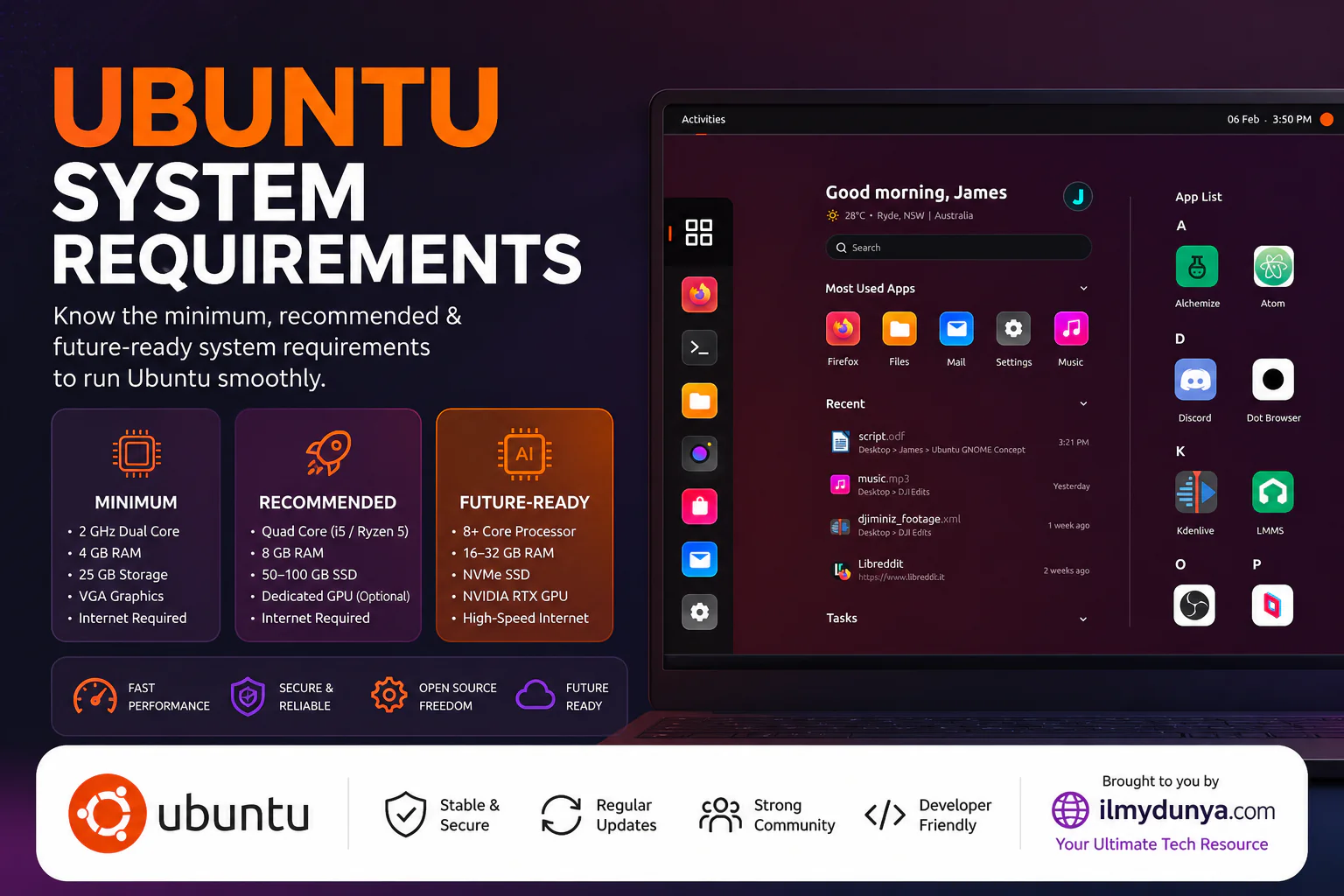
Before you get the installation started, make sure your system has the following:
- Ubuntu 64-bit system
- at least 2GB (4GB recommended for Chrome to run smooth)
- 200MB free storage
- active internet
Method 1: Install Google Chrome on Ubuntu with .deb File
This is the recommended method since it is the simplest.
Step 1: Download Google Chrome
You need to get Google Chrome downloaded on your device. To first acquire Google Chrome, you will need to open Firefox since it’s the default browser in Ubuntu.
You first want to browse to the Google Chrome official website. Once you’re on the website you want to select “Download Chrome”.
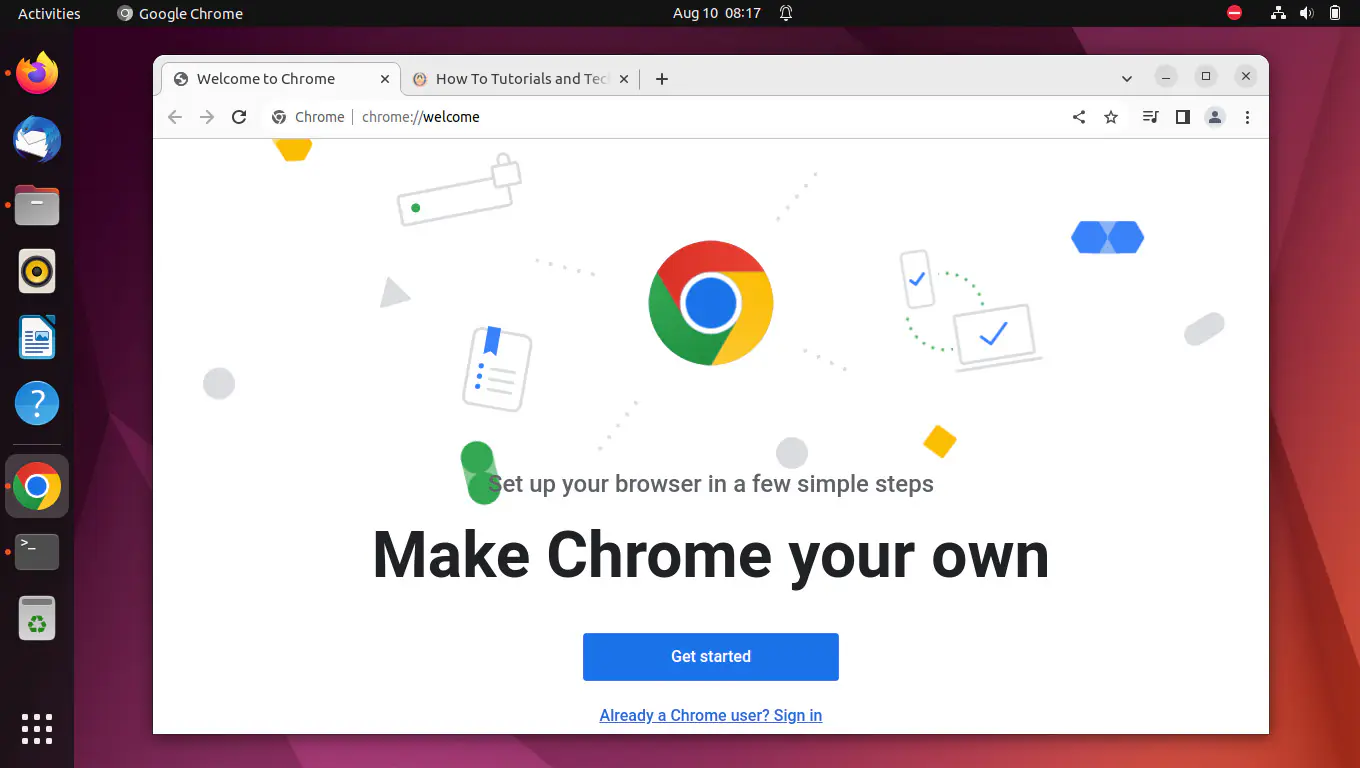
Next, you want to select what Chrome version you want to download. You would select 64-bit .deb (for Debian/Ubuntu). After it is downloading, you want to run the downloaded file.
Step 2: Install the Downloaded File
Now that you have downloaded the file, you want to open the Downloads folder on your device.
After doing that you want to find the .deb file and open it. To open it, you just double click it.
It will automatically open it in the Ubuntu Software Center. Now you want to find the “install” option. After clicking the install option it will ask for your password. Once you have provided your password, Google Chrome will automatically be installed.
Method 2: How to Install Google Chrome in Ubuntu Using Terminal (Command Line)
If you prefer command lines, this is the option for you.
Step 1: Download Chrome via Terminal
You want to open your command line and run the command: (Paste the link below)
wget https://dl.google.com/linux/direct/google-chrome-stable_current_amd64.debStep 2: Install Chrome
Then run the command:
sudo dpkg -i google-chrome-stable_current_amd64.debStep 3: Fix Dependencies (if needed)
If you run the previous command and you are missing software dependencies, run the command:
sudo apt --fix-broken installMethod 3: Install Google Chrome in Ubuntu Using Software Manager
Another alternative downloading option would be to first download the .deb file from the Chrome website.
After downloading that file, you can just right click the file and click “Open With” and select “Software Install”. You then just click Install to download Google Chrome to your system.
How to Launch Google Chrome in Ubuntu
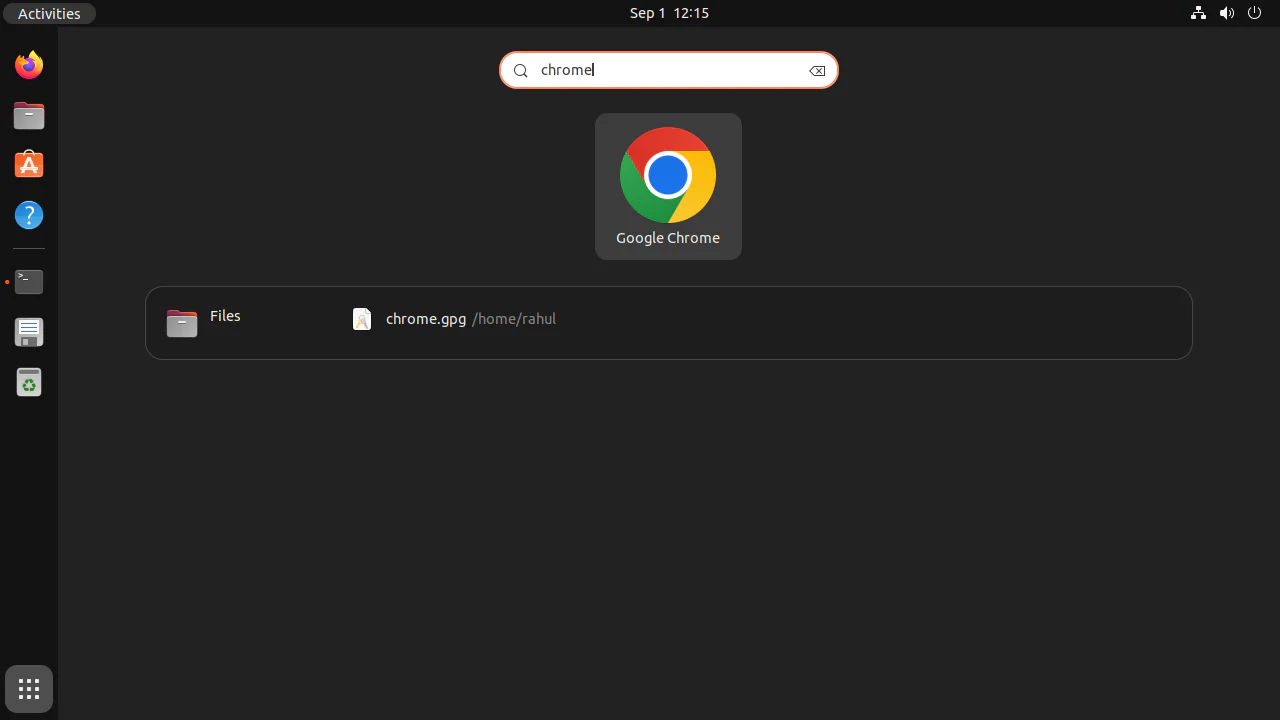
Its pretty simple to launch Google Chrome after it is installed. You will want to head to the Applications menu on Ubuntu to find Google Chrome.
You can just click it to open it.
After that you can make it easier to access Google Chrome by pinning it to your dock.
How to Update Google Chrome in Ubuntu
The benefit of downloading Google Chrome is that it will automatically include its own repository.
This will ensure that it will get updated alongside your whole system.
You just need to run the command:
sudo apt update && sudo apt upgradeMy Experience Using Google Chrome in Ubuntu
I wanted to quickly mention what my time using Google Chrome in Ubuntu was like.
When I switched to Ubuntu, I wondered if I would be able to use Chrome. Fortunately, I have had a great experience so far.
Performance
If your PC has a decent amount of RAM, Chrome uses less of your resources compared to other browsers. I have no issues with loading or multitasking.
Sync Features
When I switched to Ubuntu, I logged into my Google account, and all my old information came back.
- Bookmarks
- Passwords
- Extensions
- History
It felt like I never switched systems.
Extensions
Many of the extensions I rely on, like:
- Ad blockers
- Grammarly
- Password managers
carry over and work without issue.
Stability
I run into less overall crashes or bugs with Ubuntu and Chrome compared to my previous systems.
Benefits of Using Google Chrome in Ubuntu
Here are the pros of using Chrome in Ubuntu.
- Chrome remains the best in speed and performance
- Good cross-platform capabilities
- Developers have access to a great repository
- Great security and protection
Disadvantages of Google Chrome in Ubuntu
Here are the cons.
- Chrome is known to use high amounts of RAM and battery
- Chrome is not a fully open source solution
- Chrome uses less battery compared to other browsers
How to Maximize Chrome Performance on Ubuntu
There are a couple of ways to improve performance:
- Close those unused tabs!
- Disable those unnecessary extensions.
- Take Chrome Task Manager for a spin (there’s a shortcut for it, Shift + Esc).
- Make sure that Chrome and your system are updated.
How to Fix Chrome Performance on Ubuntu
Chrome won’t open?
In a terminal, you could try:
google-chromeDependency Errors
In a terminal, run the command:
sudo apt --fix-broken installSlow Performance
You could have slow performance due to:
- Cache, which you can clear in settings.
- Extensions, which you can disable in settings; and
- You could simply restart Chrome.
Conclusion
Like I mentioned before, this is a guide with the installation of Google Chrome on Ubuntu as well as my own thoughts and benefits.
Using Chrome and Ubuntu together is easy, whether you install it from the .deb or from the terminal.
Being fast, safe, and full of features is what Chrome is all about.
What I have seen of Chrome on Ubuntu is that it brings the fast and full features experience to users of this OS and leaves novice users with a feeling of familiarity as it resembles Windows.
A browser is what you are missing if you don’t have Google Chrome on Ubuntu.