


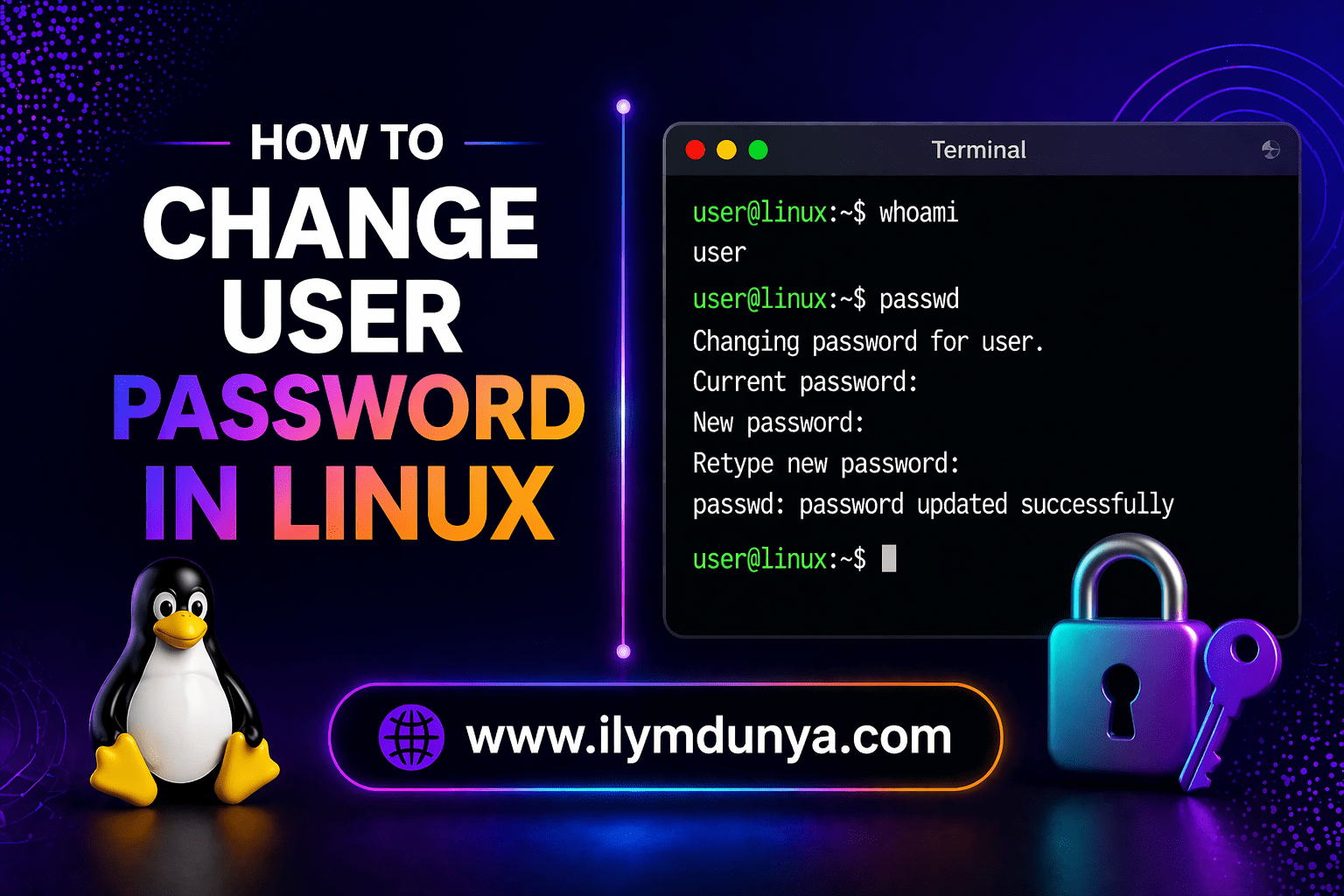

It is important to understand, first and foremost, most, if not all, distributions of Linux allow users to modify their passwords. Linux is an Operating system that is similar to Unix in many ways, including security features and user management. The first and most important skill to develop in the Linux OS is knowing how to change your password. Whether you are a beginner or an experienced user, it is an essential security function to know and keep your passwords changed.
This guide will provide you with how to change a user password in a way that is simple and to the point. The various methods included, alongside the common issues users run into, and the tips to keep your system secure, will help ensure your user password policy is up to date and secure.
Why It Is Important to Change User Password in Linux
First, before learning how to change user password in linux, let’s understand why this task matters.
The first and most vital step in defending a system is securing and updating all passwords. A weak or outdated password is an open invitation to hackers to eventually breach your system.
Reasons to Change User Password in Linux
- To improve the system security
- To prevent unauthorized access
- To abide by cybersecurity best practices
- To protect sensitive information
- To fix compromised accounts
Updating your password is a practice that is quick and easy, and will keep you, and your accounts, out of trouble.
Understanding Users and Passwords in Linux
In order to learn how to change user password in linux, you need to first understand how users and passwords are organized and managed within the Linux OS.
In Linux:
- Accounts are unique for every user
- Users’ passwords are stored securely in an encrypted format
- The root user has unrestricted access to every account
Users can primarily be categorized as either:
1. Normal User
These are the users that are granted the least access.
2. Root User
Administrators can access and change user password in linux for all other users.
Method 1: How to Change Your Own Password in Linux
If you want to learn how to change user password in linux for yourself, this is the typical method used.
Step 1: Open Terminal
Most tasks in Linux begin with opening the terminal.
Step 2: Type in the Command for passwd
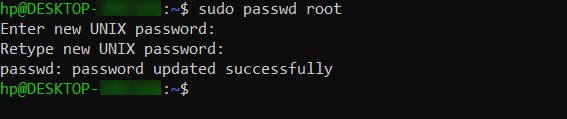
passwdStep 3: Provide Your Current Password
Submitting the correct password is required.
Step 4: Provide New Password
Enter the new password you want to use.
Step 5: Confirm New Password
You will be prompted to enter the new password again for confirmation.
Important Notes
- From the user’s perspective, the password will be invisible while typing
- Creating a secure password is important
- Passwords like “123456” are not secure
This is the most straightforward explanation when it comes to how to change user password in linux for oneself.
Method 2: How to Change Another User’s Password in Linux (Using Root)
If you are an administrator, you can change user password in linux for other users.
Step 1: Open Terminal
Step 2: Use sudo
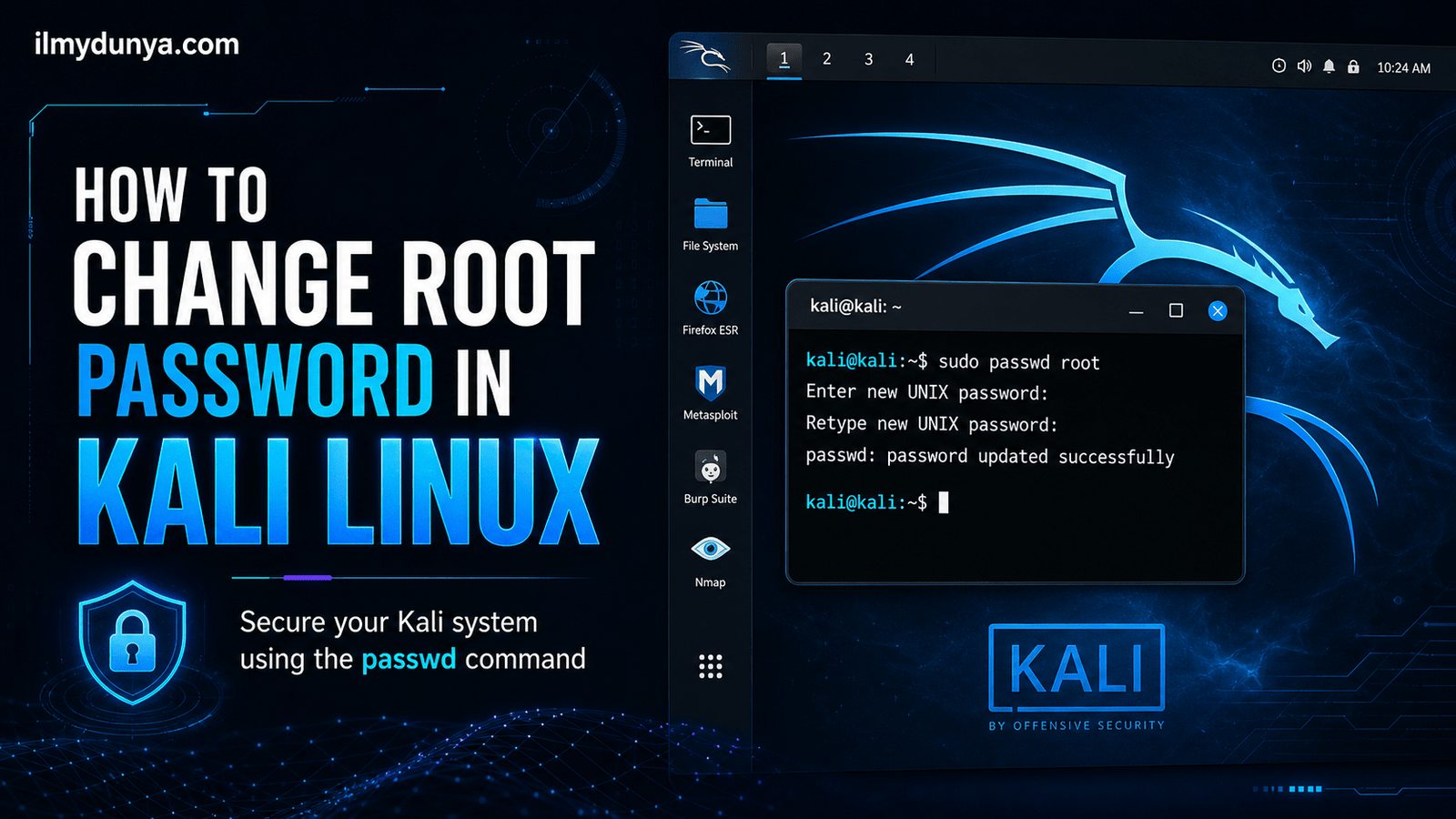
sudo passwd usernameReplace username with the preferred account’s username.
Step 3: Enter New Password
You don’t need the old password. Just enter the new one.
Example
sudo passwd aliThis command will change user password in linux for user “ali”.
Method 3: Force User to Change Password at Next Login
In certain situations, you might want to prompt a user to change their password after they log in.
Command
sudo passwd -e usernameThis will require the user to change their password at their next login.
Method 4: Change Password Using Graphical Interface (GUI)
For those who prefer not to use the terminal, you can still learn how to change user password in linux using the GUI.
Steps
- Open Settings
- Go to Users
- Select your account
- Click “Change Password”
- Enter your old password, then your new password
This method is very user-friendly.
Tips for Creating a Strong Password
While learning how to change user password in linux, creating a strong password is very important.
A Good Password Should Include
- 8–12 characters minimum
- Mixed case (upper and lower)
- Some numbers
- Some special symbols
An Example of a Strong Password
L!nux@2026SecureCommon Errors While Changing Your Password in Linux
While learning how to change user password in linux, you might encounter certain challenges.
1. Authentication Token Manipulation Error
Cause: Incorrect permissions or storage issue
Solution:
sudo passwd username2. Permission Denied Error
Cause: Omitting sudo
Solution: Precede command with sudo
3. Password Too Weak
Weak passwords are disliked by Linux.
Solution: Opt for a more robust password
4. User Does Not Exist
Cause: Incorrect username
Solution: Confirm username with:
cat /etc/passwdBetter User Password Change Practices on Linux
While learning how to change user password in linux, keep these tips in mind:
- Regularly change passwords
- Passwords should not be shared
- Utilize password managing tools
- Use different passwords for different accounts
- Secure your account with a lock when it’s inactive
How Often Should You Change Password in Linux?
There are no definite requirements. Usually:
- A period of 30–90 days
- Immediately if there’s suspected unauthorized access
To keep up a good level of security you should always be changing your password.
Advanced: Set Password Expiry Policy
To enhance security you can set a password expiry.
Command
sudo chage -M 30 usernameWith this command you can force a user to change their password after every 30 days.
Lock and Unlock User Account
In addition, user accounts can be locked.
Lock Account
sudo passwd -l usernameUnlock Account
sudo passwd -u usernameDifference Between passwd and chage
While learning how to change user password in linux, you may see these commands:
- passwd: Changes user passwords
- chage: Manages passwords and their expiration
Importance of Security in Linux Systems
Learning how to change user password in linux falls under the umbrella of basic cybersecurity.
Weak passwords can lead to:
- Theft of information
- Unauthorized access to secured data and systems
- Compromise of the broader system
Making sure that you keep your system safe is very essential.
Use Cases
The following are situations in which you are required to change user password in linux:
- When a new user is added
- After an employee exits the organization
- When a password is compromised
- When a system is being updated
Final Remarks
You now have the basic knowledge of how to change user password in linux using various techniques. Whether you are managing your own passwords or someone else’s, this skill is simple and very essential.
Linux gives users the ability to manage users securely. Knowing how to change user password in linux is a basic requirement.
Conclusion
Learning how to change user password in linux is about more than just mastering commands, it’s primarily about security and ensuring that everything is secure.
You should try to update your passwords often. Your Linux system security can be sustained with very minimal effort. In addition, strong passwords will safeguard your system, data, and personal identity.

I don’t think the title of your article matches the content lol. Just kidding, mainly because I had some doubts after reading the article.