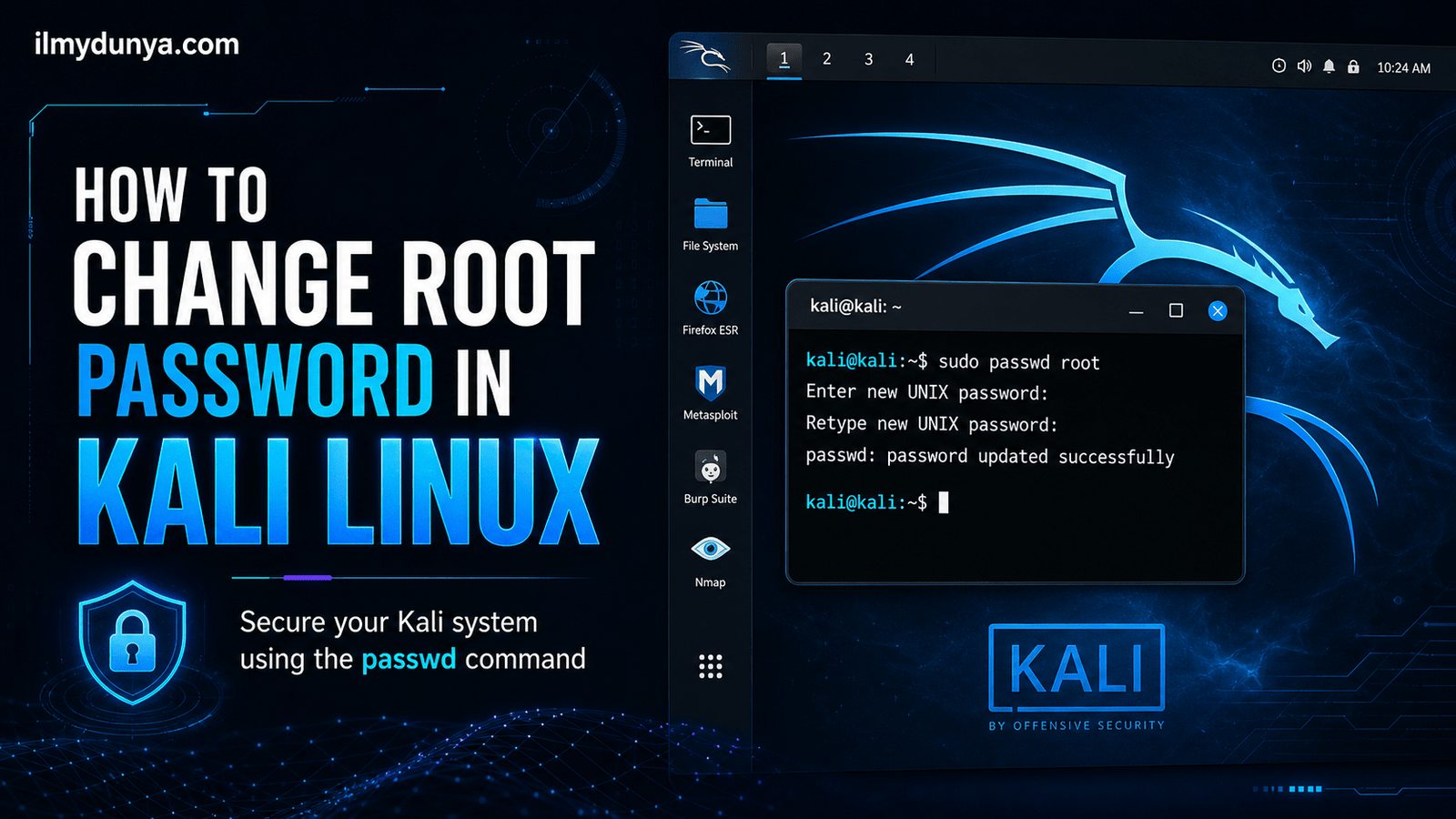

Those who use Linux relish in the security, stability, and flexibility of the OS. One of the most important elements of this flexibility and control is the root password. The root user can be thought of as the Linux System’s most privileged user. This account has permission to install and remove any software, change any file or setting in the system, control who can and can not use the system, exert control over all system operations, and more. For this reason, anyone who dabbles in Linux (users, system administrators, developers, or server owners) should learn how to change root password in Linux.
There are several reasons why you may want to change root password in Linux. You may have a brand new Linux server that needs to be set up, or may have forgotten the password, or perhaps you would like to change it to secure the system after a colleague has left the company. You may also want to keep your password secure by regularly changing it. No matter what the reason, changing the root password is easy when you know the right steps.
This article contains important information about the root user, the root password, root password changes, root password resets, and security procedures to implement after root password changes.
Why Is the Root Password Important?
The root password allows access to the root user account. Root is the highest level user in the system and has complete and total access to everything. Root users can change any aspect of the system configuration and/or remove/add users.
A user account, with permission to make changes and modifications, must first utilize the sudo command, in order to proceed with the appropriate changes. The root account can completely avoid all system restrictions, and proceed to make/sell comprehensive changes to the system. This is the reason and importance of the root password. Once the root password is learned and/or found, then the entire system can be totally taken control of.
There are certain distributions of Linux, such as Ubuntu, where the account is intentionally disabled. Users then have to depend on the sudo command. Other distributions, like CentOS, Debian, and/or Fedora utilize settings that permit an active root account.
It is always important to have good practices when resetting and learning to change the root account password in Linux.
Reasons for Changing Root Password in Linux
Here are some keys points on why you may want to change root password in Linux. The first and biggest reason for a password change is for security. You should change a password on a high access account like root often. Weak passwords are easily obtainable and should be changed from the original.
Another reason would be to manage a server. Often a company will create your Virtual Private Server with a root password. You will want to access with that password, and change to something more safe. Without that change, your server will be left vulnerable.
Changing the root password may be warranted for another reason, such as a change in system ownership. old administration removal and system recovery. Passwords changing is also a requirement within some corporate sites.
Changing the root password is also needed when you forget. There are options within Linux for a password reset, as well as some other allowed recovery modes, but these should only be used if you are on your personally owned system.
Changing Your Root Password on Linux with Command Line.
Changing your root password in Linux is simple with a few command line inputs. Getting access to the terminal as root is easy because you will only need a few sudo rights.
Open your terminal and type:
sudo passwd rootLinux will then prompt you to create a root password:
Create new UNIX password:
Retype new UNIX password:
You should now see:
passwd: password updated successfully
This root password change will work across most distributions Ubuntu, Debian, Linux Mint, Fedora, CentOS, Rocky Linux, AlmaLinux, or any distribution where you have sudo permission.
Changing the root password while logged in to root in Linux.
As root you can execute:
passwdLinux assumes you want to change root’s password and will prompt you for the new password and confirmation.
Example:
passwdAnd now just add the new password twice.
You will receive a confirmation message once accepted.
This is the most straightforward method to change your root password in Linux, as you can imagine, working as root can have its consequences especially if you do something as small as accidentally change a system file as you can break most of your services.
Reset Another User’s Password with Root Permissions
You must use another user account’s credentials with root-level access to change another user’s credentials. Use the following command:
passwd (username)Example:
passwd (username)In the case we want to alter the credentials of the root account, use the following command:
passwd (username)This adds more clarity to our intent towards the root account.
Resetting the Root Password on Ubuntu
Typically, Ubuntu’s root account is locked. Therefore, Ubuntu prefers users to utilize sudo commands. That said, root credentials can still be changed when the situation dictates so.
Use the command:
sudo (username)If you’re prompted, simply supply your user account’s credentials, then type the new root account’s credentials twice.
The root account’s credentials will be set. It should also be noted that for access to systems, this isn’t a recommended practice. (server’s….) It is wiser to use sudo.
To alter your user account for root authorization, use the command:
su -Enter the root account’s credentials.
One can also gain root access without setting root credentials by using the command:
sudo -iThis practice tends to be safer on Ubuntu systems.
Root Password Change in Debian
Debian lets you set a root password during installation. If you already know it, you can log in and execute:
passwdIf you don’t know the root password, you can change it from a sudo user account:
sudo passwd rootDebian will then prompt you for a new password and its confirmation. Once confirmed, the new root password is set.
Sometimes you might need to enable the root account. It could also be done in the recovery mode or the single-user mode.
Root Password Change in CentOS, Rocky Linux, and AlmaLinux
The CentOS, Rocky Linux, and AlmaLinux systems have a similar process. From an administrative account, enter:
passwdAgain, from a sudo account, do the following:
sudo passwd rootThen enter the new password twice to set and confirm the root password change. The system will let you know when you have been successful.
If you have a server, there are additional tasks you need to perform post root password change in the SSH. Sessions can enable root access; if not controlled, they could cause more concern than disabling SSH access for root entirely and allowing a regular user to use sudo.
How to Reset Your Root Password in Linux
In the event that you forget your root password, it can be reset; however, the method is dependent on both your distribution and the chosen bootloader. For the majority of Linux systems, you will boot from the GRUB menu to enter recovery mode or single user mode.
Here is a generalized method:
- Restart your machine and input GRUB.
- When GRUB appears, select your Linux install and press
eto edit. - From here, search for the line that begins with
linux. - At the end of the line that starts with
linux, append:init=/bin/bash - Then press Ctrl + X to save and exit, and in some GRUB setups, use F10.
- Your machine might start with a root shell.
- The root filesystem might be mounted as read-only.
- Remount root filesystem to read-write:
mount -o remount,rw / - Change the root password:
passwd root - To finish:
exec /sbin/init(or for some systems)
reboot -fThis method should only be performed on your machine or a machine that you own/authorized to. Interfering/resetting a root password without permission is technique for gaining unauthorized access.
Reset Root Password – Recovery Mode:
Most distributions such as Ubuntu provide a recovery mode option in GRUB.
When you restart the Ubuntu operating system from the GRUB menu, select the “Advanced options” and choose a recovery mode kernel to select from the recovery menu a “root shell prompt”.
Remount the filesystem as above:
Then run the command above to change the root password.
This is the easiest way to reset the root password recovery mode when you have physical or console access to a machine.
Choosing a Strong Root Password
The strongest root_passwords are long, unique, and unguessable. Passwords with common terms like names, phone numbers, birthdays, and common passwords like admin123, root123, and password are the weakest.
The right password will have a combination of capital and lowercase letters, numbers, and symbols. The best way to be strongest is long and unguessable.
For example it could be:
River!Cloud92#SystemRoadDon’t be the lazy internet user who uses the same password across multiple servers. When you do this, it only takes one server compromise before the attacker knows all of your servers.
Common Errors When Changing Root Passwords in Linux
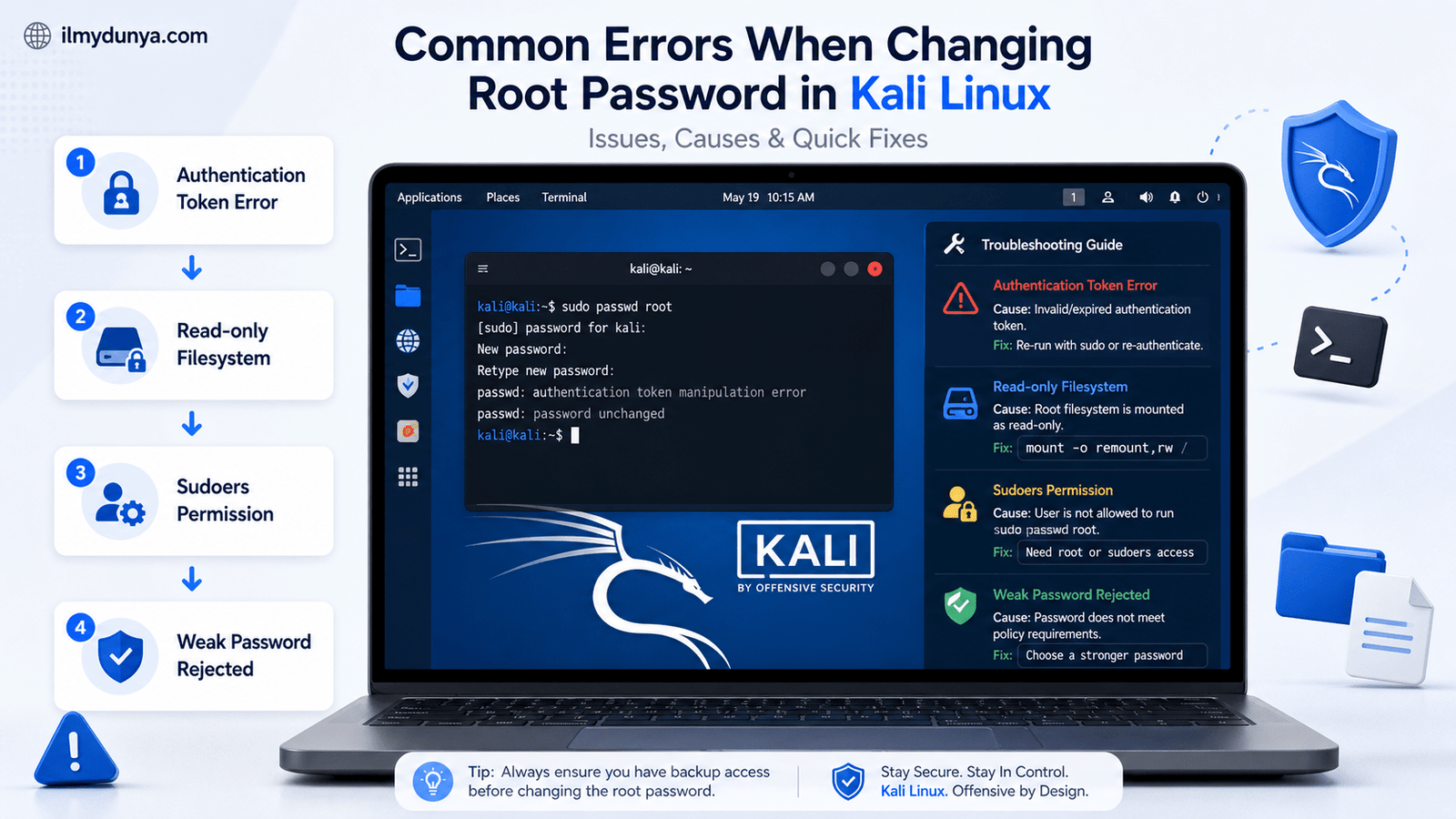
Changing root_passwords in Linux are not always easy, especially for the majority of people who try to change root password in Linux.
One common issues faced are:
Authentication token manipulation error
This is a common error which often indicates that you have a read-only filesystem with the possibility being it is in recovery mode. You can attempt to fix this by modifying the root filesystem to be read and writeable:
mount -o remount,rw /Without permission in the sudoers file you will be unable to modify the root password using sudo. The only option is to log in as root or get permission from the system admin.
You might face password rejection messages if your chosen password is of low complexity. Certain Linux systems implement password quality control. Please provide a more robust password before attempting again.
Is it Recommended to Enable Root Login?
After discovering how to change root password in Linux, some users might wonder if enabling root login is a wise choice. This is case-dependent, but usually, enabling root login is not a good practice.
For desktop Linux systems, employing sudo is a more secure and less inconvenient choice. On the other hand, for servers, enabling root login through SSH is dangerous, because most attackers will start targeting the root account. If users’ root login choice is allowed, and the root account has a weak password, it becomes easier to gain control of the server.
A more acceptable practice is to restrict direct login to the root account over SSH and create a regular account with the capability to use sudo.
To implement this, the following changes can be made within the SSH configuration file.
sudo nano /etc/ssh/sshd_configYou can add/edit this line to be
PermitRootLogin no
After this, the following will be able to be implemented.
sudo systemctl restart sshSuch changes will be able to mitigate the dangers of direct root login attacks.
Differences of Passwords for Root and Sudo
Most beginners usually confuse the root password with the sudo password. However, this might not always be the case.
A root password is used for the root account. On the other hand, the sudo password is the password for your user account. Linux will ask the password for your user account when a command that requires sudo is executed. This is not necessarily the root account password.
For example, the command
sudo apt updateAnd the command
su -demonstrate the difference between sudo permissions and root permissions in the Linux-like, Ubuntu operating system.
What to do Post Root Password Change
The first step, just after changing root password in Linux, is to keep it hidden and safe. Keeping the password unsafely means it could end up in plain emails, chat logs, and documents. Password managers are hierarchically trusted if plain storage is insecure.
Next, check system sudo access. Observe who is in the relevant system access group.
getent group sudo
For a system based on Red Hat, check the Troll (or Wheel) group.
getent group wheel
SSH access must also be assessed. When the server is connected, root must not be given access in the event of a specific purpose of leaving the access enabled.
When a member attempts to access SSH, credentials are required. More members are allowed when the group is Troll or Wheel.
Each of these practices seems rewarding, especially the first, if the root password may have been predicted.
Conclusion
Whether you’re trying to learn more about Linux or have your own helpful, security-driven reasons, knowing how to change the root password is a fundamental skill for any Linux user.
The root account is the highest account with full accessibility on a system. It is what the password helps to keep the account secure. The syntax is pretty universal, whether for Ubuntu, Debian, CentOS, or even Rocky and Alma Linux.
sudo passwd rootIf, however, you’re already logged in with root, it’s even simpler.
passwdFor any cases with forgotten root passwords, resetting passwords to the root account is done by either the recovery mode or the GRUB command. This is only on the managed systems you own.
Weak passwords are what keep passwords vulnerable, so practice minimum security by never sharing root access, disallow SSH for direct root access, and use the account to conduct most of your daily activities.Using these recommendations, you can take another step into locking down your system security and safely change root password in Linux.