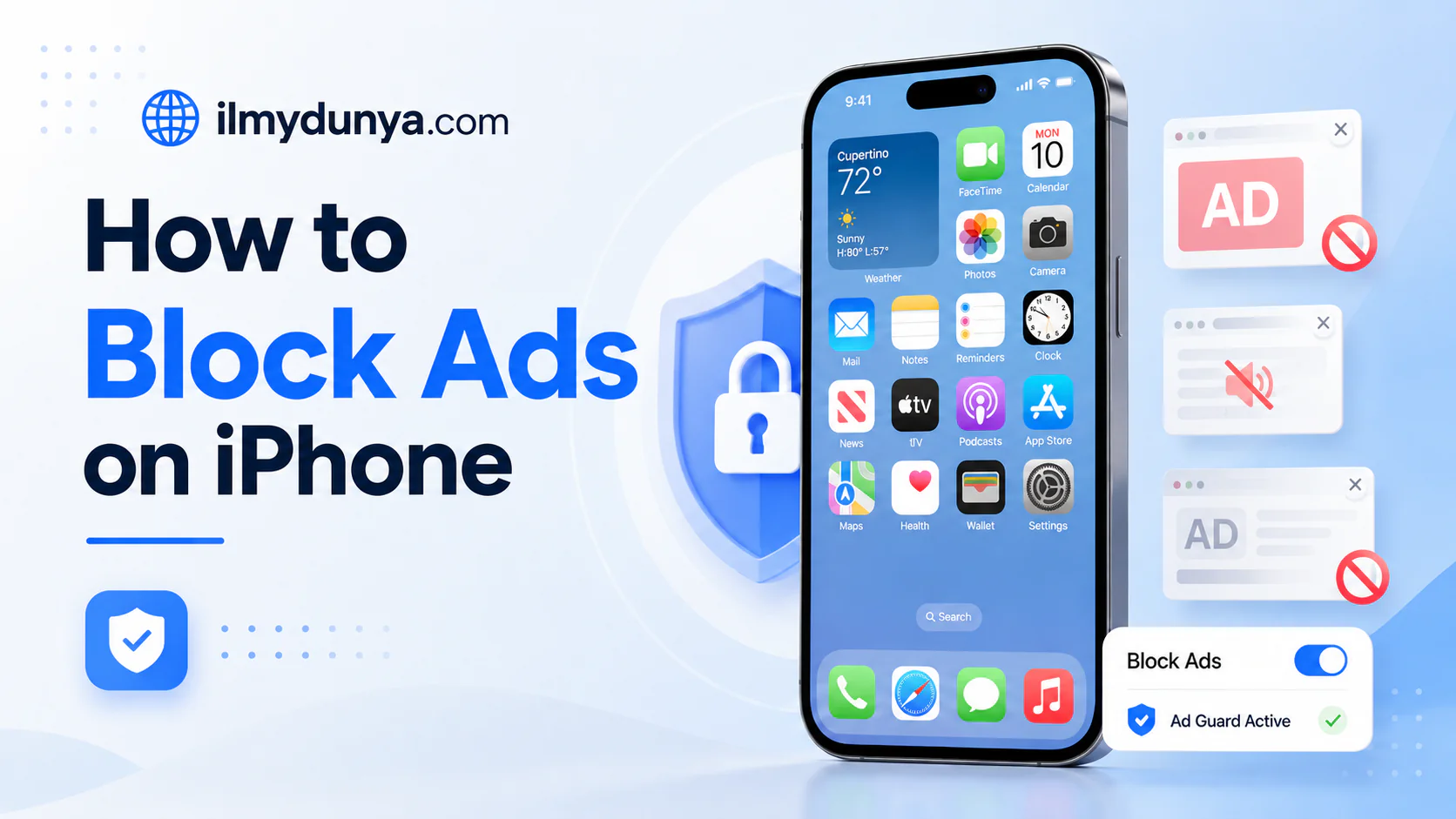

Most people find the continual barrage of advertising on iPhone’s apps and especially the pop ups on their Safari sessions to be annoying. Blocking ads on your iPhone will be shown here in this step by step guide and is very beginner friendly.
This guide will assist you in managing or eliminating annoying advertising from ilmydunya.com on your iPhone. We show you the techniques that best deliver your preference and control advertising in the apps you have installed whether you’re a Firefox, Safari, or Chrome user.
For most Apple users, the assumption is that Apple advertisement free; it is not the case. All website apps include advertising, as does game software. Apple devices include privacy and advertising preferences, and they include a variety of options that are simply and readily available.
One of our ad and privacy preferences is the ability to block pop-ups, website advertising, and ultimately improve your experience of surfing the web.
Why You See Ads on iPhone
Pop-ups advertising advertising on your iPhone is trivial once you’re familiar with the potential vehicle for advertising.
The likely advertising scenarios include.
- A site is using advertising networks
- A free app displays ads
- An active app is tracking your behavior.
- Most browsers will allow pop-ups.
- Targeted ads
The presence of advertising is directly proportional to a likely company generated ad. The more advertising, the worse the experience and the more the potential for a loss of personal privacy.
How to Block Ads on iPhone Using Safari Settings
As the default browser, Apple clearly has Safari pop-ups and unwanted advertising.
Enable Pop-Up Blocker
To enable the feature, do the following.
- Open Settings
- Go to Apps (scroll then tap)
- Click on Safari
- Block Pop-ups (toggle on)
This feature will block a majority of pop-up ads from being opened.
Turn on the Fraudulent Website Warning
To turn on the Fraudulent Website Warning on your iPhone:
- Go to your Settings.
- Find the Fraudulent Website Warning and TURN IT ON.
This feature protects your iPhone from deceptive scams and ads.
Enable Cross-Site Tracking Prevention
Another great feature is the prevention of Cross-Site Tracking.
- Go to Settings.
- Find the Safari.
- Turn on Prevent Cross-Site Tracking.
This makes it very difficult for advertisers to track your activity from website to website.
Best Ad Blocker for iPhone
Most times, Safari settings can only get you so far with unwanted ads and pop-ups. A great solution is to just install an ad blocker.
Some of the most commonly used ad blockers are:
- AdGuard
- 1Blocker
- AdBlock Pro
- Total Adblock
These apps have the capability to eliminate pop-ups, ads, and trackers of all kinds.
Step-by-Step Guide to Install an Ad Blocker on Your iPhone
To get ad blockers, here’s a quick guide to help you through the process:
- Go to the App Store.
- Find an Add Blocker of your choosing.
- Download the app.
- Access your iPhone Settings.
- Scroll to and Tap on Apps > Safari > Extensions.
- Turn ON the ad blocker you downloaded.
This will help Safari eliminate the majority of unwanted ads.
Ways to Eliminate Ads on Safari iPhone
If you are an avid Safari user, these tips will help optimize Safari for you.
Delete Safari History and Website Data
Some websites can store data and ads in the form of cookies.
You can remove these unwanted cookies by:
- Access your iPhone Settings.
- Scroll until you find Safari.
- Tap on Clear History and Website Data.
This will fully wipe all cookies stored by website ads and browsing history.
Reader Mode
Safari’s Reader Mode helps you focus while reading by stripping away distractions.
To turn it on:
- Open the page
- Click the AA button
- Then Show Reader
So many ads can get annoying. Reader Mode is a great way of taking away most ads while providing a better experience for reading.
How To Get Rid Of Ads On iPhone Apps
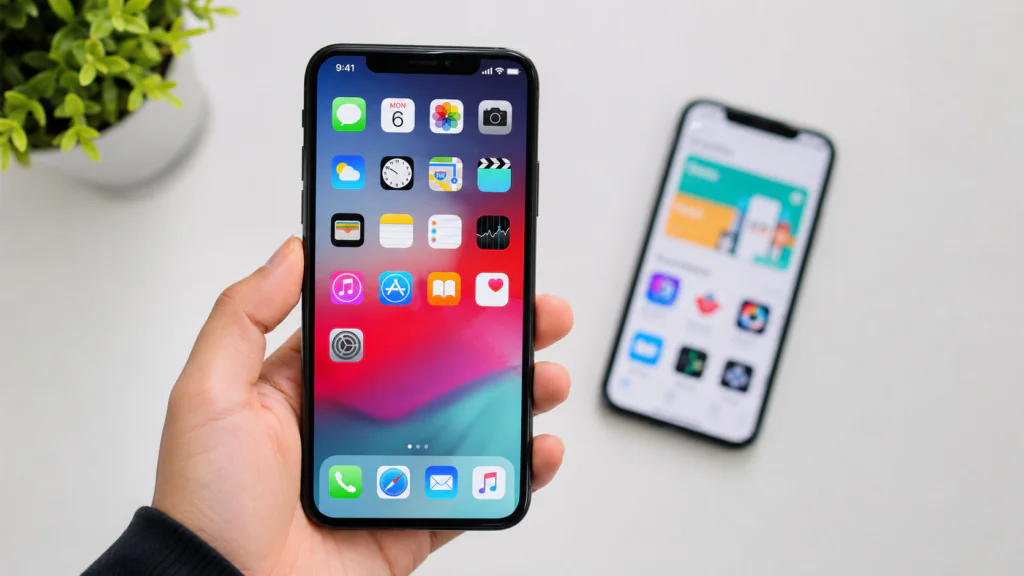
The simplest way for developers of a free app to make money is by showing ads. Unfortunately, iPhone is not built to fully get rid of ads on all apps, but here are some tips to help with that.
Pay For An App’s Ad-Free Subscription
The easiest way to remove ads from an app you really like is to pay for the ad-free app. Doing this ensures that you are not bothered by annoying ads again.
App Tracking should be Off
Apple has privacy controls that allow you to opt out of app tracking and thereby limit advertising.
- Open Settings
- Go to Privacy & Security
- Click Tracking
- Set the toggle on Allow Apps to Request to Track to off.
By opting out of app tracking, apps won’t have as much data to deliver tailored ads to you.
Personalized Ads
Limiting Apple’s ads may help you reduce the number of ads directed towards you
- Open Settings
- Go to Privacy & Security
- Click Apple Advertising
- Set the toggle on Personalized Ads to off.
How To Block Pop Ups On iPhone
Among all annoying ads, pop-ups can be the most frustrating.
They can show up for a number of reasons, such as:
- Unsafe Websites
- Fake Notifications
- Spam Calendar Subscriptions
- Browser Redirects
Unsubscribe From Spam Calendar Subscriptions
One of the more frustrating types of pop-ups can be linked to spam calendar subscriptions.
To remove unknown calendars:
- Go to Settings
- Hit Calendar
- Tap Accounts
- Delete unknown calendars
Deleting Apps
Some ads can be traced back to certain apps.
Take a look at the apps that you’ve installed lately and remove the bad ones.
- Tap and hold the app you want to remove
- Hit Remove App
- Hit Delete
Blocking Ads on Chrome for iPhone
Some people inconvenience themselves by using sChrome over Safari.
Chrome is a bit better when it comes to ads, but you can still enjoy better privacy and block ads.
Using Safe Browsing
- Launch Chrome
- Tap on the three dots
- Select Settings
- Tap Privacy and Security
- Hit the toggle on Safe Browsing
Using Ad Blockers
AdGuard DNS for chrome has complete filtering of every ad leading to better privacy and security.
Simplifying DNS Ad Blocking
DNS ad blockers are the most effective at blocking ads on multiple apps on different systems.
Having a DNS filter will simply stop ads from showing on your devices.
Some of the benefits of using these ad blocking systems include:
- Quick and smooth browsing
- Less tracking on the devices
- Reduced data consumption
- Decreased ads on media platforms.
Adjusting Private DNS for iPhone
You can take advantage of apps like:
- AdGuard DNS
- NextDNS
- Control D
These apps will help you adjust their respective DNS systems for private browsing.
Other privacy features of the iPhone
It focuses on enhancements for privacy and helps ensure that multiple ad blockers are working.
Here are a few more ways to protect your privacy. Protect It with Truth 😄
Disable Location Access for Unnecessary Apps
- Open Settings
- Tap Privacy & Security
- Select Location Services
- Check which apps have permission to access your location.
Many apps track location to serve you ads.
Check Notification Permissions
Some ads show up as notifications from websites.
To stop this from happening:
- Open Settings
- Tap Notifications
- Turn off notifications for the apps you don’t want.
Keep Your iPhone Updated
Apple sends out iPhone updates for security.
You should always update your iOS. New updates have more privacy protection and blocking ads that were previously unblocked.
Common Problems While Blocking Ads on iPhone
Blocking ads may come with a few issues.
Websites Not Loading Properly
Some websites need ads to run. If a page crashes:
- Open Safari
- Tap the AA icon
- Turn off the content blocker.
Video Players Not Working
Some streaming sites can tell you have an ad blocker. You may have to turn off your ad blocker for that site.
Battery Issues
Most ad blockers use an insignificant amount of battery. But using many privacy apps may impact your battery.
Are Ad Blockers Safe for iPhone?
If you download ad blockers from the App Store, you should be fine.
You should avoid apps that ask for permission for random things.
You should:
- Read reviews
- Check ratings
- Verify the developer name
- Avoid suspicious things that are free
Benefits of Blocking Ads on iPhone
There are plenty of advantages to learning how to block ads on your iPhone.
Faster Browsing
In the absence of heavy advertising scripts, websites load much more quickly.
Better Privacy
Blockers mitigating advertising will also help reduce a user’s online tracking and protect a user’s data.
Lower Data Usage
Ads can use a lot of data on a mobile plan. Avoiding the use of video ads or banner ads can help a user save their mobile data.
Cleaner Experience
Removing distractions helps focus a user on the task and helps improve reading.
Improved Battery Life
Background advertising requires the processor a lot of processing power.
Free vs. Paid Ad Blockers
Both can be effective.
Free Ad Blockers
Offers benefits for
- General web browsing
- Pop-up ads prevention
- Basic web shielding
Paid Ad Blockers
Offers benefits for:
- Advanced protection of privacy
- Addressing advertising that is not limited to one app
- Allowing ads on various web browsers
- Allowing customization
A free version is usually sufficient for blocking ads in Safari.
Best Practices When Avoiding Ads and Scam Pop-Ups
To help avoid ads and scam pop-ups:
- Stay away from unknown hyperlinks
- Avoid unknown applications
- Use trusted websites
- Keep Safari security settings enabled
- Never random allow notification requests
By following these steps, ads and scams can be kept to a minimum.
Conclusion
You can block ads on your iPhone relatively effectively by using Safari settings, ad blockers, adjustment to privacy settings, and safe browsing. Even a beginner can use these methods and get a much cleaner and faster experience on the iPhone.
ilmydunya.com has simplified the process for you by creating a guide that helps you get rid of ads on your iPhone. If you want to stop unwanted popups and keep your unwanted tracking to a minimum, complete the steps above. All of that can be done without any additional skills.
The more established your privacy settings on Safari and your ad blockers are, the better your experience will be online. Your browser will be a more pleasant experience.
FAQs
Pop-up blocking on Safari and tracking prevention will help remove most ads. Add an ad blocker such as AdGuard or 1Blocker for full functionality.
AdGuard, 1Blocker, and AdBlock Pro are some of the best ad blockers for Safari. They help to create a more private web browsing experience.
Ad blocking is not as effective as it is on browsing. It is possible to minimize advertisement by DNS blocker.
Yes
Bypass ads target app blockers and websites that use app-based ad placements.
There is a built in pop up blocker with tracking prevention on Safari, but blocking ads is not one of those.
Most ad blockers don’t use a lot of RAM and can actually benefit performance because ads will no longer be loading in the background.