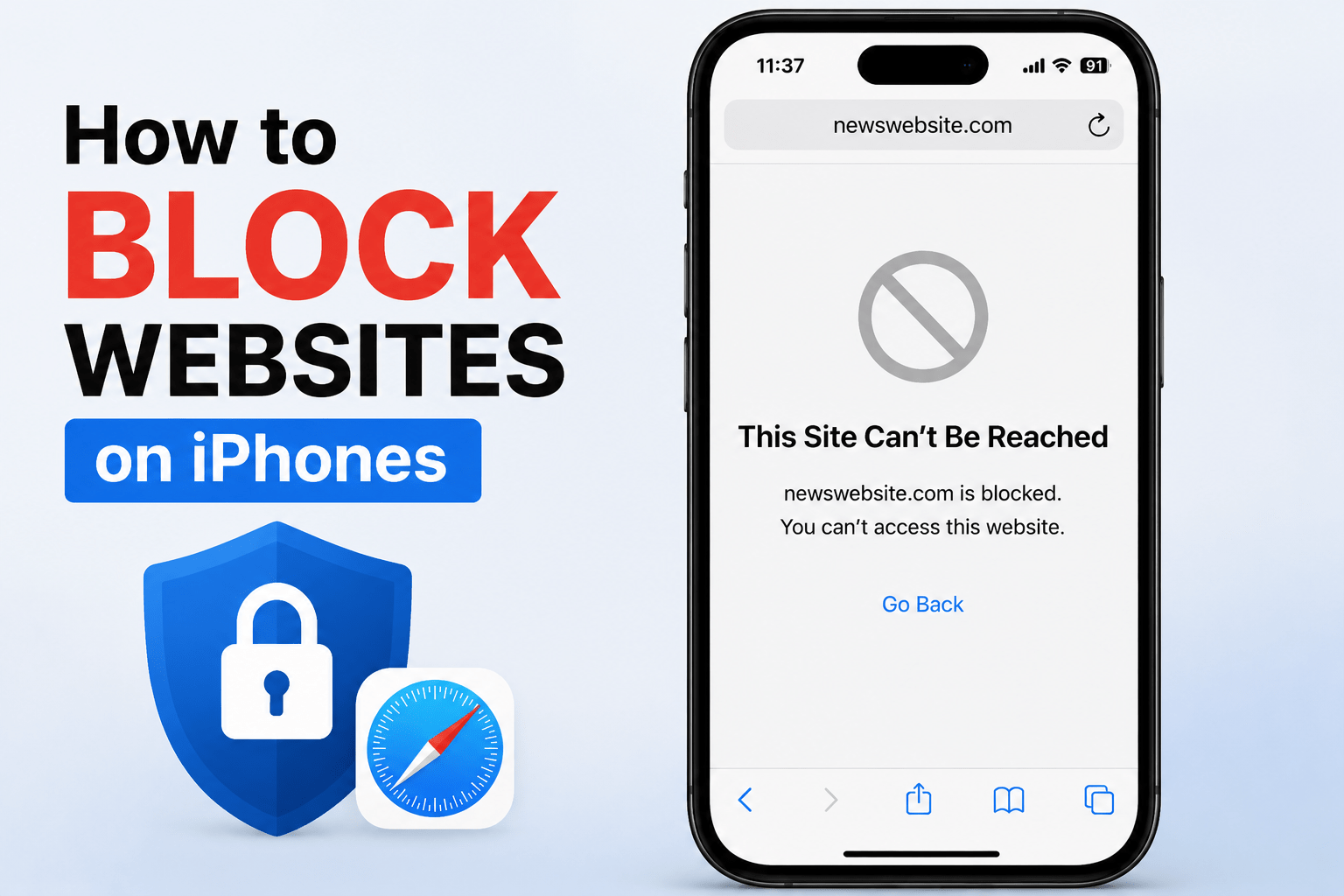

Some iPhone users look to decrease daily distractions and better control their browsing by learning to block websites on their phones. Fortunately, Apple designed their settings so you can block websites on iPhones. They even have developed a number of intuitive browsing control methods for parents to help restrict their children’s access to different sites.
There is an no-cost, built-in tool in the iPhone settings that allow you to control what websites your children or even you can browse to. In addition, there are other methods you can use that are even more effective than iPhone’s parental controls, such as router controls, DNS-based parental controls, and other forms of parental control apps.
In this guide, we will walk you through step-by-step how to block websites on iPhones. There are a number of methods and we will explain the easiest for beginners, the most useful for parents and more advanced users, and we even list common pitfalls we have encountered to aid you in creating a website-blocking system you can rely on.
Some of the reasons to block a website are to enforce productive work hours by prohibiting social media access or to help keep your children safe from browsing inappropriate sites. We will inform you of everything you need to know so you can work toward that goal.
Reasons For Website Blocking on iPhone
Creating better and more healthful personal boundaries with technology and browsing control can make a huge difference in your daily life. However, part of this can be limiting access by learning to block things, especially on iPhones.
Here are some main reasons:
- To Protect Children
Staying away from violent and inappropriate content is something that parents want from websites like adult content, violence, and gambling. Blocking websites are necessary since children often use devices like iPhones and family-sensitive devices.
- To Improve Productivity
For working or studying individuals uninterrupted, websites like YouTube, Instagram, Reddit and games can be distractions. Blocking websites can help them be more productive.
- To Reduce Screen Time
Mindless browsing instead of productive effort can happen due to less dangerous websites. To address that can help reduce excessive browsing that block a few or many websites.
- To Increase Security
Websites that fake, scam, and promote malware sites or phishing can be safe and useful in avoiding dangerously or blocked websites.
- To Set Personal Boundaries
Content from certain websites can be blocked to be less productive in a day to support negativity in a daily more more.
How Do You Block Websites on iPhone Without An App?
Originally, iPhone users can use Screen Time to block websites as part of Apple’s parental and digital control feature. This even exists as a starting point.
Helps Make Time Simple
- Out of the Box Technology
- Block Websites Without Download
- Time is Simple
- Works on All Browsers
Lets address Screen Time next.
You can use Screen Time to add websites you want to block and also restrict what web content can be accessed.
1. Open Settings.
Select the Settings icon, which is the gear icon.
2. Tap Screen Time.
Find the Screen Time option and select it.
If you’ve never set it up before, you’ll need to enable Screen Time.
3. Turn On Screen Time if Needed
If Screen Time is not yet activated, select the Turn On Screen Time option, then follow the on-screen prompts.
You may also be given the following options:
- This is My iPhone
- This is My Child’s iPhone
- Set the proper option.
4. Open content and privacy restrictions.
Within Screen Time, select the Content & Privacy Restrictions option.
Then, turn this feature on.
5. Tap Content Restrictions.
Select the Content Restrictions option.
6. Tap Web Content.
Inside Content Restrictions, select the Web Content option.
You’ll see the following options.
- Unrestricted Access
- Limit Adult Websites
- Allowed Websites Only
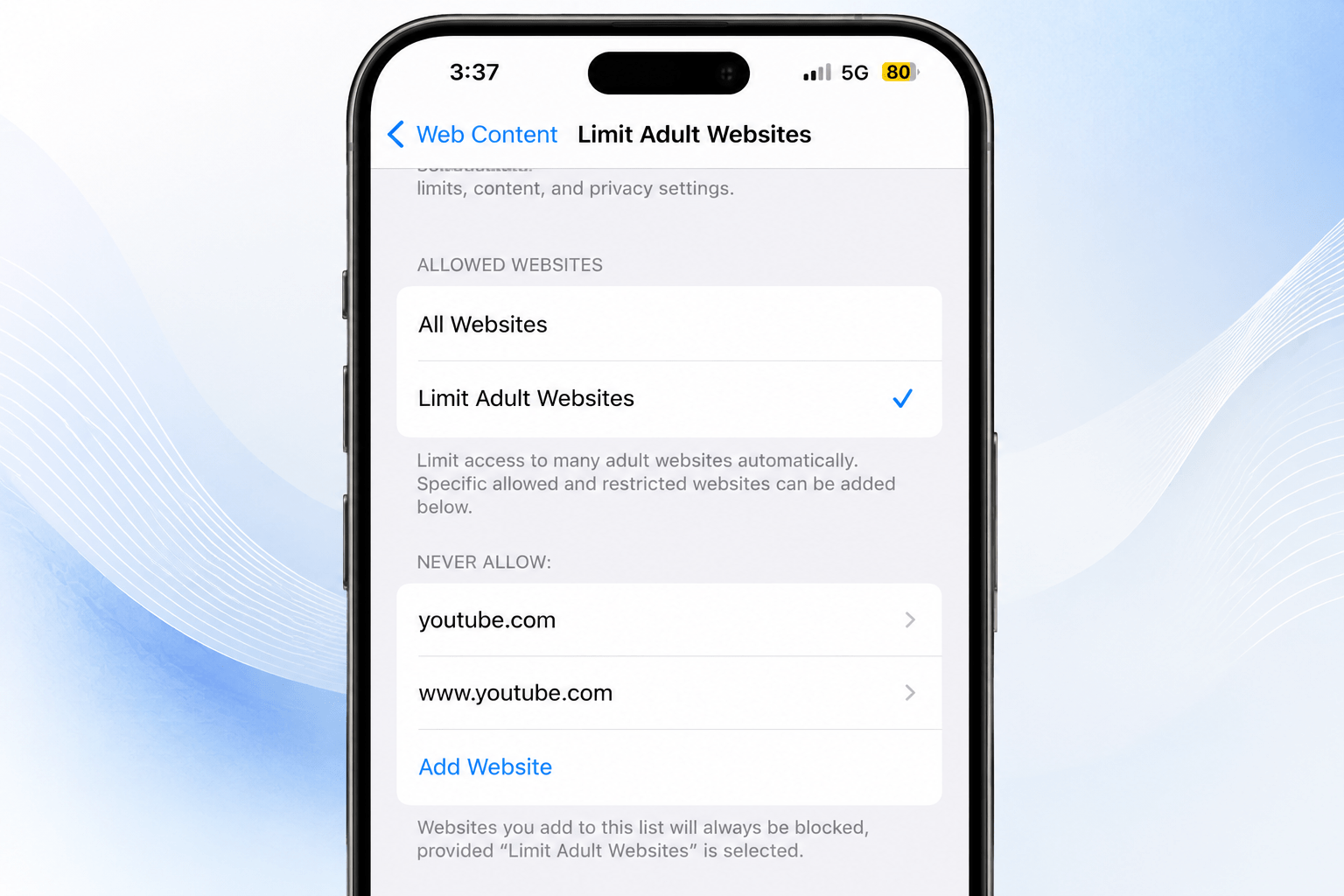
7. Choose Limit Adult Websites.
Limit Adult Websites is the option to select.
The Never Allow section gives you the option to quickly block certain adult websites and add websites of your choice to be blocked. This is called Never Allow.
Step 8: Add a Site That You Want to Block
- Choose Add Website toward the bottom.
- Then add a website (or websites) you want to block such as the following.
Block Examples:
- facebook.com
- youtube.com
- reddit.com
websites blocked should be restricted from further access.
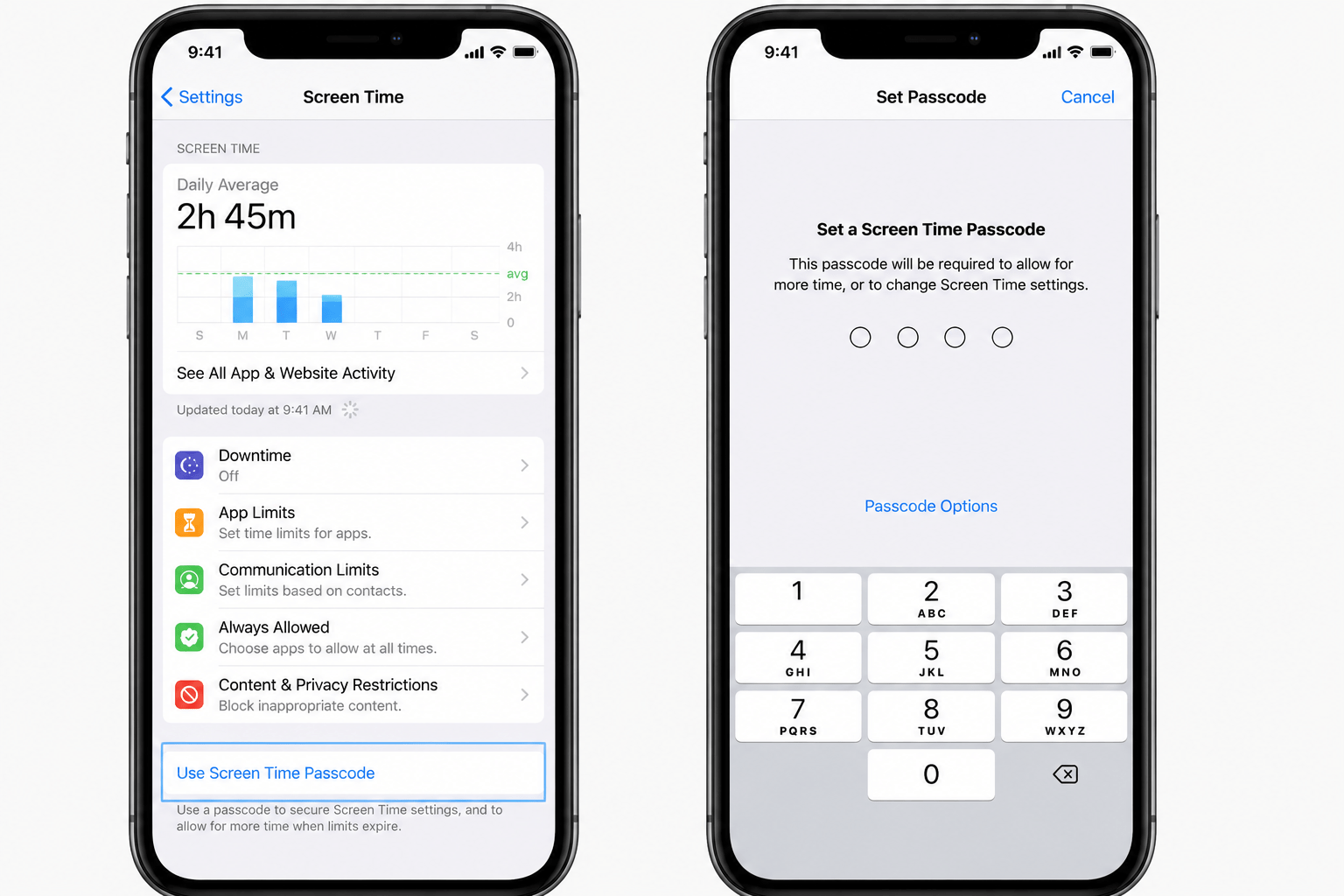
Important Tip: Set a Screen Time Passcode. Improperly add Passcode Example
This tip is essential if you plan to place skip example restrictions on your website.
Without a passcode, you forfeit the roadblock you plan to make on the restrictions.
Here is how to set it:
Part of the Screen Time menu, use the Screen Time Passcode, then add the four-digit passcode.
Method 2: Use “Allowed Websites Only” for Stronger Restrictions
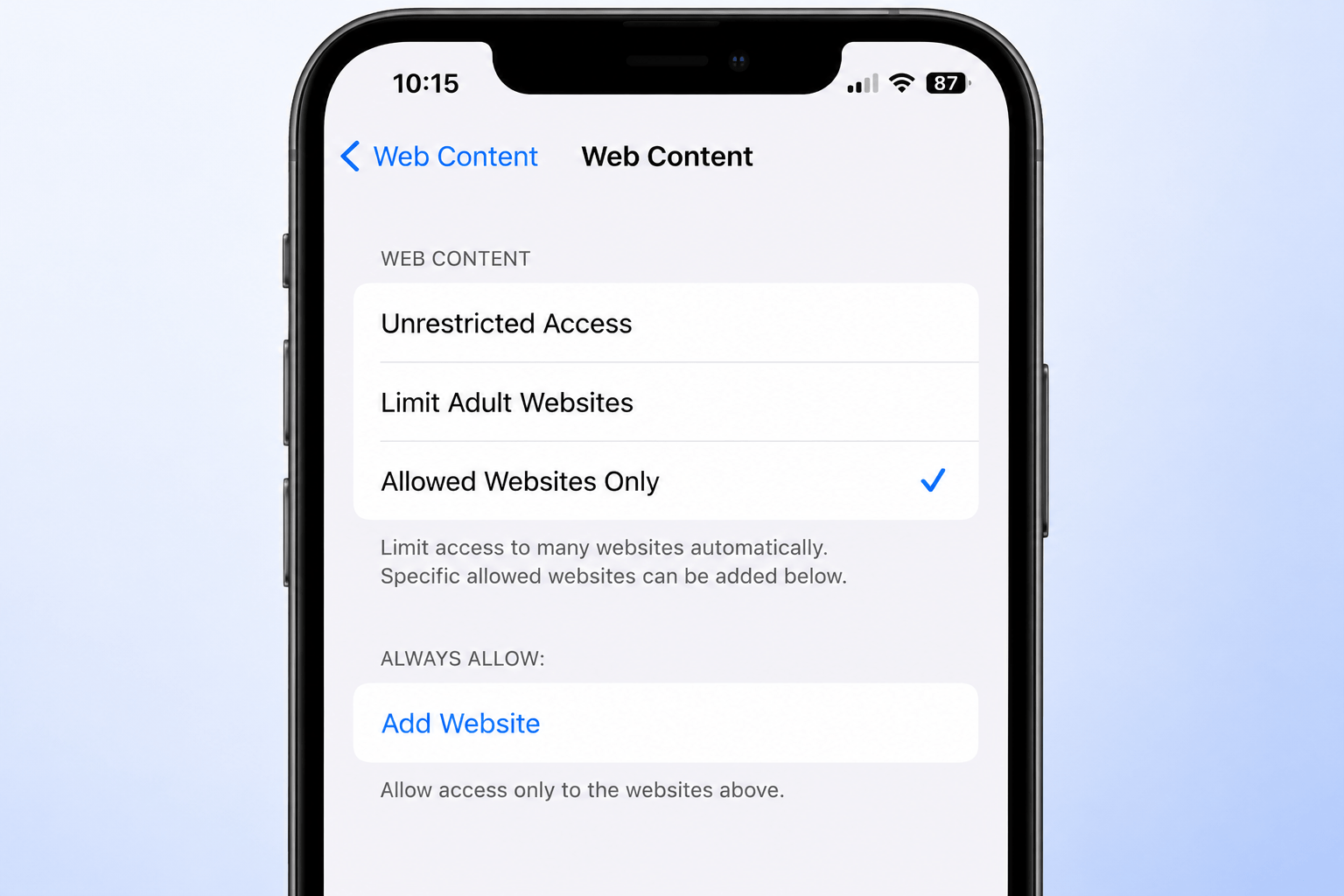
For parents that want even greater control over web access on their kid’s iPhone, restricting to ‘Allowed Websites Only’ works better than blocking sites individually.
Understand Resources
Instead of building a ‘block list’, parents simply build a list of allowable sites, and all others are by default blocked.
To restrict sites to ‘Allowed Sites Only’, go to your iPhone’s Screen Time settings > Content & Privacy Restrictions > Content Restrictions > Web Content and select ‘Allowed Websites Only’.
This setting will result in a small list of sites being unblocked, while most others are by default prohibited. You may then build the allowable list on your own.
These restrictions are great for:
- Children’s iPhones
- devices restricted for study purposes only
- iPhones which are shared amongst family members
- Phones which are parents’ dedicated control access devices
Example Use Case
If a child just needs access to:
- A school website
- A site to access an educational platform
- An Apple Help website
- YouTube kids
A singular list can be made, and all others can be blocked.
Method 3: Use a Third-Party App to Block a Site on an iPhone
While Apple provides a pretty great set of tools to impose control over websites accessed through iPhones, there are additional, valued tools available to working parents like scheduling, activity reports, cross-device access, and stronger parental control.
For parents in need of these additional tools, third-party apps are the answer.
Best Site-Blocking Apps for iPhone
Freedom
Freedom is perfect for blocking sites and apps to increase productivity with cross-device and cross-app scheduling.
Great for:
- Students
- Remote employees
- Anyone looking to block distractions
Qustodio
Qustodio is a popular app for parental controls and offers app monitoring, screen time controls, and site blocking.
Great for:
- Parents
Net Nanny
Net Nanny is focused on monitoring and powerful filtering options to make site blocking easy.
Great for:
- Families with kids that use iPhones
Pros of Third-Party Apps
- Advanced blocking options
- Enhanced reporting
- Multi-device
- Time-based
Cons
- Some have a monthly fee
- A bit of experience needed to set up
- Not all have the same effectiveness with all browsers and apps
Example of Third-Party App
- Third-Party App
- For Parent Controls
- Site Blocking App
Method 4: Site Blocking with iPhone and DNS Filtering
Site blocking with use of DNS filtering can give you more power in control of what can be searched on your site.
Traffic control through DNS filtering helps you filter through what sites can be searched on the iPhone, where the iPhone screen time simply works only to block on a site-by-site basis.
Most Used DNS
- OpenDNS
- CleanBrowsing
- Cloudflare Family DNS
Setting Up DNS on iPhone
- Open Settings
- Tap on Wi-Fi
- Tap the i icon neighboring your connected Wi-Fi network
- Configure DNS and Select Manual
- The Servers will appear, remove the existing DNS entries
- Add the DNS entries of your preferred provider
- Select Save
Adjust Screenshot Caption to read: Manual DNS adjustment on iPhone
For the purpose of Alt Text, please use: DNS Manual adjustment on iPhone Wi-Fi.
Benefits of DNS Filtering
- Categories of websites can be blocked
- Offers more online safety
- Helpful for family control of Internet access
- Blocking of whole categories of websites can be done without adding separate sites
Drawbacks
- This method only works when your iPhone is connected to the given Wi-Fi network. Otherwise, you will need to set up a device-wide profile or a DNS provider app.
Method 5: Block WebsitesThrough Router Settings
Router-level blocking is a a good way to block websites on iPhones and tablets and computers to every device in your house.
Instead of changing your settings on the iPhone to change the router settings, you will be preventing access to the websites right from your Wi-Fi router.
Step-By-Step Instructions
While there will be some variation by brand, the following steps should be stick:
- Type the URL for router settings into a web browser
- Enter the username and password for your router
- Look for options related to Parental Controls, Access Restrictions, or Website Filtering
- Enter the URL of the site(s) you would like to block
- Save the changes made
Ideal Usage of This Tool
- Supervisory aid to manage and control access to the internet from home
- Families who own or use multiple internet authorizing devices
- Keep members of the network from gaining access to endearingly frustrating web pages
Issue
This will only be effective for as long as an individual stays on a network that supports the site blocking device. Should a person choose to use mobile data from the Internet Provider instead, the site will regain access.
Is Blocking a Website from My Device on Safari Enough to Block It from All Browsers?
Yes, people often wonder this question.
When you use the Screen Time app, your restrictions should be applying to Safari and the majority of browsers on an iPhone as web restrictions will be applied at the system level.
This is subject to change based on the following:
- The iOS version
- The browser
- Content access at the app level
- The content access via an app directly instead of a browser
For the best chance of restriction, you will combine your Screen Time with:
- A Screen Time passcode
- DNS filtering
- Restrictions at the app level, if required
iPhone Website Blocking Issues
I will provide you with some of the challenges some people run into as concerns when it is not overly left up to parental direction and to be honest many people run into minor but frequent concerns with these steps. Below I will show you some of the ways to correct these.
Troubleshooting Tips for Setting Internet Restrictions
Problem 1: The Website Still Opens
- You entered the wrong URL
- You blocked only one version of the domain
- Restrictions were not fully enabled
To fix the issue:
Add both versions of the site: example.com and www.example.com
Be sure Content & Privacy Restrictions are enabled.
Problem 2: The Child or User Removes the Block
To fix the issue:
Set a Screen Time passcode and keep it private.
Problem 3: Website Is Accessible on Mobile Data
If you only blocked websites through your router or Wi-Fi DNS, the site will still be accessible when using mobile data.
To fix the issue:
Use Screen Time on the iPhone itself or use a third-party app.
Problem 4: App Access Still Works
For example, adding a website block for facebook.com will still allow access to the app.
To fix the issue:
Use Screen Time app limits or app restrictions for the app you want to block.
Practical Tips to Make Website Blocking More Effective
If you want to improve your website blocks, here are some tips.
Add More Than One Version of the URL
Access to a website can be found on several subdomains. Make sure to block:
- example.com
- www.example.com
- m.example.com
Use a Passcode Immediately
If you do not set a passcode, your site restriction can be easily undone.
Combine Methods
Try to block content at several different levels. Consider Screen Time for individual device restrictions, router filtering for restrictions on an entire at-home use, and DNS filtering for additional restrictions.
Review the Block List Occasionally
It can be beneficial to add new URLs for your restrictions and/or remove some you feel are unnecessary.
Block the App Too
If the website is an app, feel free to add the app to your restrictions as well.
Use Website Blocking with Screen Time Limits
You can limit productivity or browsing time when combined with website blocking.
Usage Preference-Based Best Method
Your goals help determine the best method.
Primarily iPhone Users
Try Screen Time! It’s simple, built into the iPhone, and free of charge.
If You’re a Parent
Try Screen Time, a parental passcode, and Allowed Websites Only.
You can always supplement with other tools like Qustodio or Net Nanny.
If You’re a Productivity User
To maximize daily productivity, consider Freedom, or block distracting sites with Screen Time during working hours.
To Enable DNS Filtering and Website Blocking for an Entire Home Network
Use your router’s available settings.
Conclusion
Congratulations! You have mastered how to block a website on iPhone using a variety of methods, given your specific preferences. You will find of all the methods, Screen Time will hit the sweet spot in ease of use, built in power, and time, with a few holes for potential website control to fit family Web Time needs.
If you need to gain control beyond the built in options of as many specific listed websites, to add in Allowed Websites Only, 3rd party parental control websites, and gain control of a router-based website blocking with Digital DNS Control. Productivity, parental controls, security, and all goals of digital well being are all best suited for the chosen method you have your goals aligned in control.
You will have defeated all website browsing to the control your iPhone lost privacy in. Browsing will become less distracting, and you will have more vital control to gain your privacy.
Having a Screen Time passcode is important when setting restrictions on a child’s or a shared device. This way, their restrictions can’t easily be changed.
Now, you know how to create a more focused, safer setting so users can have a better browsing experience.