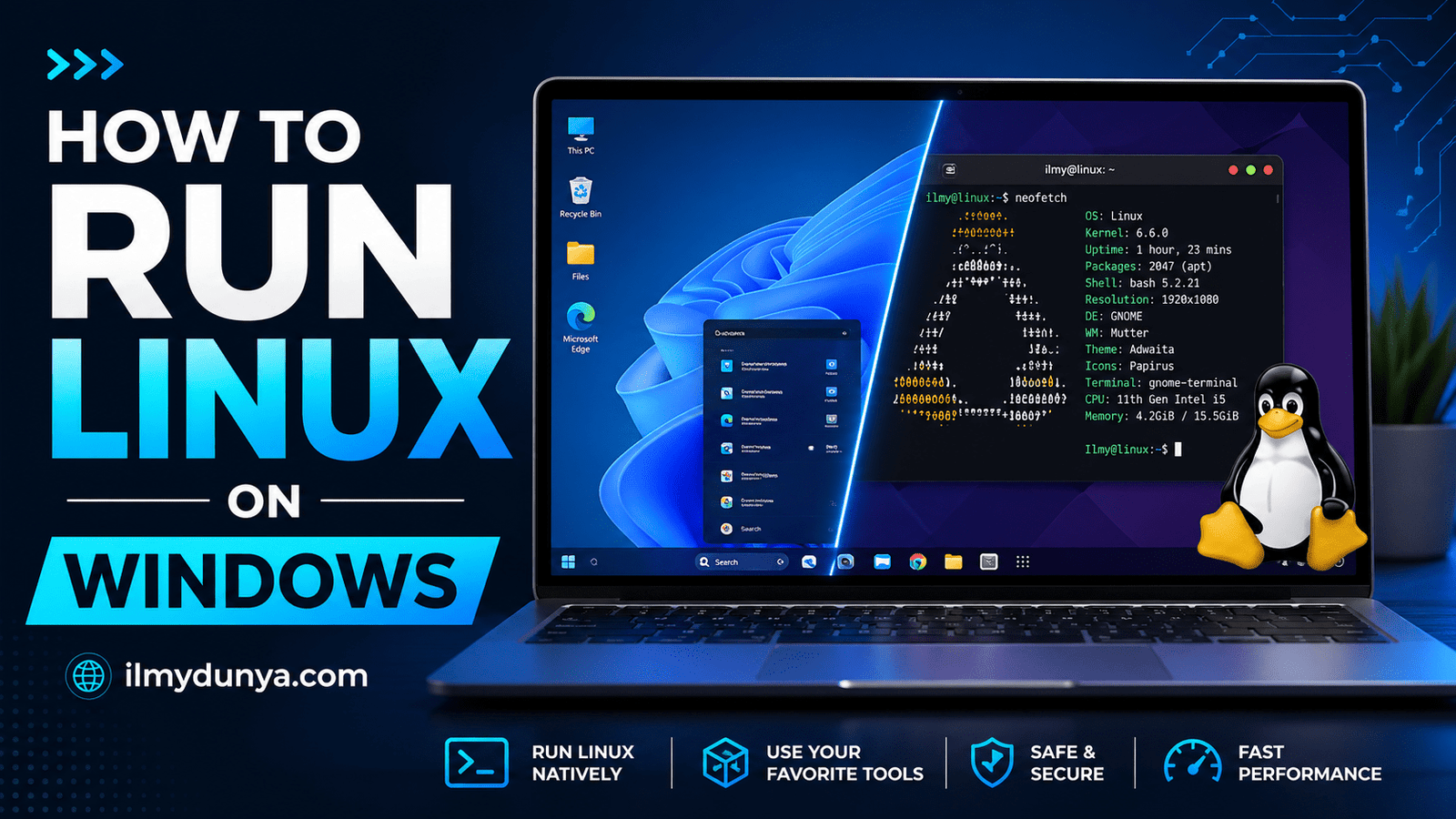

Many students, programmers, and IT learners want to learn the Linux OS, but they do not want to wipe Windows from their desktop or laptop.
The great news is that you do not need to wipe Windows to learn and use Linux.
It is very easy to run Linux on Windows using Windows Subsystem for Linux, virtual machines, dual boot, and live USB, among other options.
In this guide, we’ll show you the best way to run Linux on Windows.
You could be a student learning operating systems, a beginner programmer, a web developer experimenting with different operating systems, or an admin who wants to see how different distributions of Linux (Ubuntu, Kali, Debian, and Fedora) work.
Linux is an operating system that’s fast, secure, flexible, and easy to use. It is open source and popular in servers and cloud computing environments. Unlike Linux, Windows is still the most popular OS among everyday users. Running Linux on Windows allows you to have the best of both worlds.
How Does it Work When You Run Linux on Windows?
Running Linux on Windows means to use the Windows OS on your computer, but have the capability and access to a Linux OS in a different directory. You can use a Linux terminal, run Linux commands, install Linux packages, practice shell scripting, and run some Linux applications. You do not need to leave Windows, nor do you need to restart your computer.
Methods may vary in technical knowledge. The best method also may vary by user intent. Linux command practice? Try Windows Subsystem for Linux. Full Linux desktop? Try dual boot or virtual machine.
Windows Subsystem for Linux (WSL) gets Microsoft support. WSL installs with a command: wsl –install. With this command, WSL creates Linux v2 (WSL2) by default. (Microsoft Learn) Alternatively, Ubuntu is usable on WSL. Enable the Ubuntu option to access the terminal in Ubuntu on Windows. (Ubuntu)
Reasons to run Linux on Windows.
Learning is a support for this search. Linux is prominent in software companies, cloud, server hosting (aka cloud hosting), cybersecurity, and networking. Computer science, IT, software engineering, cybersecurity, and data science programs teach Linux.
Linux also creates ease when developing. The requirements of many programming languages and their tools like Python, Node.js, and Ruby, are met on Linux. The same is true of other server-side languages like PHP and Ruby. The same is true of other tools like Docker, Git, and Bash. Development means the dual boot method to run Linux on a Windows machine is preferable.
The inclusion of Linux in cybersecurity training is invaluable. Numerous ethical hacking applications, including those found on Kali Linux and Parrot OS, are built exclusively on Linux. Beginners are encouraged to utilize these tools only in a legal and ethical manner in designated and secure environments.
The financial benefit of running Linux on Windows is clear. You don’t need a second device, and you don’t need to erase your Windows installation. You can simultaneously experiment with Linux by learning commands and developing code.
The Options for Running Linux on Windows
You can use a variety of methods to run Linux on Windows, with the most popular being:
- Windows Subsystem for Linux
- Virtual machine
- Dual boot
- Live USB
Each carries specific benefits, which we will outline here.
Method 1: Windows Subsystem for Linux
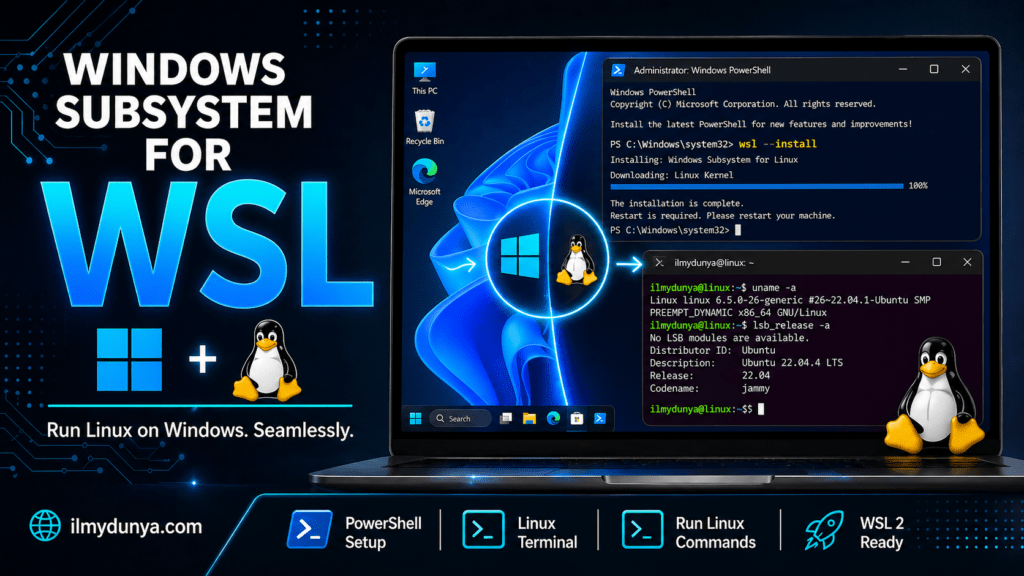
The Windows Subsystem for Linux, or WSL, is arguably the best method to run Linux on Windows. It provides you with an authentic Linux command line within Windows. You can run Linux without partitioning your hard drive or restarting your machine.
WSL delivers an excellent learning platform for students, programmers, developers, and anyone looking to familiarize themselves with Linux. You may use various distributions like Ubuntu, Kali Linux, and openSUSE, to name a few.
Installing WSL on Windows
First WSL should be installed from Windows PowerShell. You must search for Windows PowerShell on your device, right-click on the icon, and select the Run as Administrator option.
Next type the command:
wsl –install
Then press Enter, and wait for Windows to take care of the rest. Generally, this command will install WSL and the default Ubuntu distribution. This command is also recommended by Microsoft as the preferred way for installing WSL on Windows. (Microsoft Learn)
Once the installation is done, you might have to reboot your computer if prompted to do so by Windows. When all finished, you will be able to find Ubuntu or whichever other Linux distribution you have installed as a new option in the Start menu.
When you open it for the first time, it will prompt you to enter a new username and password. This username and password will only relate to your Linux account and will have nothing to do with your Windows account. After the prompt, you will be greeted by the Linux terminal where you will be able to have all the fun running Linux commands.
An example of what you might want to do first:
sudo apt updateThen, you can install a bunch of stuff with:
sudo apt install gitYou can check which of your Linux distributions you’ve installed using:
wsl --list --verboseThis will tell you all the distributions of Linux you’ve installed and will also tell you whether they have WSL 1 or WSL 2. Microsoft also has commands to switch your default and also your active WSL distributions. (Microsoft Learn)
Reasons to Use WSL
WSL is quick and easy to do. Also, from a virtual machine perspective, it doesn’t require that kind of setup. WSL is perfect for command-line tasks. It allows you to work with all of your Linux tools, scripting, git, package management, and software development tasks.
A good thing about WSL is its close integration with Windows. You can access Windows files while in Linux, and Linux commands can be executed in Windows applications. Many utilize WSL with Visual Studio Code. It is common in web development and programming.
If you want the full Linux experience, like the full Ubuntu desktop, menus, icons, and graphical setups, then WSL isn’t preferable. In that case, a virtual machine is suggested.
Method 2: Run Linux on Windows Using a Virtual Machine
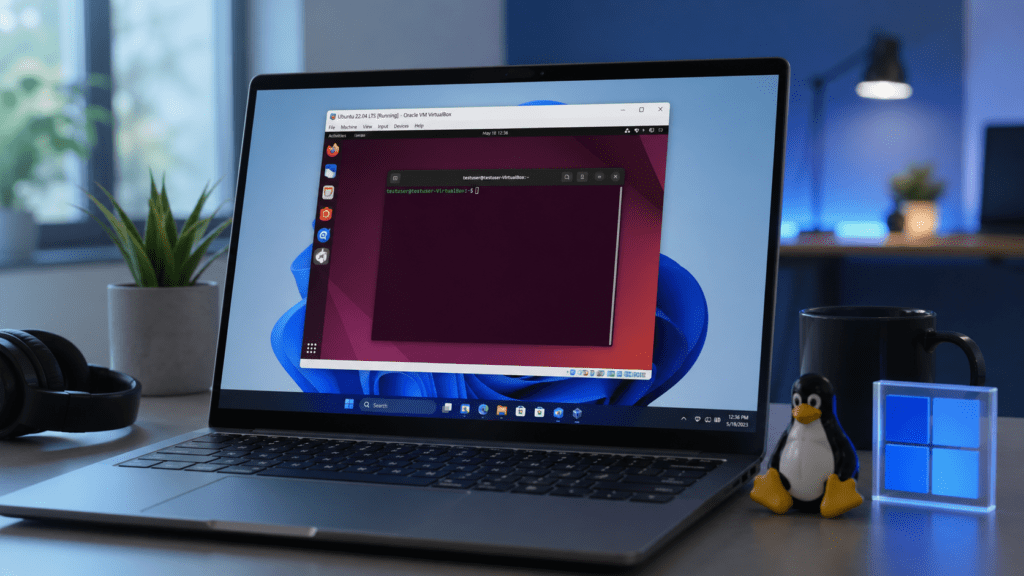
A virtual machine is a fan-favorite. It lets you run a Linux system from within Windows, like a computer within a computer. You can run Linux in a separate window from Ubuntu, or browse the internet. You can use the Linux desktop and install applications.
There is VirtualBox, VMware Workstation Player, and, Hyper-V, among others. Hyper-V is Microsoft’s choice virtualization software. Microsoft has instructions on how to set up Hyper-V and run Linux virtual machines on their platform. (Microsoft Learn)
Steps to Run Linux in a Virtual Machine
First, install a virtualization software like VirtualBox or VMware. Then, obtain an ISO file from the internet with your choice of Linux system. Ubuntu is great for Linux newcomers because it’s user-friendly and has an active community.
After getting the ISO file, open your virtualization software and create a Virtual Machine (VM). You can use the virtualization software called Virtualbox to create your VM. While creating your VM, select Linux as your OS type and allocate appropriate resources based on your needs. This means that for everyday use, allocating 4GB of RAM is usually comfortable for your Virtual Machine is sufficient, assuming your computer is not a low-end machine. You can allocate 25GB or more for your VM’s Virtual Disk.
Go ahead and launch your VM and select the Linux ISO file to use it as your boot medium. The Linux installer will launch. Follow the installer and select your preferences and settings. This usually means your preferred language, keyboard, and user settings. Once the OS is done installing, your VM will prompt to reboot. When it does so, your ISO file is removed from the optical drive first so that your VM can boot the OS installed on the Virtual Disk.
You can run your Linux OS on your Windows machine as if it were a completely separate machine.
Why Use a Virtual Machine?
Creating and running a Virtual Machine is the best option to run Linux on your Windows machine without modifying your Windows files. It is also extremely handy for research and test purposes because if anything bad happens while running Linux, your Windows files are at risk of corruption because Linux is running in a separate, incompatible environment.
Virtual Machines can be extremely useful for students who desire to undertake a Virtual Lab that requires a Linux Desktop OS or the creating of a Linux Server OS for the purpose of practicing Networking or Cybersecurity. You are able to even create and use “snapshots” in your VM to rollback to a previous state if anything were to break or malfunction.
Perhaps the greatest flaw of Virtual Machines is the performance of the Linux VM running on a low machine. Virtual Machines utilize the RAM, CPU, and Disk of your main machine and in the case of a low-end machine, the results are extremely poor.
Method 3: Run Linux on Windows Using Dual Boot
Dual booting is having both Linux and Windows on your machine in order to switch between the systems when your computer starts. Dual booting also allows you to customize your computer to optimize the performance of your Linux distro.
What is Dual Booting?
Dual booting is very useful for people who are serious about using Linux for work (like programming, cybersecurity, or system administration). It provides the complete Linux desktop experience.
Steps for Dual Boot
Before you begin the process of dual booting, it is very important to backup your files, especially because you will be partitioning your hard drive, which is very risky.
Your first step is to download a Linux ISO file (we recommend downloading Ubuntu if you’re a beginner), and creating a bootable USB using Rufus or Balena Etcher. Boot your computer from the USB drive.
While in the Linux installer, you will want to choose the option to install Linux alongside Windows. For the more experienced Linux users, you can do this process manually by creating partitions, but we recommend beginners do this the easiest way by not deleting the existing Windows partitions.
Congratulations! After the installation process is complete and your machine restarts, you will be presented with a boot menu where you can choose your operating system.
Pros and Cons of Dual Boot
While there are a few disadvantages to dual booting, the biggest pro is the performance. Linux can directly access your computer’s hardware, which almost always makes it faster than the virtual machine method. Also, it is perfectly suited for people who want to switch their Linux version to their primary work environment.
Windows and Linux can only be run one at a time and can only be run by restarting the computer. Also, installation is more tricky than using either the WSL or a virtual machine. Partitioning incorrectly can result in data loss. For this reason, backing up data is advised.
Method 4: Using a Live USB to Run Linux on Windows
A Live USB lets you run Linux using a USB drive and doesn’t require installation on your computer. This option works if you want to run Linux temporarily without installation.
Downloading a Linux ISO and using a bootable USB works for this Live USB. Restart your computer and select the USB as the boot option. Most Linux operating systems will let you choose to ‘Try’ the OS without installing it.
This Live USB option is great for testing hardware, getting familiar with the Linux interface, getting files off a computer, and learning to use basic Linux. It’s not great for frequent use, but you can change this with a persistent USB which saves changes.
Which Of These Methods Is For You?
If you are totally new to Linux and want to learn to use the command line, WSL is great. It’s the easiest and fastest.
If you want the full Linux desktop without need to change your hard disk, a virtual machine is great. Safe and easy to remove.
If you are tech-savvy and aiming for performance as well as regular usage, a dual boot system pretty much covers everything. It does require a little more caution though.
The best option to try Linux without permanently altering your Windows installation is to download a live version on a USB flash drive.
The easiest way of running Linux on Windows is Windows Subsystem for Linux (WSL) for the more novice students. It is a helpful Linux terminal that can be accessed from the comfort of Windows.
Basic Linux Commands to Try After Installation
Linux commands can be first practiced by running the following commands.
pwdThis will display the path to the working directory
lsThis will show all the contents of the directory
cd directory_nameYou change to a different directory using this command.
mkdir directory_nameThis will create a directory
sudo apt updateThis refreshes the packages in the Linux distribution.
sudo apt install package-nameThis install the package in your Linux distribution
clearYou can clean the terminal using this command
Frequent practice will bring command proficiency with Linux.
Are Linux apps runnable in Windows?
Yes, and the method is based on your configuration. Many of the command-line tools will be available to you if you work with the Windows Subsystem for Linux. WSL 2 has the capability of providing a complete Linux kernel making it possible to use more advanced developer tools and workflows. Microsoft has a great resource on WSL that explains the various command-line tools, Windows CLI, and Linux applications that can be used simultaneously without a complete operating with a virtual machine or a dual-boot setup.
With dual-booting or a virtual machine you can run a complete desktop Linux installation more easily. If Linux applications with graphical user interfaces are a must for your work, you may even find that a virtual machine is more convenient solution.
While Narrowing Down Running Linux on Windows Being Safe
Stepping into the world of Linux on Windows is relatively safe?. Provided you take the necessary precautions. Since WSL is backed by Microsoft and VM’s are used by many people on multiple platforms, with very few systems using Linux, it’s quite common – students and professionals alike – it’s safe to say that the Linux distributions you use are downloaded from the official locations, and try to stay away from ISOs that are not. As far as partitioning is concerned, the only restraint you should think about is how careful you are with the actual act of partitioning itself. Burning Linux alongside your Windows System is partitioned. Data Backing is usually the general advise that falls into this category as well. Because of that, the restraints are mostly the same.
Just keep in mind, that Linux commands can be very serious.
The same can be said if you were to use the wrong command, Linux commands can be quite serious.
Problems and what should be done.
During the time you are storming the defenses of Linux, these are the common problems that you will come across.
It should be noted, that if Dual booting fails to show a boot menu, you may want to adjust the boot order in order to access a specific system. This will likely require that you become somewhat technical to achieve, so your best option may be to follow the guidelines of a professional that you trust.
Conclusion
Running Linux on Windows is a great skill no matter what your background is. WSL allows you to try Linux without having to buy a new computer or lose Windows. You can use virtual machines, dual boot or Linux on USB as well.
The simplest option, especially for those without prior knowledge of Linux, is WSL. WSL is a great way to learn necessary skills such as Linux commands, programming, using Git, web development, and server management. If you want a complete run of the Linux desktop interface, you are better off using a virtual machine. For applications that require more processing power, dual booting is your best option.
Knowing Linux like the back of your hand is extremely helpful, especially for those looking to work in the cloud or cybersecurity. If you are looking for jobs in the Linux development ecosystem, you will need to be proficient as well. Choosing the method that is best for you will help you learn why so many students, professionals, and others like using Linux.