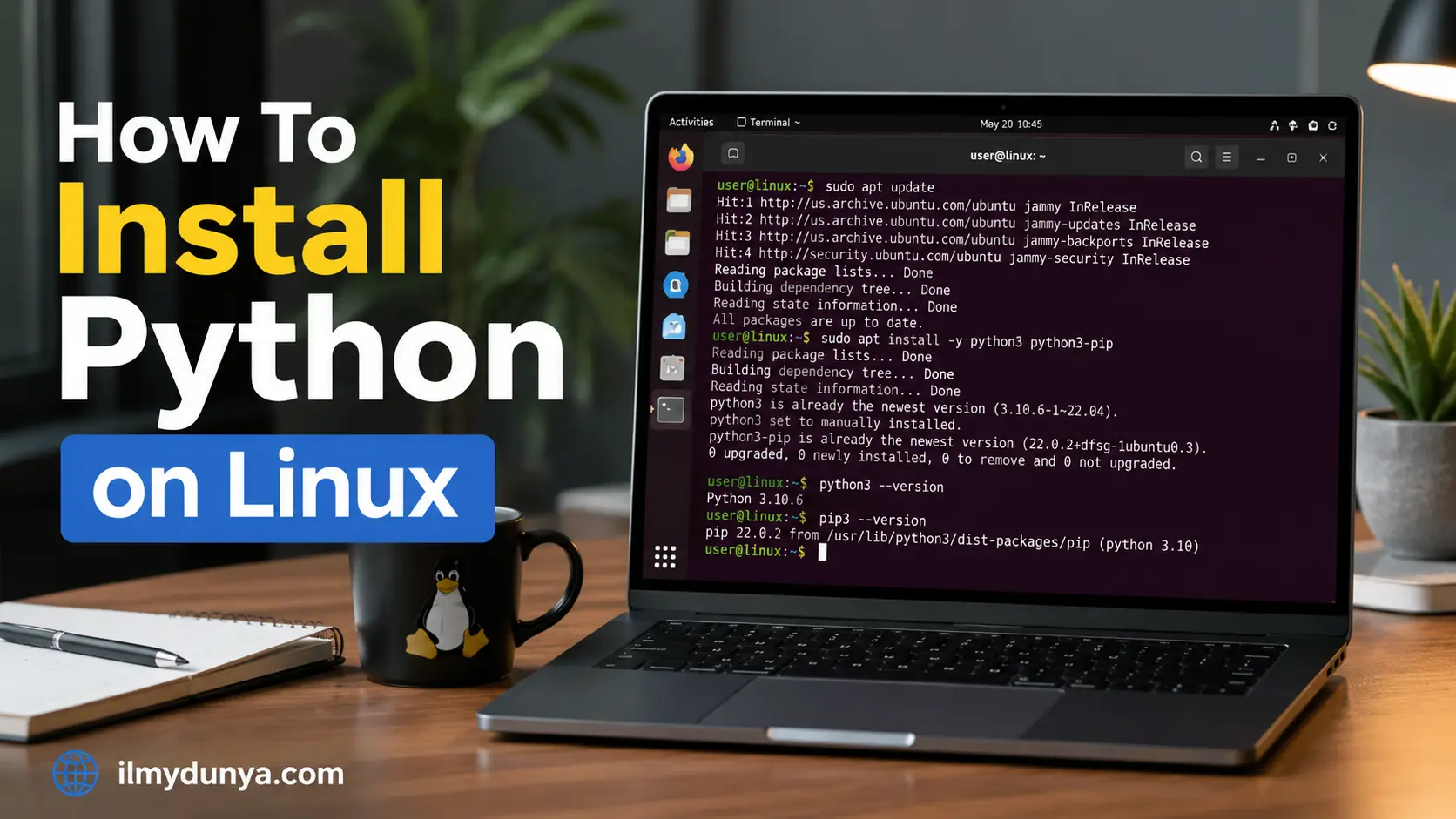

As one of the most popular programming languages in the world, Python is a great option for aspiring software developers, web developers, data scientists, or even people who want to automate repetitive tasks or build AI (artificial intelligence) programs.
Python and Linux are a great match. While most distributions of Linux come with a version of Python pre-installed, programmers often need to install the most up-to-date version to carry out certain programming projects. So learning how to Install Python on Linux is a great skill to know as a beginner and an even greater skill as a professional.
This guide will help you learn various ways to Install Python on multiple distributions of Linux, including Linux Ubuntu, Linux Debian, Linux Fedora, Linux CentOS, Linux Rocky, Linux Alma, and Linux Arch. This guide will also help you learn how to confirm the installation was a success, how to upgrade Python, and how to troubleshoot Python installation problems.
Python and Linux
Because of Linux’s popular usage among system administrators, Python’s usefulness as an automation scripting language is evident. Combine this with Python’s readability and simplicity, and it’s no wonder that Python is the programming language of choice for beginners.
Verify the Existence of Python
It is prudent to verify the existence of Python in your Linux system prior to installation.
Check Python 3 Version
This involves the execution of the command:
python3 --versionAlternative Command
Alternatively, you may run:
python --versionExample Output
An example of the command output may be:
Python 3.12.3The existence of a version number indicates that Python is already present on your system. Should you encounter a command not found type of error, you will be required to install Python.
Installation of Python on Linux via Package Manager
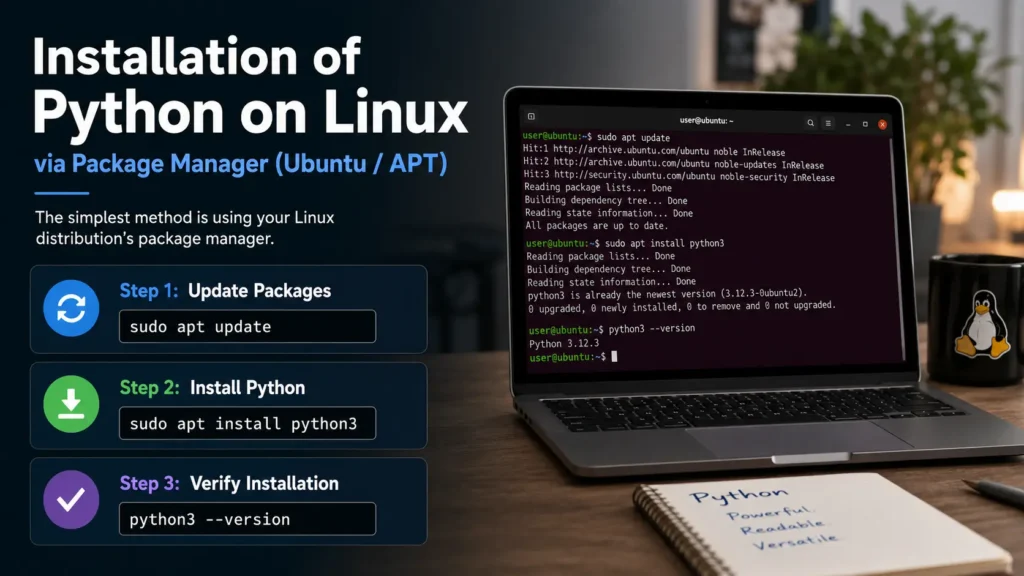
Utilizing the package manager in your Linux distribution is the simplest method for installing Python.
Installing Python on Ubuntu
For Ubuntu, the APT package manager will be used.
Step 1: Update Packages
Begin with an update of the packages:
sudo apt updateStep 2: Install Python
Now, install Python with the command:
sudo apt install python3Step 3: Verify Installation
To verify the installation, run:
python3 --versionThe installed version of Python will be displayed.
Installing Python on Debian
The installation of Python on Debian will follow the same commands as that of Ubuntu.
Step 1: Update Packages
sudo apt updateStep 2: Install Python
sudo apt install python3Step 3: Check Python Version
The version can be checked with:
python3 --versionThis is the recommended method, as Debian will install a stable version, tested by the Debian maintainers.
Installing Python on Fedora
Fedora uses the DNF package manager.
Step 1: Update Fedora
The commands will be:
sudo dnf updateStep 2: Install Python
sudo dnf install python3Step 3: Verify Installation
Verify installation with:
python3 --versionTypically, Fedora will provide a newer version of Python than many other distributions.
Installing Python on CentOS
Python may be installed on CentOS via YUM or DNF, depending on the version.
Installing Python
For newer RHEL versions, you can use:
sudo yum install python3or:
sudo dnf install python3Verify Python Installation
To verify, use:
python3 --versionInstalling Python on Rocky Linux and AlmaLinux
To install on Rocky Linux/AlmaLinux, use:
sudo dnf install python3To verify use:
python3 --versionCross Linux Distros Enterprise make it easy to install Python.
Installing Python on Arch Linux
Arch users can use pacman to install Python.
Step 1: Update the System
To update the system, use:
sudo pacman -SyuStep 2: Install Python
To install Python, use:
sudo pacman -S pythonStep 3: Verify Installation
To verify the install, use:
python --versionArch offers the latest stable release of python.
Installing the Latest Version of Python on Linux
Releases can be older than the latest Python release, and developers may need to use the latest Python version due to dependencies with modern libraries and frameworks.
Step 1: Install Some Dependencies
For a Debian/Ubuntu system, use the following to install the required dependencies:
sudo apt updatesudo apt install software-properties-common build-essentialThen install wget and curl:
sudo apt install wget curlStep 2: Get the Python Source
Head to the Python homepage to get the latest version. Example:
wget https://www.python.org/ftp/python/3.13.0/Python-3.13.0.tgzThen extract the tar, then cd into it:
tar -xf Python-3.13.0.tgzcd Python-3.13.0Step 3: Prepare the Build
Use the following command to prepare the Python source code with optimizations:
./configure --enable-optimizationsStep 4: Python Source Code
Then use the following to compile the code:
make -j $(nproc)This command can take a while depending on the hardware specs available.
Step 5: Install Python
You can use the following command to install Python with out replacing the System Python:
sudo make altinstallThen Python 3.13 should be installed:
python3.13 --versionLastly, pip is Python’s package manager and is available on Linux.
Install Pip on Ubuntu or Debian
- Use this command:
sudo apt install python3-pip- Check Installation
pip3 --version- Example pip3 Output
pip 24.0Creating Python Virtual Environments
Virtual environments allow project isolation by encapsulating dependencies.
Install Virtual Environment Package
Use the command to install the relevant package:
sudo apt install python3-venvCreate a Virtual Environment
To create a virtual environment:
python3 -m venv myprojectActivate the Virtual Environment
Use the environment:
source myproject/bin/activateThe virtual environment should now be reflected in the terminal.
Deactivate the Virtual Environment
Deactivate the virtual environment:
deactivateUpdating Python on Linux
To improve the performance and security of the system, it is good to update the version of Python.
To Update Python on Ubuntu
sudo apt updatesudo apt upgradeTo Update Python on Fedora
sudo dnf upgradeTo Update Python on Arch Linux
sudo pacman -SyuCheck Python Version After Update
After the update, check the version of Python:
python3 --versionChecking Your Python Installation
After installing Python, check whether the installation was successful.
Checking the Version of Python
python3 --versionCheck the Interactive Shell
To check the interactive shell:
python3
Should output:
>>>
Test Python with Hello World
A test print of the popular first program:
print("Hello World")

Should output:

Hello World
Exit Python Shell
To exit:
exit()Common Python Installation Errors and Fixes
Python Command Not Found Error
If you see:
Error:
python3: command not found
Then run:
sudo apt install python3Pip Command Not Found Error
If you see:
Error:
pip3: command not found
Then run:
sudo apt install python3-pipPermission Denied Error
If you see:
Error:
Permission denied
Then run:
sudo commandIf you have:
Multiple Python Versions
Multiple Python Versions
Run:
ls /usr/bin/python*Use the required version:
python3.11or
python3.13Advantages of Installing Python on Linux
Some of the many advantages include:
Performance
Linux provides a stable and efficient environment for running Python applications.
Strong Community Support
Documentation and support for both Python and Linux are available from their respective vast communities.
Ideal for Servers
Python applications run on Linux in many web servers and cloud platforms.
Better Security
Linux protects Python projects and applications with enhanced security features.
Best Practices After Installing Python
The following best practices help maintain a clean development environment with Python on Linux:
- Python should always be updated.
- Projects should always be in a virtual environment.
- Packages should be installed with Pip.
- System Python should be left unmodified.
- Projects should be backed up.
- Learn the basics of package management.
- And, always use Git or another version control system.
Help keep a development environment clean and professional by following these guidelines.
Conclusion
Installing Python on Linux is one of the first steps you need to learn as a developer of Python. Installation is simple and Linux distributions such as Ubuntu, Debian, Fedora, CentOS, Rocky Linux, AlmaLinux, or Arch Linux install Python readily, even for beginners.
The easiest means of installing Python on Linux is using the package manager included with your distribution. If you want the latest features, you can compile from the Python source code. After installing, remember to install Pip, manage your virtual environments, and upgrade your installations of Python.
Using the methods in this guide will lead to a comprehensive Python development environment to use for programming automation, and data science, as well as web development, and numerous other exciting projects.