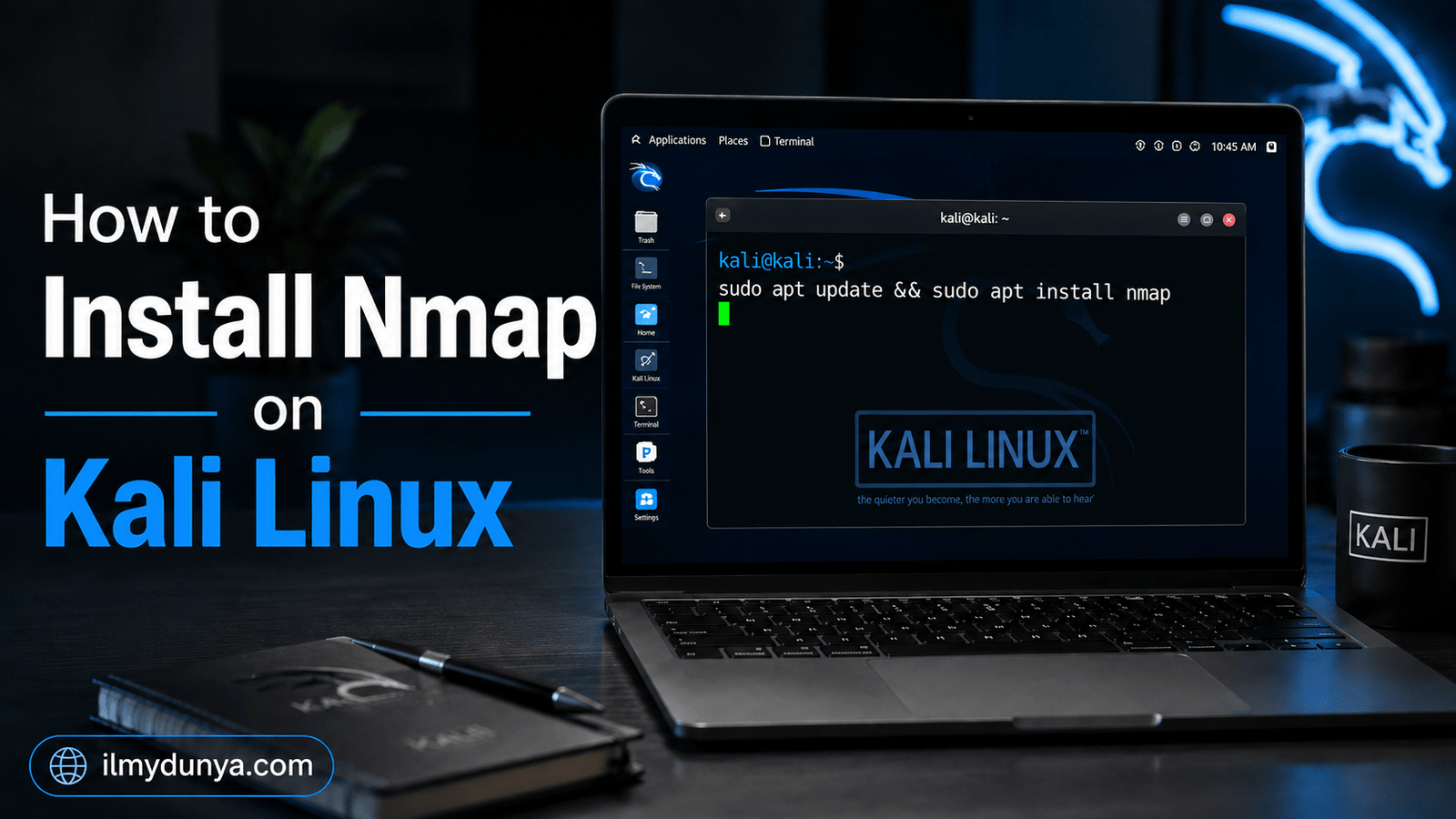

Learning essential skills in cybersecurity requires tools to scan devices and networks during the studies. Nmap is such a tool. If you build your learning environment using Kali Linux, you are bound to need Nmap, and therefore this guide explains how to install Nmap on Kali Linux.
Nmap is one of the many security tools in Kali Linux and is a very useful tool for ethical hackers and penetration testers. Nmap, which is short for Network Mapper, is a network scanning utility that is able to discover hosts and services on a computer network by sending packets and analyzing the responses.
In some versions of Kali Linux, Nmap comes pre-installed. However, in certain cases like a minimal install of Kali, a custom install of Kali, or running Kali in VirtualBox, VMware, WSL, or Docker, you might find Nmap is not installed. Therefore, it is important to install Nmap for your studies.
While learning and using Nmap, always remember that you should only scan the networks and systems that you own or have explicit permission to test as Nmap is a professional tool that has a very high potential to be misused.
What is Nmap?
Nmap, which stands for Network Mapper, is a free and open-source tool for scanning ports and services to discover hosts on a computer network. Nmap can show online devices, open ports, and what services are running on those ports.
Nmap can show you what services are running on your router or server. These services may include SSH, HTTP, HTTPS, FTP and DNS. This sort of information is valuable to system administrators as they need to know if there are exposed services and therefore unnecessary running processes. Nmap is used by ethical hackers to gather information during a security assessment.
There are a number of things you can do with Nmap. This includes finding out which hosts are alive, scanning the hosts for open ports, what services are running on those open ports, identifying which version of a service is running, determining the operating system of a device, analyzing and interpreting the results of a scan at a later time, and testing what a firewall may be blocking. Nmap is used as a command line tool which means it is used from a terminal.
Why use Nmap on Kali Linux?
Nmap is a tool that is widely trusted and known for scanning networks. This makes it a tool that is heavily relied upon on Kali Linux due to their connection and specialization in penetration testing and information security. For the people that are learning about ethical hacking, Nmap is almost always one of the first tools you learn.
There are a number of reasons you may want to use Nmap on a Kali Linux Installation. You may want to practice network discovery, practice in a lab, check your server, prepare a vulnerability assessment, practice ethical hacking, or understand the devices and services of support your IT network.
A second factor to Nmap’s popularity is that it is lightweight and powerful. You don’t need a bulky GUI to use Nmap. When using Nmap, you can obtain relevant information about your network in a matter of seconds through a command line.
Check if Nmap is already installed
Prior to installing Nmap, you should check to see if it is already on your system. Begin by opening a terminal and executing the following command:
nmap --versionWhen you execute this command, if Nmap is pre-installed, you should see information about its version. This information may include some detail about the Nmap version.
If you would like to see where the Nmap command is located, you can execute the following command:
which nmapIf you already have Nmap, the output of this command may look like the following:
/usr/bin/nmapGenerally, if you obtain the output `command not found`, this indicates that Nmap is not installed or it is not located on your system. As a result, you may install Nmap by following the instructions provided below.
How to install Nmap on Kali Linux using APT
The preferred method to install Nmap on Kali Linux is utilizing the APT package manager. The APT package manager on Kali Linux is Debian based, so it allows you to install Nmap quickly.
First, you should refresh your package lists with the following command:
sudo apt updateThis command allows your machine to have a record of the latest information about the packages in the repositories. This self does not have any effect on your machine as it does not install anything.
Then to install Nmap run the command below:
sudo apt install nmapThe system may prompt for confirmation to continue with the installation, in which case you need to input
Yand hit Enter.
APT will install Nmap and its dependencies. Once finished, verify by running:
nmap --versionNmap installation will be successful if the version information is printed.
In summary, to install Nmap on Kali Linux, run the commands below:
sudo apt updatesudo apt install nmapnmap --versionThe three commands above will be sufficient for a majority of users.
Install Nmap using apt-get
If you are among Linux users that prefer `apt-get` over `apt`, note that both will install a package. However, `apt` is simplified for regular users. `apt-get` can be used as follows:
sudo apt-get updatesudo apt-get install nmapRun the command below to verify the installation was successful:
nmap --versionYou may as well use this method on Kali Linux. If you are following an old tutorial, commands may be predominantly using `apt-get`.
Reinstall Nmap on Kali Linux
There are situations where Nmap may be pre-installed – yet may not function effectively. This may be as a result of certain files being corrupted, or the package may have been broken during an update. In such cases, Nmap can be conveniently reinstalled.
To do so, run the command below:
sudo apt reinstall nmapOnce the command completes successfully, run the command below to confirm the version:
nmap --versionIf the command runs, but there are certain unexpected behaviors, the reinstall is handy.
How to Keep Nmap Updated on Kali Linux
An Nmap update on Kali Linux can happen with a simple system update. First, perform a system update with the update command:
sudo apt updateThen upgrade the packages with the upgrade command:
sudo apt upgradeTo upgrade just Nmap, use the command:
sudo apt install --only-upgrade nmapFinally, after an update, verify the version with the command:
nmap --versionUpdating depends on having the tools with the most features. New, fully released tools also include bug fixes and tools will work more efficiently.
How to Remove Nmap on Kali Linux
In case you need to remove Nmap on Kali Linux, the command is:
sudo apt remove nmapTo have related files also deleted, the command is:
sudo apt purge nmapFinally, any other non-required files can be removed with the command:
sudo apt autoremoveYou can use the command:
nmap --versionTo verify Nmap’s removal.
First Nmap Test
Nmap is safe for use on your PC. The command to perform a first time Nmap test is:
nmap localhostThe command can also be run with:
nmap 127.0.0.1Both commands will test your PC. During the test, your PC can show open ports and can have running services for your PC. Seeing your PC with no open ports is normal.
You may scan your own router, but only with proper authorization. Most of the time, home routers can be identified using the following IP address:
nmap 192.168.1.1Even so, your router’s IP may vary. This IP address can be found by using:
ip routeThe address listed in that statement is usually your home router.
Analyzing Common Nmap Output
When using Nmap, the expected output is:
PORT STATE SERVICE
22/tcp open ssh
80/tcp open http
443/tcp open https
The output contains a `PORT`, `STATE`, and `SERVICE` column. The `PORT` column contains a number and the appropriate protocol. The port’s `STATE` column specifies the port’s status, and its `SERVICE` column contains the service name.
SSH, HTTP, and HTTPS services are associated with ports 22, 80, and 443, respectively. While a service is running on a port, it does not correlate to the system being vulnerable.
Helpful Beginning Nmap Commands
Now that Nmap is installed, knowing its commands can be helpful.
To scan and see the services running on an IP address:
nmap 192.168.1.1To scan and see the services your machine is running on:
nmap localhostTo scan a network address 192.168.1.0 and discover all of its hosts:
nmap -sn 192.168.1.0/24The `-sn` flag is used to perform a basic host discovery and omits a port scan.
To see which services are running on the IP address and which are open:
nmap -sV 192.168.1.1This is done by the `-sV` flag, which is used to determine the version of services running on the identified open ports and services.
Scanning specific ports is accomplished with:
nmap -p 22,80,443 192.168.1.1To save your scans to a text document:
nmap 192.168.1.1 -oN scan-result.txtis good for maintaining a log of your scans.
Issues causing Nmap Install Disruptions and Their Resolutions:
Installation on Kali Linux is not smooth for everyone. Here are some issues and their resolutions.
You may encounter:
nmap: command not foundTo resolve, re-install Nmap via:
sudo apt updatesudo apt install nmapYou may encounter:
Unable to locate package nmap
This is due to your package list not getting refreshed. First run:
sudo apt updateThen execute:
sudo apt install nmapEncountering dependency errors requires:
sudo apt --fix-broken installThen doing an update:
sudo apt updateFinally, install Nmap via:
sudo apt install nmapCheck your internet connection if the download speed is lacking or if the download fails. Repository mirrors are often slow so you may need to try and update later.
Installing Nmap on Kali Linux in VirtualBox or VMware
The steps to install Nmap on Kali Linux running on VirtualBox or VMware are almost identical to other Linux distributions:
sudo apt updatesudo apt install nmapHowever, the results you manage to obtain from Nmap will also depend of your Virtual Machine (VM) network settings. If your VM is on NAT mode, it won’t see some of the network devices visible to your host machine. If it is on bridged mode, it will show as a separate network device on your network. For practice purposes, many learners use host only or internal network mode.
If you are a beginner, ensure that you only scan your own Kali machine or your own test lab machines.
Installing Nmap on Kali Linux WSL
For users running Kali on Windows Subsystem for Linux, the procedure to install Nmap is as follows:
sudo apt updatesudo apt install nmapThen check:
nmap --versionMost of the basic Nmap commands will function in WSL. However, some advanced types of network scanning and service enumeration are likely to behave unexpectedly due to WSL networking not being equivalent to a full Linux networking environment. For landing networking and penetration testing practice, a full Kali VM is recommended.
Safe and responsible use of Nmap
Although Nmap is an ethical and legal tool of the trade, it can be used unethically. You can scan your own systems or systems that you have been granted explicit permission to scan. Illegal scanning of random systems, public IP addresses, school networks, company networks or even government systems can land you in deep trouble.
Safe targets consist of your own computer, your own router, your own lab server, your own virtual machines, and approved cybersecurity lab platforms. If you are working for a company, always seek written permission before scanning their network.
Beyond tools, ethics, and permission, and documenting results are also very important things to learn during your journey of learning cybersecurity.
Best practices after installing Nmap
Once Nmap is installed on Kali, start scanning. First learn about port states and service names before doing anything crazy and aggressive.
Once you do a scan, save the results and compare them to your future scans. Use the following command as an example:
nmap localhost -oN localhost-scan.txtYou will need to learn common ports and services to interpret Nmap results. Knowledge of port usage is how Nmap outputs help you in a meaningful way.
Finally, keep your Kali system updated. Most problems with tools on Kali can be traced to an outdated system or not updating the package repositories.
Conclusion
The process of learning how to install Nmap on Kali]) is a pretty solid example that installing a tool can be a good starting point for learning about the cybersecurity, ethical hacking or network administration. The installation with APT is as straightforward as it gets.
The core commands are as follows:
sudo apt updatesudo apt install nmapnmap --versionTesting Nmap after installation can be done using the below command.
nmap localhostPeople need to keep in mind that Nmap should be used responsibility. Nmap is a great tool that is very powerful. Nmap can most effectively be used to aid network discovery and help with port scanning, service discovery, and security assessment. People should never scan the network of someone else without permission. Begin with Nmap on your own computer, on your own router, or in an authorized lab environment. You should familiar with Nmap and how it aid in network discovery and other port scanning service discovery and security assessment.
From an ethical standpoint, it is most adviseable for people that are first starting out in Nmap to just follow this simple method. Install Nmap, learn to use the commands, and undestand the commands output. From there you follow the ethical rules and use Nmap as a very useful addition to your toolkit in Kali Linux.