


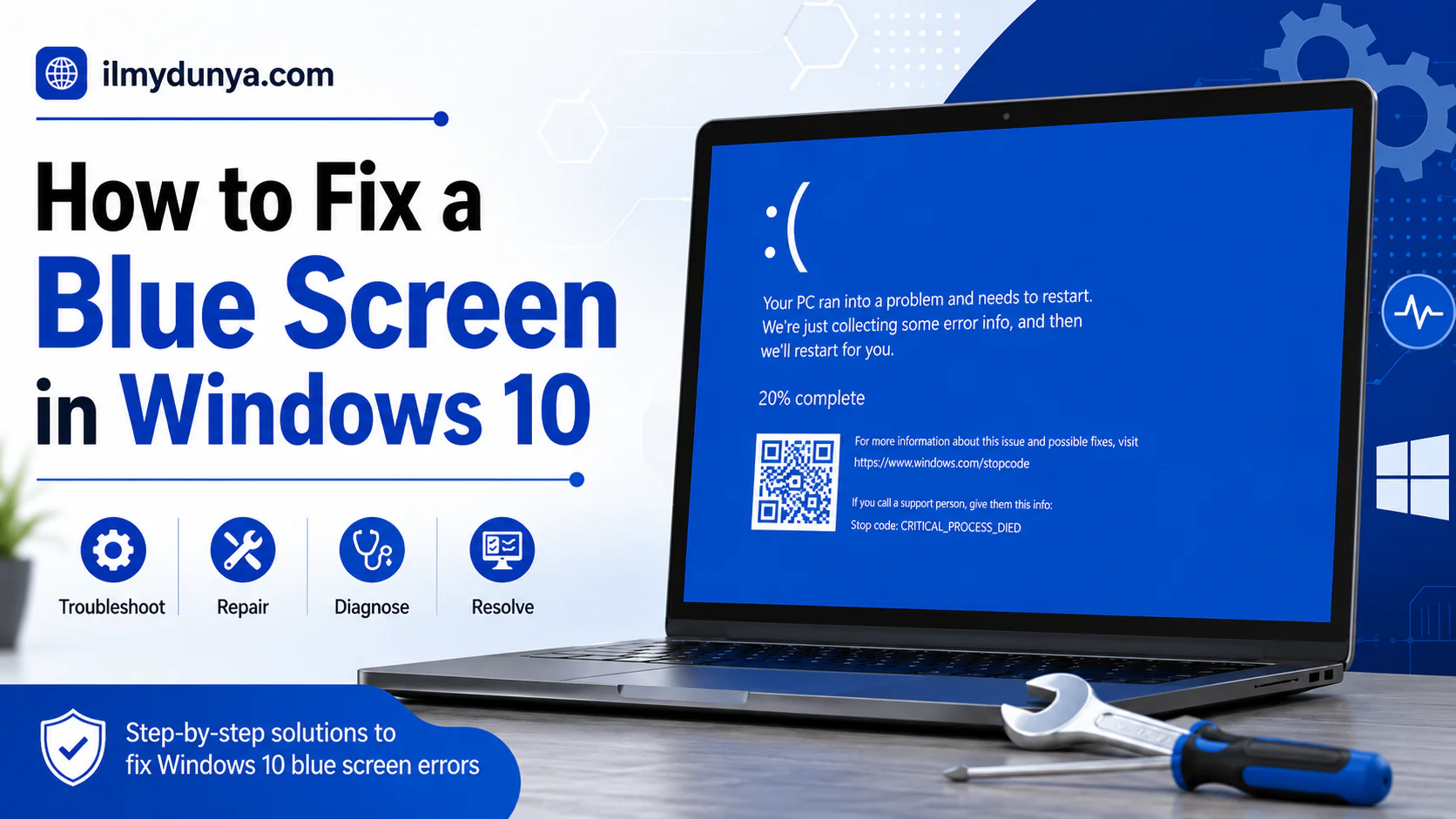

If you’re looking for how to fix blue screen windows 10, it’s likely that your computer suddenly crashed and showed a blue screen along with an error message. This problem is often called the Blue Screen of Death or BSOD. It may look serious, but the good news is that, the majority of the time, it’s just a simple troubleshooting problem that you can solve.
I will be sharing on ilmydunya.com, this easy, simple and complete guide to help you understand exactly what causes Windows 10 blue screen errors and how to solve the problem step by step. Don’t worry, you don’t need to be a computer expert. Just carefully follow the methods outlined, and you will be able to identify the problem one by one.
A blue screen in Windows appears in most cases when an error has occurred and Windows cannot continue operating in a safe state. Therefore, the system has to stop and shows a stop code, restarts, and collects error information. Some of the causes of this can be faulty drivers, corrupted system files, hardware problems, failed updates, overheating, errors in your RAM, or issues caused by incompatible software.
The blue screen is Windows saying, “Something went wrong and I need to stop so it doesn’t get worse.” The good news is, most Windows 10 blue screen problems can be solved in the home.
What is a blue screen error in Windows 10?
When a serious crash occurs in Windows 10, and there is no way to resolve a problem in the operating system, the OS shows a blue screen of death and a message like the following:
“Your PC ran into a problem and needs to restart.“
You may encounter stop code messages of the form:
CRITICAL_PROCESS_DIED
MEMORY_MANAGEMENT
PAGE_FAULT_IN_NONPAGED_AREA
IRQL_NOT_LESS_OR_EQUAL
SYSTEM_SERVICE_EXCEPTION
DRIVER_IRQL_NOT_LESS_OR_EQUAL
INACCESSIBLE_BOOT_DEVICE
These codes represent some of the more common reasons for an operating system crash, and while knowing all the codes and their meanings is generally of little value to the average user, knowing the basic steps to resolve the issue is much more beneficial.
How Do I Fix Blue Screen Windows 10? Start With These Basic Steps
For the most part, blue screen errors are the effect of temporary problems. Users are encouraged to include basic checks before performing more advanced troubleshooting.
For the most part, the first troubleshooting steps can include just a normal restart of the computer, as the operating system is sometimes able to resolve issues on its own post-restart. If the problem persists after a restart, then more advanced troubleshooting steps can be performed.
In addition, it is beneficial to note the events that immediately precede the problem. The blue screen of death is most often caused by the installation of a computer peripheral, a system update, a new game, the installation of an antivirus program, the connection of a new USB device, a software installation, etc.
Step 1: Write Down the Windows Stop Code
Most blue screens of death include text at the bottom of the screen that includes a code, and users are encouraged to write down the code as it may look like the following example:
“Stop code: MEMORY_MANAGEMENT”
The stop code can help you identify the source of the problem. For example, memory-related stop codes are usually caused by an issue with RAM, and stop codes that contain the term “driver” can point to graphics, network, or sound driver issues. If the stop code contains the term “inaccessible boot device”, the issue can be caused by boot files, disk settings, or storage.
The interception of the error screen before it finishes is a good sign because this means you can use the techniques in this guide.
Step 2: Detach All Peripheral Devices
The Windows 10 blue screen error can also be triggered due to peripheral devices. These are usually the following:
- USB flash drives
- External Hard Drives
- Printers
- Scanners
- Webcams
- Game Controllers
- Bluetooth adapters
- USB Wi-Fi devices
- Docking stations
Shut down your computer and disconnect all peripheral devices other than the mouse, keyboard, monitor and the charger.
After doing this, turn on the computer again. If Windows 10 manages to load the desktop, this indicates that one peripheral device is the cause of the error. You can identify the culprit by reconnection of peripheral devices one by one.
Step 3: Boot Windows 10 in Safe Mode
Safe Mode is a basic mode of Windows where only essential drivers and services are loaded. It can, therefore, help diagnose if the cause of the blue screen is due to excess drivers and/or third party software.
To access Safe Mode, follow the following steps:
- Initiate a restart to your computer
- If Windows is unable to start, allow it to restart two or three additional times.
- Windows should bring up the Automatic Repair screen.
- Select the Advanced Options
- Select Troubleshoot
- Select Advanced Options
- Select Startup Settings
- Click on the Restart button
- For Safe Mode only, press 4, or for Safe Mode with Networking, press 5.
If your computer can run in Safe Mode, one or more of the following could be the cause: driver, software, an update, or a startup program.
Step 4: Uninstall Recently Installed Software
If a blue screen started after you installed a program, that program could be the cause and should be the first to be uninstalled.
Go to
Settings > Apps > Apps & features
and sort the programs in order of the date they were installed. Find the program you added recently and uninstall it.
This is especially crucial if you installed any of the following recently:
- Antivirus software
- VPN software
- Driver update software
- Cracked software
- System cleaner software
- Gaming booster software
- Hardware control software
After uninstalling the software, restart your computer and see if the blue screen occurs again.
Step 5: Uninstall Recent Windows Updates
In some cases, a recent update to Windows can cause a blue screen after a new incompatibility occurs. Uninstalling the troublesome update can potentially solve the problem.
To do this:
Open Settings > Update & Security > Windows Update > View update history > Uninstall updates
Click the most recent update and select Uninstall.
After this, restart your computer.
Also, don’t stop all future updates to Windows. Updates include important fixes for security and performance. This update is a temporary uninstall, and future Windows updates will be installed afterward.
Step 6: Update Device Drivers
One of the main causes of the blue screen of death is a driver that is outdated, damaged, or has an incompatibility.
Some important drivers include:
- Graphics Driver
- Network Driver
- Audio Driver
- Chipset Driver
- Storage Driver
- Printer Driver
- Bluetooth Driver
To update drivers:
- Right-click the Start button and select Device Manager.
- Expand the device category.
- Right click on the device.
- Click on Update Driver.
- Select Search automatically for drivers.
The graphics driver is essential and needs to be updated if you get the blue screen when gaming, editing, watching YouTube, or using design programs.
For laptops, as a good practice, go to the official site of your laptop brand, be it Dell, HP, Lenovo, Acer, or ASUS. Download drivers only from the official site.
Step 7: Roll Back a Problem Driver
It is possible that the most recent driver is not yet stable. The blue screen can be caused as a result of updating a driver. You can use the rollback option to fix the issue.
To roll back a driver:
- Open Device Manager.
- Right click on the device.
- Select Properties.
- Navigate to the Driver tab.
- Select Roll Back Driver if it is available.
- Reboot your computer.
This can be useful for graphics card, Wi-Fi, sound, and storage drivers.
Step 8: Run Windows Startup Repair
If your Windows 10 fails to start and consistently shows a blue screen, you can use Startup Repair.
Follow these steps to use Startup Repair:
- Power on the PC.
- When the loading screen appears, do a hard shut down using the power button.
- Repeat this step a maximum of three times.
- Windows will open Automatic Repair.
- Click on Advanced options.
- Select the Troubleshoot option.
- Then select Advanced options.
- Finally select Startup Repair.
Windows will check for startup issues and will repair them.
This is the only method used when Windows fails to reach the desktop.
Step 9: Repair System Files Using SFC Command
Another reason for the Windows 10 blue screen could be corrupted or damaged system files. Windows provides a mechanism for scanning and repairing these system files. The System File Check utility is used for this purpose.
Instructions
- Click the Start menu.
- Type ‘cmd’.
- Then right-click ‘Command Prompt’.
- Choose ‘Run as administrator’.
- Type the command: ‘sfc /scannow’.
- Press ‘Enter’.
- The ‘sfc /scannow’ command checks the integrity of all protected system files.
- It will replace them with a cached copy, if possible.
- When the scan is complete, make sure to restart your PC to ensure the ‘[SFC] Scan’ command can be accessed.
- Follow with the command DISM Repair command:
DISM /Online /Cleanup-image /RestoreHealth
11. The process may take some time, so do not close the Command Prompt window. After that, run the SFC command again:
sfc /scannowLastly, restart the computer.
This is a good method when Windows files are corrupted after failed updates or sudden shutdowns.
Check your hard drive for errors
Blue screen errors can also be caused by a damaged HD/SSD. You can check your drive with the CHKDSK command.
Open Command Prompt as an administrator.
Then type:
chkdsk C: /f /r
Windows may ask you to schedule the scan for the next restart, so type ‘y’ to confirm.
This process can take a while to complete, especially on older hard drives. Let the process finish.
Finally, Check RAM for Memory Problems before continuing.
Errors may be caused by faulty RAM helping to trigger the Memory Management stop code.
Windows 10 has a built in memory checking tool.
To use it:
- Press ‘Windows + R’.
- Type:
mdsched.exe
Then, press ‘Enter’.
Click Restart now and check for problems.
Your system will reboot and test the RAM.
If memory errors are found, your RAM may need cleaning, reseating, or even replacement. As for desktop computers, you may use the method of taking out your RAM sticks one by one and check which one may be faulty.
Step 13: Run Malware and Virus Scans
Malware can hurt data as well as drivers and system settings. In the end, Windows may crash and give you a blue screen.
To use Windows security, you may:
- Open Settings
- Go to Update & Security.
- Click Windows Security.
- Click on Virus & threat protection
- Click on Scan options.
- >Select Full scan.
- Finally, click on Scan now.
If a serious infection is suspected, you may run the Microsoft Defender Offline scan as well.
Be careful of installing antivirus programs from untrusted site as these may only worsen the problem instead of fixing your PC.
Step 14: Free Up More Disk Space
Less C: disk space can make Windows unstable. If your C drive is nearly full, Windows may fail in updating and installing drivers and system repairing.
To free up space on the disk:
- Open Settings.
- Go to System.
- Click on Storage.
- Go to Temporary files cleanup.
Also delete unneeded downloads, old files, and what is in your recycle bin.
Keep in mind that at least 15-20 GB of space is free on the C drive to maintain good Windows performance.
Step 15: Look Out For Overheating
Overheating is a common cause for sudden shutdowns and freezes, and blue screens. Heavy tasks such as gaming or video editing, in addition to resource-heavy software, can cause these symptoms.
Common symptoms of a laptop overheating are:
- Loud Fan Noises
- Hot Laptop
- Random Restart
- Sluggish Response
- Laptop Crashing When Multi-Tasking
To help prevent or mitigate laptop overheating you can:
- Clean the inside of the laptop
- Always Use on a Flat Hard Surface
- Never Use on Soft Surface
- Ensure Fan is Operational
- Older Systems may need Thermal Paste
- Invest in a Laptop Cooling Pad
If the laptop gets too hot, it is always best to turn the laptop off and allow it to cool before using again.
Step 16: Use the System Restore Feature
System Restore returns your laptop to a previous good working state. Personal files are very likely to not be impacted by this, but other recent changes like new apps or updates may be removed.
To System Restore you need to Search for create a restore point in the Start Menu, select it then select System Restore. Select a restore point before the blue screen crashes. Complete the steps and your PC should be operational again.
If the laptop is unable to turn on, go to System Restore by the following: Advanced options -> Troubleshoot->System Restore.
This is the best option if the situation is the result of a recent change.
Step 17: Reset Windows 10
If nothing is helping right now, Resetting Windows 10 may help. It clears deeper system issues.
To Reset Windows 10 go to:
Settings -> Updates and Security -> Recovery -> Reset this PC.
You will see two options:
- Keep my files
- This will remove apps and settings, but personal files will remain.
- Windows Reset: Remove Everything
If you need a drastic measure, you can reset your Windows PC and have all files and settings wiped off. If your data is not backed up, do not do this option.
You should back up important documents, photos, and work files. For the most part, the Keep my files option, combined with the backup, is the most suitable option, particularly for most beginning users.
Step 18: Check Hardware Problems
If the blue screen persists, the problem is most likely with the hardware.
- A damaged motherboard.
- A failing hard drive or SSD.
- Weak power supply.
- Overheating CPU or GPU.
- Loose internal cables, faulty graphics card.
You should get your system checked by a technician if it:
- Is old
- Has fallen
- Has a clicking sound
- Has a freezing problem.
Also, back up your data if your hard drive is showing signs of failing.
The Common Causes of Blue Screen in Windows 10
Windows 10 blue screen errors are usually due to:
- Being given bad or outdated drivers.
- Having system files become corrupted.
- Having faulty RAM.
- Having a failing hard drive or SSD.
- Having overheating issues.
- Having incompatible software.
- Having faulty or failing Windows Updates.
How to Stop Blue Screen Errors
After repairing your Computer and assuring it operates properly, you would want to take steps to prevent your Computer from encountering the same issues again.
Prevent your Computer from taking updates by ensuring that your Computer is updated on the latest Windows version. Whenever a new driver is created, you will want to download the latest updates from the site. Also, avoid multiple installations of system cleaner tools since they may remove system files that are important.
Another strategy is to keep your Computer clean, keep your Computer cool. Try to avoid the download of cracked software! And most importantly, always back up your files regularly because blue screens are a way of warning the user of hardware failure which may result in total loss of your hardware. Always back up photos, documents, and important work to protect them!
When Should You Call For Help?
You should definitely call for help if the following occur:
- If Windows refuses to load.
- If the blue screen continues to comes up.
- If the Computer continues to mouth clicking sounds
- If RAM continues to test errors.
- If the hardware continues to show serious issues.
- If your Computer is getting really hot.
- If you can’t get to your important work.
- If you have tried a fresh install of windows and nothing has changed.
Then it’s obvious that you need to test your hardware.
Conclusion
At last, we have the answer to how do I fix blue screen windows 10? Now we have several simple and practical starting points. We can start by using Safe Mode, using Repair tools, disconnecting hardware, checking the most recent software, and ensuring that all driver software are updated. And once we have tried all that, we turn to the more advanced repair tools and other system tools such as, SFC, DISM, CHKDSK, the Startup Repair tool, System Restore, and the Reset this PC function.
The guide posted on ilmydunya.com is a great informational source for starting to determine and fix Windows 10 blue screen errors. We understand that some errors can be hard to identify, especially for beginners. If your computer is still crashing after using these methods, you likely have a hardware issue that requires professional assistance.


Your point of view caught my eye and was very interesting. Thanks. I have a question for you.