
Before you install Linux Mint on your desktop or laptop computer, you need to understand Linux Mint System Requirements. A lot of beginners want to try Linux Mint because this desktop environment is simple, fast, clean, and it is a good OS for users who want to transition from Windows to Linux.
In this guide, ilmydunya.com is providing you with a simple and complete guide to help you easily understand Linux Mint System Requirements for your computer. We hope this will help you check whether your PC can run Linux Mint smoothly. You can also visit the official Linux Mint FAQ page to check the official system requirements and the official Linux Mint download page to download the latest version.
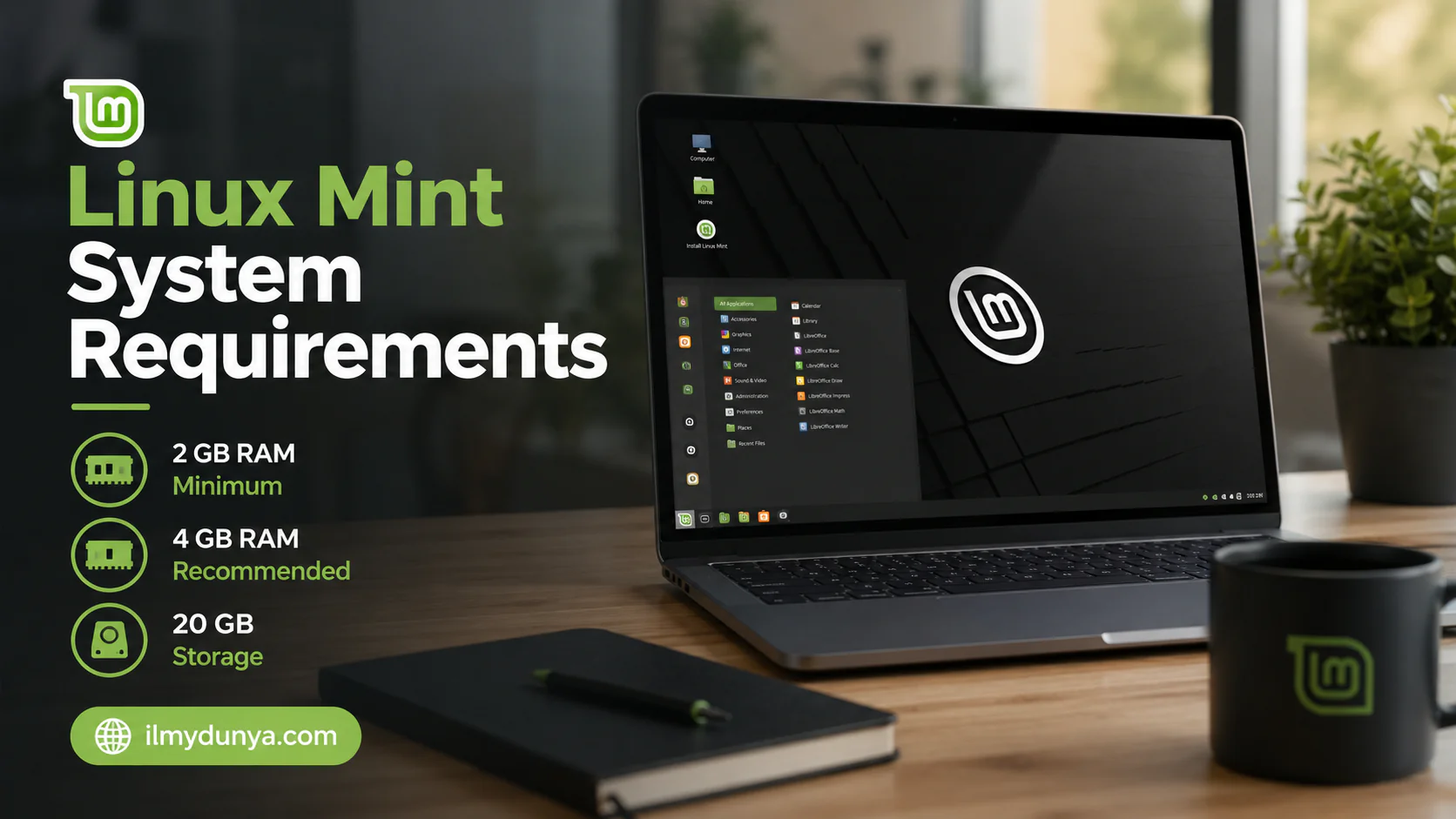
Linux Mint is good to go on new and old computers. But also keep in mind that your experience will depend on your RAM, processor, storage, graphics support, and what edition of Linux Mint you choose. The official Linux Mint FAQ page has stated that 2 GB RAM is the minimum, 4 GB RAM is recommended, 20 GB disk space is the minimum, 100 GB is recommended, and the minimum screen resolution is 1024×768.
What is Linux Mint?
Linux Mint is an operating system that is free and open source. It is based on Ubuntu and Debian. This operating system is good for desktop users who need something simple, stable, and easy to use.
You can use Linux Mint for many normal computer tasks, such as:
- Browsing the web
- Writing documents
- Watching videos
- Taking online classes
- Programming
- Managing files
- Doing office work
- Using basic daily applications
Linux Mint is not very resource intensive, which is why many people install it on old laptops that can barely run modern Windows versions.
The Importance of Linux Mint System Requirements
System requirements are a good benchmark when you need to determine if an operating system can run on a computer. In some cases, an operating system can be installed on a computer, but it may not run smoothly if the hardware is too weak.
For example, a laptop with 2 GB RAM can run Linux Mint, but running many browser tabs at the same time may cause performance issues. However, a system with 4 GB or 8 GB RAM will run much better.
Considering Linux Mint System Requirements will help you avoid:
- Installation issues
- Slow performance
- Freezing problems
- Poor multitasking experience
- An uncomfortable user experience
Linux Mint System Requirements: An Overview
The following table shows the basic system requirements for installing Linux Mint.
| Component | Minimum Requirement | Recommended Requirement |
|---|---|---|
| RAM | 2 GB | 4 GB or higher |
| Storage | 20 GB available | 100 GB or higher |
| Processor | 64-bit capable | Dual-core 64-bit or better |
| Display | 1024×768 resolution | 1366×768 or higher |
| USB/DVD | Bootable USB or DVD | USB 8 GB or higher |
| Internet | Not always needed | Recommended for updates and drivers |
If you do not know much about hardware, these requirements are a good starting point. However, if you want better performance, you should try to exceed the minimum requirements.
Minimum requirements mean that Linux Mint will run, but recommended requirements will give you a smoother and more comfortable experience.
Minimum Linux Mint System Requirements
Minimum RAM Requirement
You need at least 2 GB RAM to use Linux Mint. With 2 GB RAM, you can perform basic tasks such as:
- Visiting a few web pages
- Writing documents
- Organizing files
- Using basic applications
- Playing videos
However, 2 GB RAM is not great for heavy multitasking. Your computer may become slow if you open many browser tabs because modern browsers use a lot of memory.
Minimum Storage Requirement
Linux Mint requires at least 20 GB of storage for the system, built-in applications, and basic files.
However, 20 GB is only the minimum. Your computer may fill up quickly if you install apps, download files, save videos, or store documents.
For a better experience, it is recommended to have:
- 50 GB for light use
- 100 GB or more for daily use
Minimum Processor Requirement
Linux Mint now mainly focuses on 64-bit systems. Starting with Linux Mint 20, only 64-bit ISO images are available. Older 32-bit images were only available for previous versions.
If your computer was built after 2007, there is a good chance that it has a 64-bit processor.
A dual-core 64-bit processor is recommended for a better experience.
Minimum Display Requirement
Linux Mint requires a minimum screen resolution of 1024×768.
The installer and system windows need enough screen space to display properly. If your screen resolution is lower than this, some windows may not fit correctly on the screen.
For better use, a display resolution of 1366×768 or higher is recommended.
Recommended Requirements for Linux Mint
You can install Linux Mint with minimum system requirements, but recommended system requirements provide a much better experience.
How Much RAM is Recommended?
If your system has 4 GB RAM, Linux Mint will feel much more comfortable and faster for online and offline tasks.
With 4 GB RAM, you can smoothly use:
- Web browsing
- Office applications
- Media playback
- PDF files
- File management
- Basic editing tools
- Several browser tabs
With 8 GB RAM, you can also use:
- Coding tools
- Design applications
- Zoom
- Multiple apps at the same time
- Heavier browser usage
For beginners and students, 4 GB RAM is usable, but 8 GB RAM is more comfortable.
How Much Storage is Recommended?
If you have 100 GB available storage, you can install Linux Mint and still have enough space for:
- Applications
- Updates
- Documents
- Downloads
- Videos
- Important backups
If you are only testing Linux Mint, 30 to 50 GB may be enough. But for daily use, 100 GB is a much better choice.
How Good Should the Processor Be?
Linux Mint can work with an entry-level dual-core 64-bit processor. Examples include:
- Intel Core i3
- Intel Core i5
- Intel Core i7
- AMD A-series processor
- Older dual-core processors
Older dual-core processors can also work, especially with the Xfce edition. However, newer processors will handle browsing, videos, updates, and multitasking more smoothly.
Linux Mint Cinnamon Requirements
Linux Mint Cinnamon is the main and most popular Linux Mint edition. Cinnamon has a modern design and gives users a polished desktop experience.
Cinnamon is beautiful, powerful, and more visually modern than Xfce. However, it uses more system resources.
Best Hardware for Linux Mint Cinnamon
If you want to use Linux Mint Cinnamon, you should have:
- At least 4 GB RAM for comfortable use
- 8 GB RAM if you want to use many applications at the same time
- A dual-core CPU at minimum
- 100 GB storage space
- Display resolution of at least 1366×768
Cinnamon is probably the best choice if your laptop is not too old and you want a modern desktop experience without making things difficult.
Linux Mint Xfce Requirements
If you have an old laptop, Xfce is very likely the best choice. Xfce is less resource-heavy than Cinnamon, so it makes sense to install it on older or low-end laptops and PCs.
If your computer feels slow on Windows, Linux Mint Xfce can help make it useful again.
Best Hardware for Linux Mint Xfce
For Linux Mint Xfce, you should have:
- 2 GB RAM minimum
- 4 GB RAM preferred
- Older dual-core CPU at minimum
- 20 GB storage minimum
- 50 GB storage preferred
Xfce is not as visually modern as Cinnamon, but it is fast, simple, and stable. It is a good choice for older systems.
Linux Mint MATE Requirements
Linux Mint MATE is a balanced edition. It is lighter than Cinnamon but still gives a traditional and comfortable desktop experience.
Best Hardware for Linux Mint MATE
For Linux Mint MATE, you should have:
- 2 GB RAM minimum
- 4 GB RAM preferred
- Dual-core CPU at minimum
- 50 GB to 100 GB storage space
MATE is a good middle option. It is not too heavy and works well for normal desktop use.
Which Linux Mint Edition Should You Choose?
Your computer’s hardware will determine which Linux Mint edition is best for you.
Choose Cinnamon If:
You should choose Cinnamon if:
- You have 4 GB RAM or more
- You have a decent processor
- You want a modern-looking desktop
- You want a polished and complete user experience
- Your laptop or PC is not very old
Cinnamon is great for users who want a clean and modern desktop with easy access to features.
Choose Xfce If:
You should choose Xfce if:
- Your computer is old
- Your system is slow
- You have less than 4 GB RAM
- You want better speed
- You want a lightweight desktop
Xfce uses fewer system resources, which makes it great for low-end systems.
Choose MATE If:
You should choose MATE if:
- You want a simple desktop
- You like a classic interface
- You want something lighter than Cinnamon
- You need a balanced desktop environment
In simple words:
- Cinnamon is modern
- Xfce is light
- MATE is in the middle
Can Linux Mint Run on 2 GB RAM?
Yes, Linux Mint can run on 2 GB RAM, but the experience may not be very smooth. If you want to run Linux Mint on 2 GB RAM, the Xfce version is the best option.
With 2 GB RAM, you should avoid:
- Opening too many browser tabs
- Heavy apps
- Video editing
- Virtual machines
- Large development tools
- Heavy games
For basic web browsing and writing, 2 GB RAM can work, but 4 GB RAM is much better.
Can Linux Mint Run on an Old Laptop?
Yes, Linux Mint is one of the best Linux distributions for old laptops. Many users install it on systems that have trouble running modern Windows versions.
Your old laptop should have:
- A 64-bit CPU
- Enough RAM
- Enough free storage
- Basic graphics support
If your laptop has an old HDD, upgrading to an SSD can make a big difference.
For weaker laptops, Linux Mint Xfce is usually better than Cinnamon.
Linux Mint SSD vs HDD
Linux Mint can run on both SSD and HDD, but SSD is much better.
Benefits of Using SSD with Linux Mint
With an SSD, your system will:
- Start faster
- Open apps faster
- Install updates faster
- Feel more responsive
- Freeze less often
Upgrading from HDD to SSD is probably one of the best upgrades you can make for an old laptop.
Linux Mint Internet Requirements
An internet connection is not always essential for installing Linux Mint, but it is highly recommended.
Why Internet is Recommended
With internet access, you can:
- Update the operating system
- Download updated drivers
- Get support for more media formats
- Install new software
- Improve security
During setup, Linux Mint may ask if you want to install multimedia codecs. This process is easier if you already have an internet connection.
Linux Mint Graphics Requirements
For regular tasks, Linux Mint does not require a high-end graphics card. Integrated graphics from Intel or AMD is usually enough.
You only need a stronger graphics card if you want to do tasks like:
- Gaming
- Video editing
- 3D modeling
- Graphics-intensive work
For office work, browsing, and watching YouTube videos, normal integrated graphics are usually enough.
Requirements for Installing Linux Mint
To install Linux Mint, you need a bootable USB or DVD. A USB is more popular because it is faster and easier.
Things You Need Before Installation
You generally need:
- A USB drive with at least 4 GB storage
- Linux Mint ISO file
- A USB creation tool such as Rufus, Balena Etcher, or Ventoy
- Backup of important files
- Extra free storage
- Laptop charger during installation
Always back up your files before installation. An incorrect partition can cause data loss.
Linux Mint for Students and Beginners
Linux Mint is a suitable operating system for students because it is free, user-friendly, and comes with many useful applications.
Students Can Use Linux Mint For:
- Completing online assignments
- Attending online classes
- Researching on the internet
- Reading and editing PDF files
- Writing documents
- Learning basic programming
- Managing study files
Linux Mint also has a Software Manager, which makes it easier to install software without using difficult commands.
Linux Mint for Office Work
Linux Mint is also good for office workers. It comes with LibreOffice, which allows users to create and edit:
- Documents
- Spreadsheets
- Presentations
You can also install other useful applications for:
- Cloud storage
- PDF editing
- Note-taking
- Communication
However, if your office work depends strictly on Microsoft Office desktop apps, you may need alternatives such as:
- LibreOffice
- OnlyOffice
- Microsoft Office web version
Linux Mint for Programming
Linux Mint is also a good operating system for programmers. It supports many programming tools and development environments.
Programming Tools You Can Install
You can install tools such as:
- Python
- Java
- PHP
- Node.js
- Git
- Docker
- Visual Studio Code
- Local servers
- Databases
For programming, 8 GB RAM is usually recommended because programmers often use a browser, code editor, local server, and database together.
For beginners, 4 GB RAM can also work.
Linux Mint for Gaming
Linux Mint can work well for many games. It supports Steam and Proton. However, gaming depends more on your:
- GPU
- Processor
- RAM
- Game compatibility
For light games, average hardware may be enough. For newer games, you need a better GPU and more RAM.
If gaming is important to you, check game compatibility before switching completely to Linux Mint.
How to Check Your PC Specs Before Installing Linux Mint
Before installing Linux Mint, you should check your computer specifications.
How to Check Specs on Windows
To check your specs on Windows:
- Press Windows + R
- Type msinfo32
- Press Enter
- Check your processor, RAM, and BIOS mode
You can also check RAM and processor from Task Manager:
- Open Task Manager
- Go to the Performance tab
- Check CPU, Memory, and Disk details
How to Check Specs on Linux
If you are already using Linux, you can use the following commands:
lscpufree -hlsblkinxi -FxzThese commands show processor, RAM, storage, and hardware details.
Best Practical Recommendation
If you want the best beginner experience, use the following practical specs:
- 8 GB RAM
- 120 GB SSD or higher
- 64-bit dual-core processor or better
- 1366×768 display or better
- Linux Mint Cinnamon edition
This setup will feel good for browsing, office apps, media, and daily computing.
Best Recommendation for Old Computers
If your computer is old, use:
- 4 GB RAM
- SSD, if possible
- Linux Mint Xfce edition
- Lightweight apps
- Fewer startup apps
This can make your old laptop more useful and faster.
Common Problems on Low-End Systems
If your system is very old, you may face some common issues.
Slow Browser Performance
Modern browsers use a lot of RAM. If your system has only 2 GB RAM, avoid opening many tabs at once.
Weak Graphics Support
Some old graphics cards may not support visual effects properly. In this case, Xfce may perform better than Cinnamon.
Limited Storage
If Linux Mint is installed on a small drive, applications and updates may fill the storage quickly. Keeping free space is important.
Old Wi-Fi Drivers
Some old laptops may need extra Wi-Fi drivers. During setup, Ethernet or mobile USB tethering can be helpful.
How to Make Linux Mint Faster
You can improve Linux Mint’s speed by following a few simple steps.
Use Xfce on Old PCs
If your PC is old, use Linux Mint Xfce because it is lighter than Cinnamon.
Upgrade to SSD
If possible, upgrade from HDD to SSD. This can improve speed a lot.
Reduce Startup Apps
Keep fewer apps running at startup. This helps the system boot faster and use less memory.
Remove Unused Apps
Remove apps you do not use so your system stays clean and light.
Use Lightweight Applications
For old systems, use lightweight browsers and simple apps. Fewer browser extensions can also help improve speed.
Conclusion
Linux Mint System Requirements are simple if you understand the basic hardware needs. 2 GB RAM and 20 GB storage can be enough for basic use, but you will get better performance with 4 GB RAM and 100 GB storage.
For old systems, Linux Mint Xfce is a good option. For modern systems, Linux Mint Cinnamon is better because it gives a more polished and modern desktop experience.
From ilmydunya.com, this simple and complete guide is being provided to help you easily understand Linux Mint System Requirements on your computer. If your PC has a 64-bit processor, enough RAM, and sufficient free storage, then Linux Mint can be a fast, simple, and beginner-friendly operating system for your daily use. You can also check the official Linux Mint System Requirements and download the latest version from the official Linux Mint Download Page