
Windows 11 introduced some massive changes to the user interface; however, there are numerous hidden features that are waiting to be discovered. Many tools can improve productivity, enhance the gaming experience, and improve overall flow to the way you use a computer. With everything from virtual desktops to advanced privacy settings, there are features that the average user does not see. This guide will show you how to utilize some of the best hidden features of Windows 11.
1. Virtual Desktops
Virtual Desktops in Windows 11 is a big step forward for the Virtual Desktop feature that has been around for some time, Windows 11 now allows users to create Virtual Desktops and allows great users to personalize the Virtual Desktop to stay organized. This feature is useful to keep work and personal tasks separate in addition to having a Virtual Desktop for gaming.
To use Virtual Desktops, click on the Task View button in the taskbar or press Win + Tab. From there you may select and customize your own Virtual Desktops.
2. Snap Layouts and Snap Groups
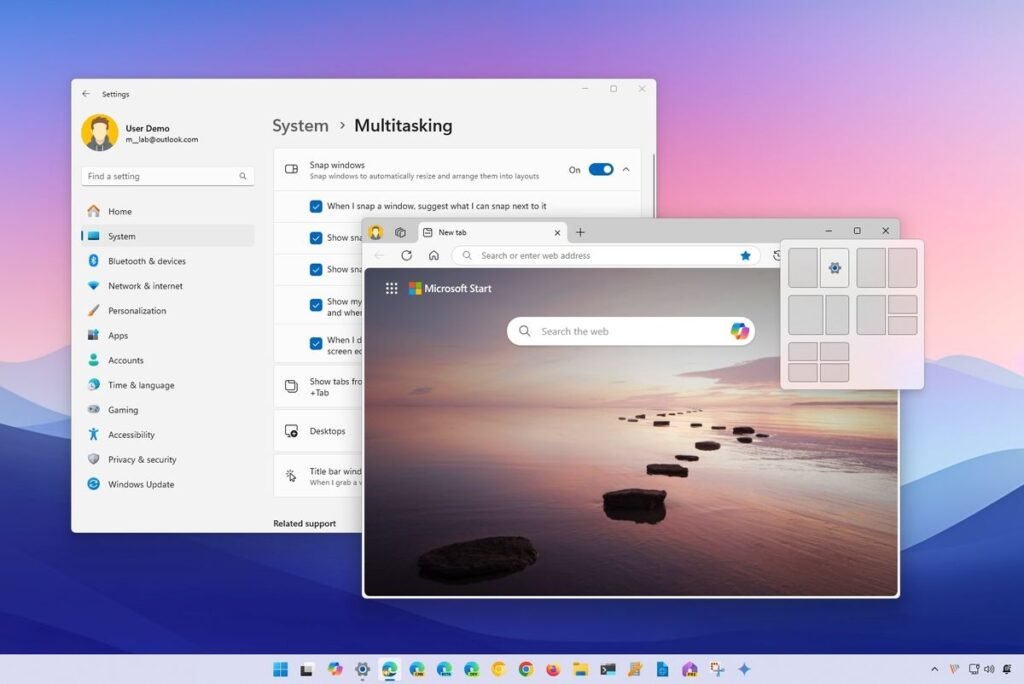
In Windows 11, you can easily snap multiple windows of the same group. This greatly enhances the functionality of Snap Assist. Now, you can use Snap Layouts to hold nearly any number of windows in any conceivable layout.
To use Snap Layouts, you have to hover over the maximize button and select the layout you want. The rest of the windows can be snapped into the layout chosen.
3. Widgets: Personalization at Its Best
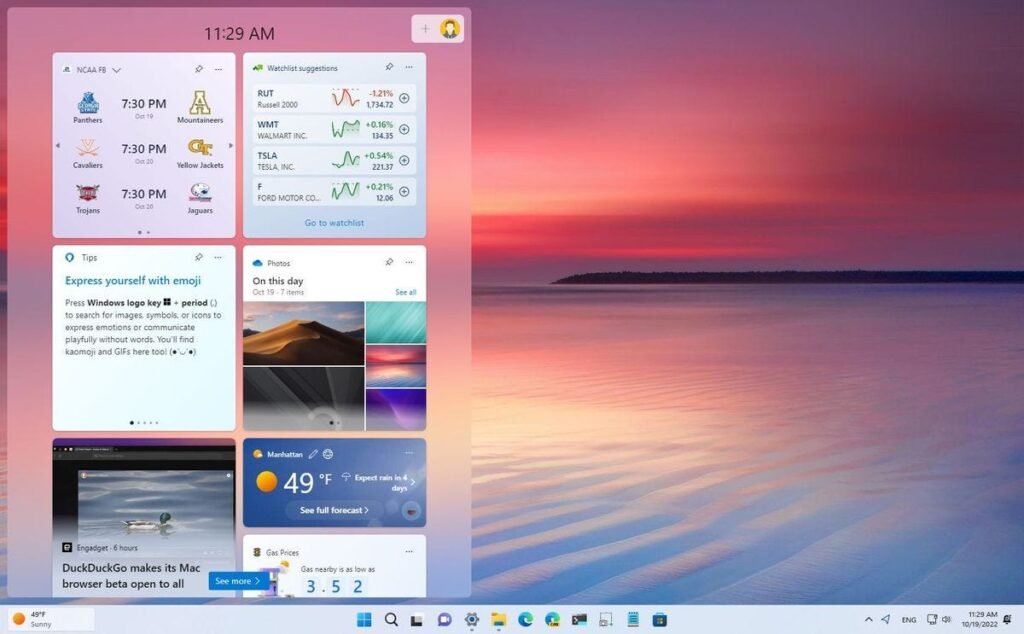
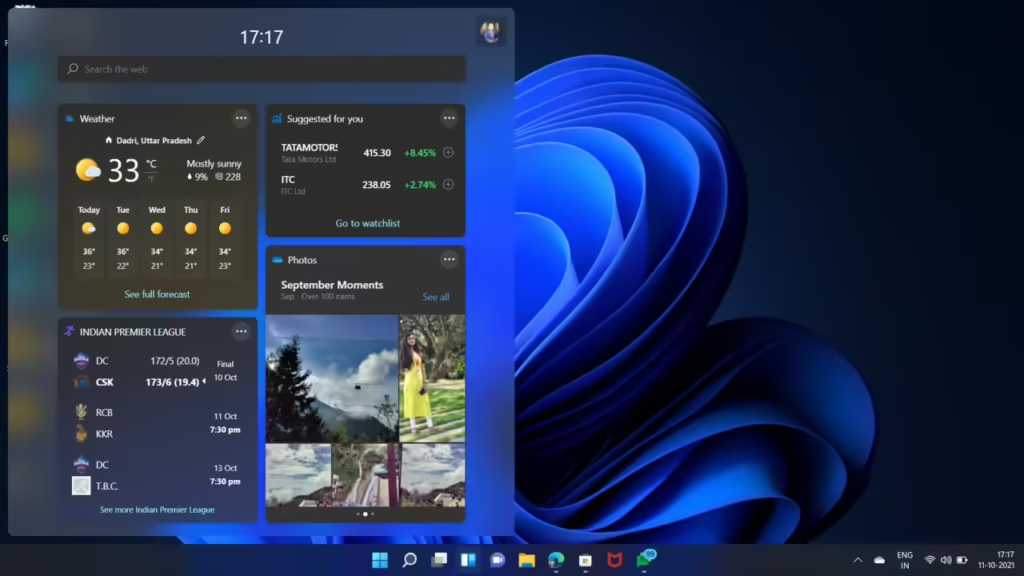
Widgets help you to personalize Windows 11 even more, with everything from the current news and weather to date, as well as your to-do list and more. This, however, can be distracting, as Widgets top of current events and weather. To personalize your widgets, click the Widgets icon in the taskbar or use the keyboard shortcut, Win + W. From here, you can customize the widgets based on your preferences, including the color, size, and layout.
4. Focus Sessions for Increased Productivity
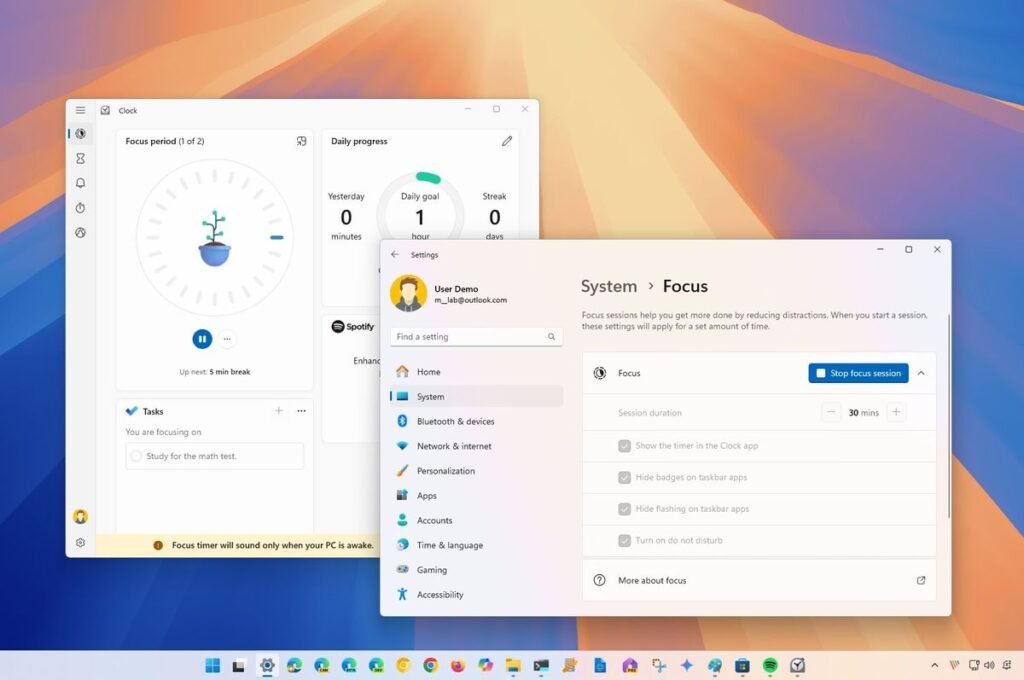
Focus Sessions help you stay on task by blocking distractions, especially for those who prefer a detailed and structured productivity system. Sessions can be set for a specific and focused time. For even better task organization, you can link your Focus Sessions to Microsoft To Do tasks.
5. Windows Terminal for Power Users
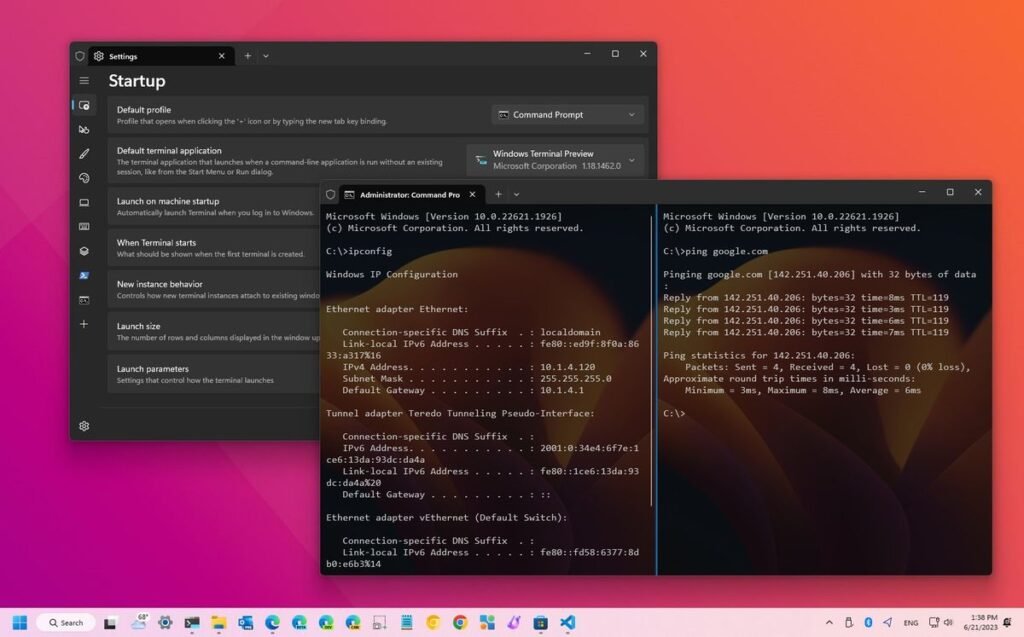
Advanced users accessing various command-line tools need Windows Terminal. It is a Power User’s dream because it integrates PowerShell, Command Prompt, and even Linux shells in a single window. It is an invaluable resource for developers and IT professionals who require the use of many command-line tools at the same time.
You can personalize your terminal with profiles and tab layouts to execute commands in parallel.
6. Enhanced File Explorer
Windows 11 has improved File Explorer and File Management. One hidden feature is file grouping and easy filtering. Sort your files by date and type when you right-click in a folder. Also, you can add folders, you’ll use most, to the Quick Access sidebar for easy access.

7. More Advanced Touchpad Gestures
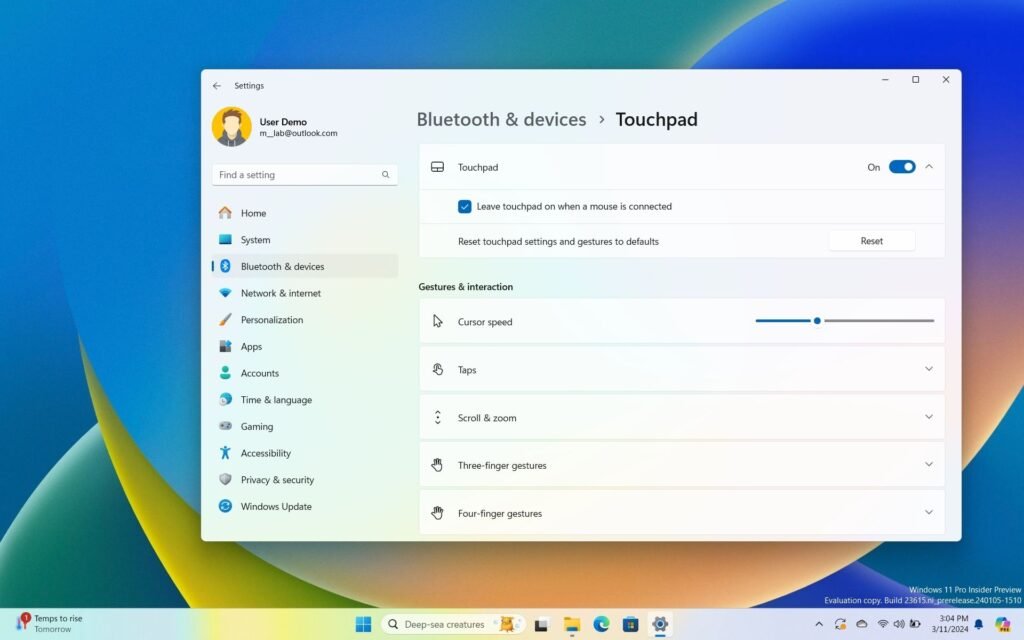
With Windows 11, the use of laptops with a precision touchpad is nice. Windows 11 has great touchpad gestures for navigation. An example of this is the use of three fingers to switch between desktops.
Once in Settings, then Touchpad, you can personalize your touchpad to your desire.
8. Performance Improvements
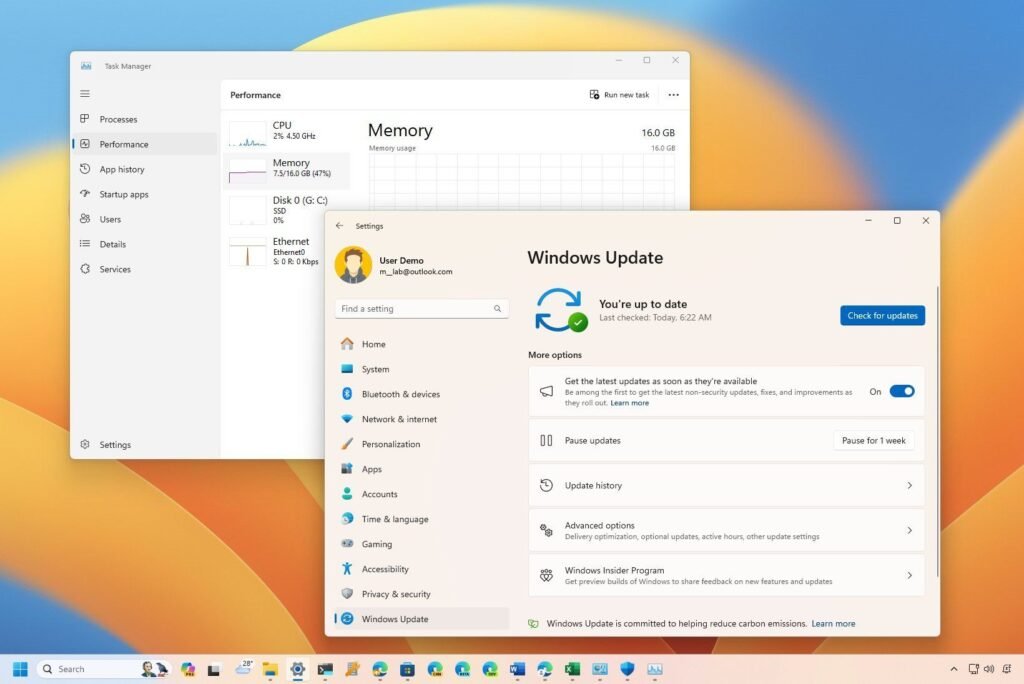
Windows 11 has many built-in features to help monitor and improve your system’s performance. One of those features is Task Manager, where you can see the CPU, memory, and disk usage of each app. Also, the Power & battery menu has hidden settings that let you adjust performance based on your preference for speed or battery life.
9. Better Privacy Control
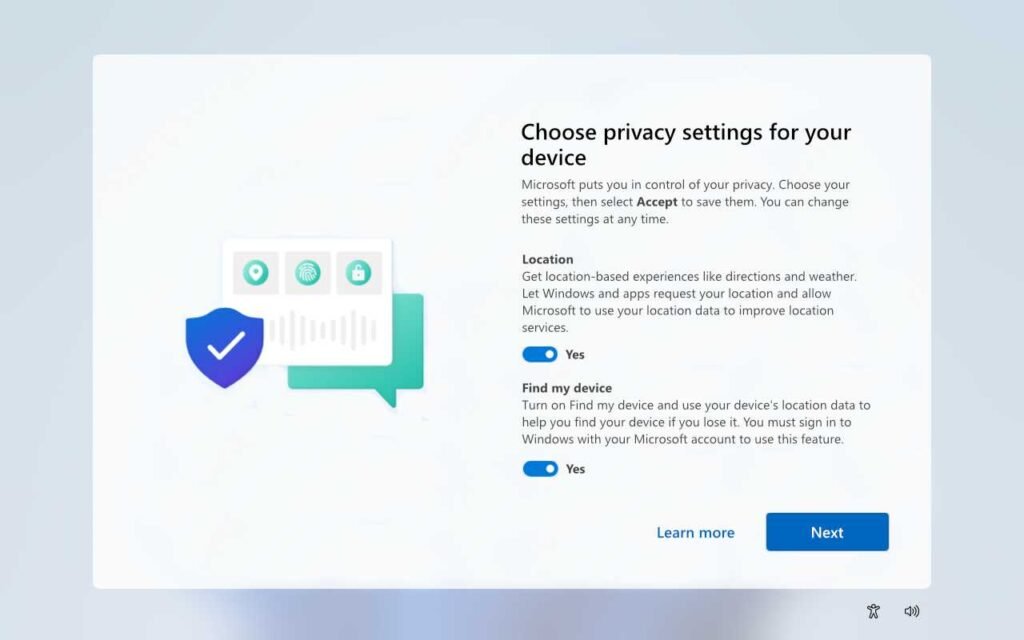
Windows 11 includes enhanced privacy features, giving users control over app permissions not seen in earlier Windows versions. You can manage app permissions for your camera, microphone, location, and more in Settings > Privacy & Security.
10. Direct Storage and Auto HDR: Enhancements in Gaming Experiences
Along with other features that give users more control of their PCs, Windows 11 also includes DirectStorage and Auto HDR, which enhance the user experience in gaming. With DirectStorage, Windows 11 allows a game to be played while the data is being loaded. The data is also loaded directly from storage to avoid delays incurred during CPU processing. Auto HDR improves the visuals of a game by automatically applying HDR processing, which improves the range of brightness and darkness in the game, as well as the colors.

11. Windows 11 Supercharged with Android Apps
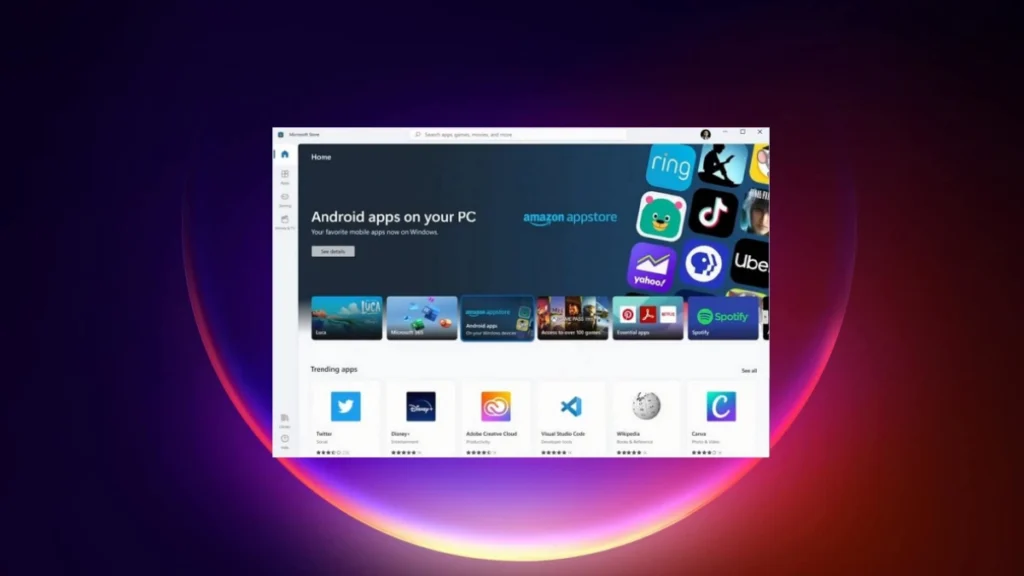
Another groundbreaking feature of Windows 11 is that it allows users to run Android apps on their PCs. Apps that run on Android can be installed and used on Windows 11 via the Amazon AppStore, as long as the Windows 11 user also sets up the Windows Subsystem for Android (WSA). The launch of Windows 11 is coupled with the collaboration of Amazon and Microsoft.
12. Quick Access to Emojis
Windows 11 made it quick and simple to access emojis. Hit the Windows Key and the Period Key to access the all-new and improved emoji tracker. You’re also able to access GIFs. Additional updates were made to the touch keyboard, where you’ll find new themes and emoji suggestions.

13. Clipboard
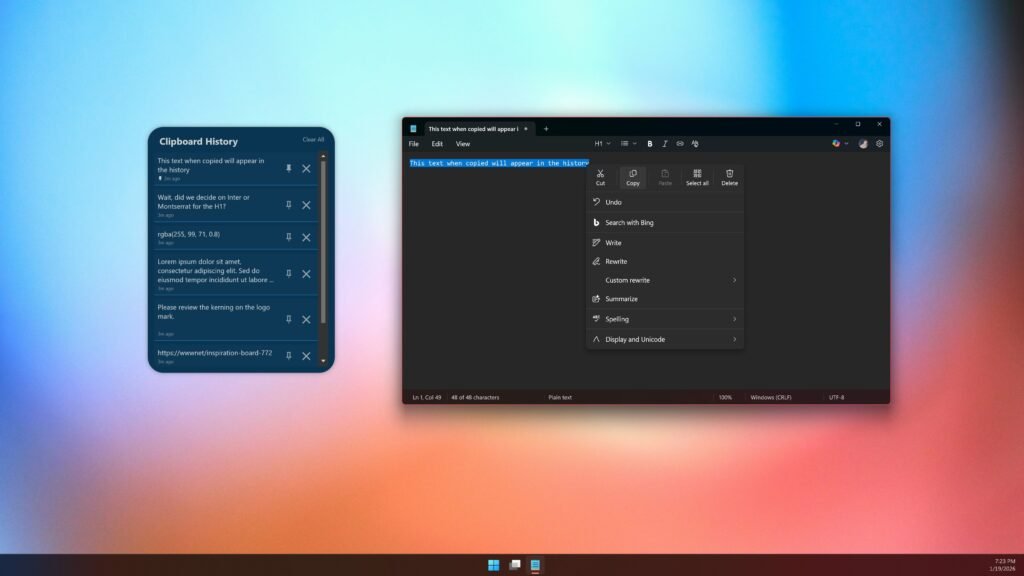
Clipboard was introduced to Windows 11, and it allows you to store which items you copy so you can access them again later. If you press the Windows and the ‘v’ keys you can view all items you have copied to your clipboard. Plus if you have a Microsoft account you’re able to sync your clipboard across all your devices.
14. Custom Quick Settings
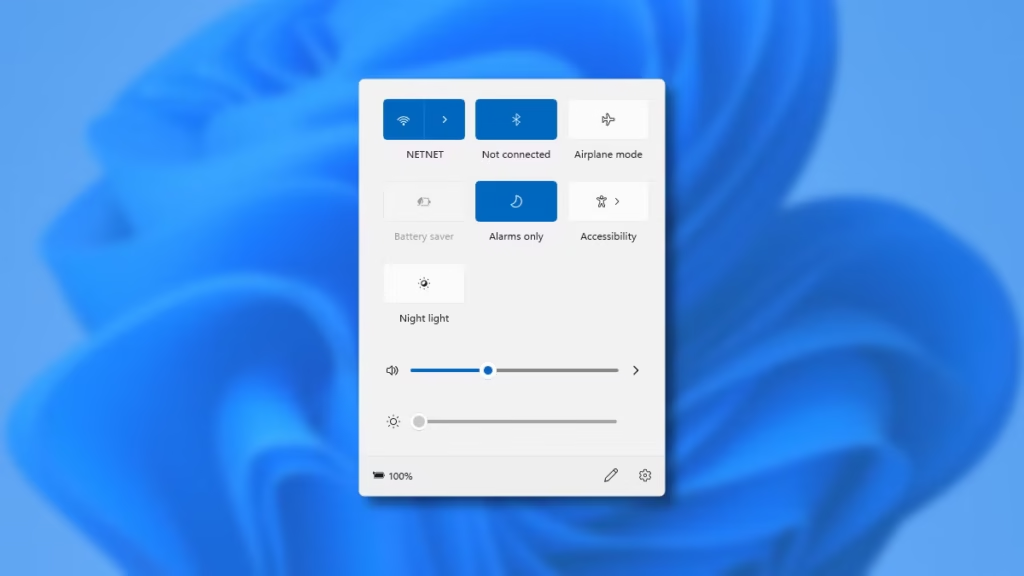
Windows 11 custom quick settings lets you access and personalize the most used operations of the system. This includes your Wi-Fi, display, and Bluetooth settings and more. You can also customize which settings to add and which settings to remove.
15. Customization Registry Tweaks
Windows 11 also allows for more advanced alterations via the Registry Editor for more skilled users. You can modify the taskbar, adjust context menus, change what programs start when you boot up your computer, and more.
Final Thoughts
Windows 11 can help you improve your productivity, gaming, and overall user experience with the many features it contains. The abilities it offers can improve virtual desktops, enhance privacy, and optimize your use. You can customize Windows 11 to fit your personal desires.